Messages & Channels
Meshtastic uses a channel system for group broadcasts and direct messages for private one-to-one conversations.
Channels
Message History
Channel conversations load the most recent 50 messages by default. Scroll to the top and tap Load More to fetch the next batch. This keeps the app responsive on channels with thousands of messages.
Channel Index
| Symbol | Meaning |
|---|---|
| 0 (primary circle) | Primary channel — broadcast packets are sent here. Location data is broadcast from the first channel where it is enabled (firmware 2.7+). |
| 1–7 | Secondary channels — separate messaging groups, each secured by their own key. |
Channel Configuration
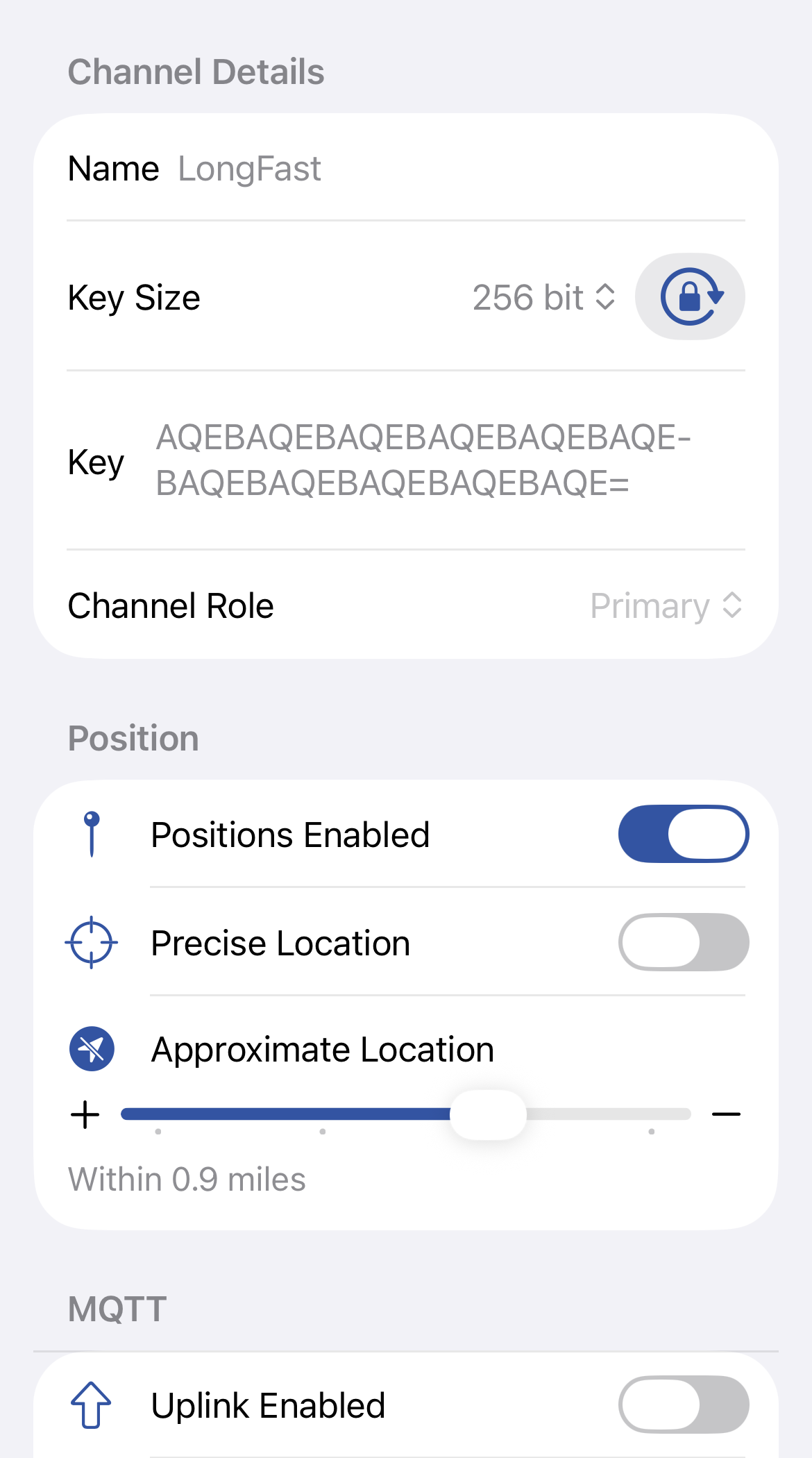
The channel form lets you configure the channel name, encryption key, role, position sharing, and MQTT uplink/downlink settings.
Channel QR Codes
Use Share QR Code from Settings to choose which configured channels to share. The generated Meshtastic channel link includes the selected channel settings and the LoRa config needed for another radio to communicate on the same mesh.
When you open or scan a Meshtastic channel link, review the listed channels and choose whether to Replace Channels or Add Channels. Replace mode overwrites the current radio channel set, while add mode appends the incoming channels when there are free slots and no duplicate channel names.
Channel Security
| Icon | Meaning |
|---|---|
 | Securely Encrypted — the channel uses a 128-bit or 256-bit AES key. |
 | Not Securely Encrypted — the channel uses no key or a 1-byte known key, but is not used for precise location data. |
 | Insecure with Location — the channel is not securely encrypted and is used for precise location data. |
 | Insecure with MQTT — not securely encrypted and precise location data is being uplinked to the internet via MQTT. |
Tip — Share Channels A QR code contains the LoRa config and channels needed for radios to communicate. Use Replace Channels to overwrite or Add Channels to append to existing channels.
Tip — Manage Channels The primary channel handles broadcast traffic. Add secondary channels for separate messaging groups, each secured by their own key.
Tip — Administration Enabled Select a node from the drop-down to manage connected or remote devices.
Direct Messages
Contacts
| Element | Meaning |
|---|---|
 | Favorites — favorited contacts and nodes with recent messages appear at the top of the contact list. |
 | Long Press Actions — long press to favorite or mute the contact, or delete a conversation. |
The contact list shows the contacts you can actually direct message. Nodes that report themselves as unmessagable, and nodes no public key has been received for, are left out — the radio would refuse to send to them. A contact you already have a conversation with stays in the list either way, so an existing thread is never hidden.
Encryption
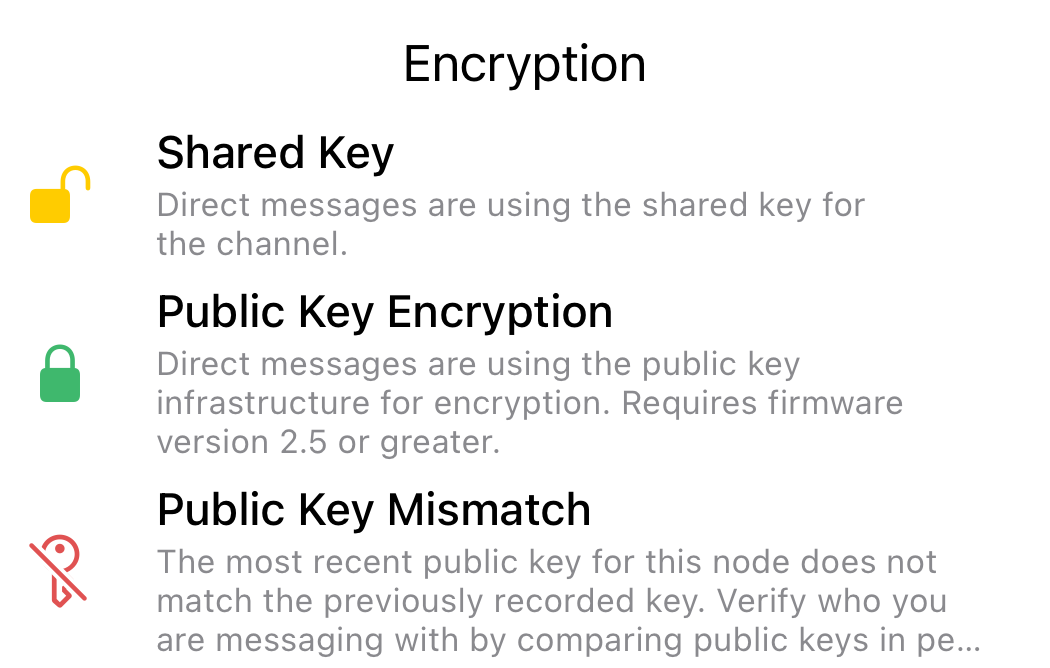
| Icon | Meaning |
|---|---|
| No Public Key — no public key has been received for this node, so direct messages to it cannot be sent. Use Exchange User Info on the node to ask for one. |
| Public Key Encryption — direct messages use the public key infrastructure for encryption. Requires firmware 2.5 or later. |
 | Public Key Mismatch — the most recent public key for this node does not match the previously recorded key. Verify who you are messaging with by comparing public keys in person or over the phone. |
Signing
A green shield (🛡️) on a broadcast message bubble means the message is signed and verified — the radio cryptographically verified an XEdDSA signature over the sender’s identity key (firmware 2.8 or later). The shield answers a different question from the encryption lock: the lock means a direct message is private, while the shield means a broadcast is authentic (you know who really sent it).
- The shield appears only on broadcast/channel messages, never on direct messages, and only when verification succeeded. Long-press a signed message to see Signed · verified in the context menu, then open Message Details for “Verified with the sender’s key.”
- Unsigned messages show nothing — there is no warning. Direct messages, oversized broadcasts, and traffic from older firmware are all legitimately unsigned, so the absence of a shield does not indicate a problem. The radio drops broadcasts whose signature fails verification before they ever reach the app, so a shown signed message is verified by construction.
Tapback Reactions
Long press any message and tap Tapback to send an emoji reaction.
When someone reacts to a message, you get a notification such as Alice reacted 👍 to “See you soon” — unless the sender (for a direct message) or the channel is muted. Reactions notify without adding to the conversation’s unread badge. If your radio hasn’t seen the message that was reacted to, the reaction is saved but no notification is shown (there’d be nothing to display it against).
Reaction alerts follow the same notification settings as the messages they react to: muting a channel, a sender, or channel message notifications silences their reactions too.
Tip — Messages Send channel broadcasts and direct messages. Long press any message for actions like copy, reply, tapback, and delivery details.
Find in Conversation
Tap the Find in conversation search field below the title of any channel or direct-message conversation, then type to search that conversation’s message text.
- Matching is case- and accent-insensitive, and searches the entire conversation history — not just the messages currently on screen.
- A results bar shows your position in the matches (e.g. 2 of 7); use the up/down chevrons to jump to the previous or next match, wrapping around at the ends. The current match is highlighted and scrolled into view, loading older messages automatically if needed.
- Tap Cancel (or clear the field) to dismiss the search and return to the conversation.
Search covers the text of channel broadcasts and direct messages, matching exactly the messages each conversation shows. Emoji reactions aren’t matched.
Message Status
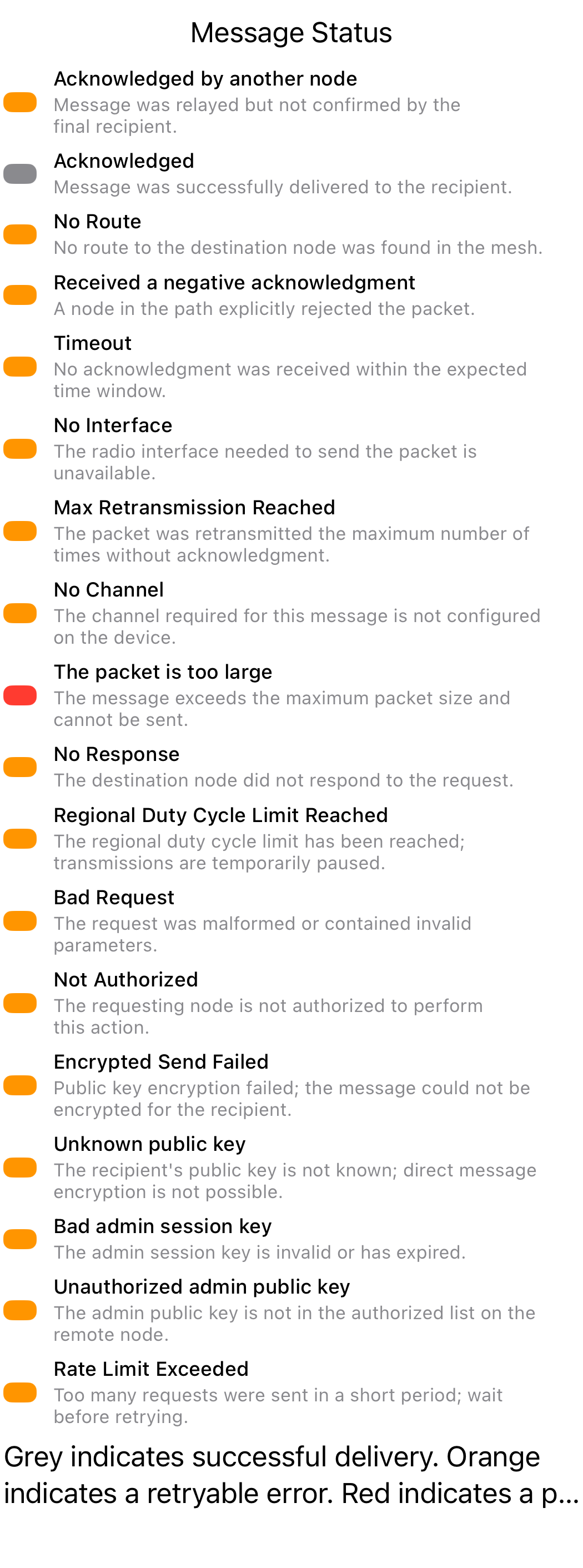
The message status row combines a short label, SF Symbol icon, and color. Color reinforces the text; it is not the only signal.
| Icon | Color | Status | Description |
|---|---|---|---|
clock | Orange | Sending… | Waiting for the mesh to acknowledge this message. |
checkmark.circle.fill | Gray | Delivered to mesh | A node on the mesh confirmed this channel message. |
checkmark.circle.fill | Gray | Delivered to recipient | The direct-message recipient confirmed this message. |
exclamationmark.circle.fill | Orange | Relayed, not confirmed by recipient | A node relayed this direct message, but the recipient has not confirmed it. Retry is available. |
exclamationmark.circle.fill | Orange | Failed to deliver to mesh | Delivery was not confirmed after retries, timeout, or an explicit negative acknowledgement. Retry is available. |
xmark.circle.fill | Red | Channel/key mismatch | The sender or recipient could not use a matching channel/key for this message. |
xmark.circle.fill | Red | Message is too large to send | The encoded packet exceeds the LoRa message size limit. Shorten the message before sending again. |
exclamationmark.circle.fill | Orange | No radio interface | The sender has no usable radio interface for this message. Retry is available. |
exclamationmark.circle.fill | Orange | Duty cycle limit | Local airtime limits are temporarily blocking sends. Retry is available after waiting. |
exclamationmark.circle.fill | Orange | Rate limited | Messages are being sent too quickly. Retry is available after waiting. |
exclamationmark.circle.fill | Orange | No app response | The destination received the request, but no app or module responded. Retry is available. |
xmark.circle.fill | Red | Invalid request | The destination rejected the request as invalid. |
xmark.circle.fill | Red | Not authorized | The destination refused this request because it is not authorized. |
exclamationmark.circle.fill | Orange | Could not send encrypted message | The encrypted PKI send path could not be used. Retry is available after node info or keys sync. |
exclamationmark.circle.fill | Orange | Recipient needs your key | The recipient does not know your public key yet. Retry is available after node info syncs. |
exclamationmark.circle.fill | Orange | Recipient key unavailable | Your node does not have the recipient’s public key yet. Retry is available after node info syncs. |
exclamationmark.circle.fill | Orange | Admin session expired | The admin session key is missing, expired, or invalid. Retry is available after requesting a new session. |
xmark.circle.fill | Red | Admin key not authorized | The remote node does not authorize your admin key. |
Link Appearance
Links in message bubbles — including URLs, Meshtastic channel links, and markdown [text](url) links — are styled with an underline and the design standards Link color (Blue 400). This makes links visually distinct from regular message text in both light and dark mode. Tapping a link opens it in the system browser (Safari on the standard/default setup), except for Meshtastic channel links and contact links in the exact meshtastic.org/v/#... or www.meshtastic.org/v/#... form, which open the appropriate in-app import flow. Meshtastic documentation links, including meshtastic.org/docs/..., continue to open in the system browser.

Message Formatting (iOS 18+)
On iOS 18 and later, formatting buttons appear in the compact toolbar below the compose field after you have typed at least 3 characters. The formatting buttons share the toolbar row with the Alert bell, Position pin, and byte counter — all rendered as compact icons. The toolbar scrolls horizontally if it exceeds the screen width.

Supported Styles
| Button | Style | Markdown Syntax |
|---|---|---|
| Bold SF Symbol | Bold | **text** |
| Italic SF Symbol | Italic | *text* |
| Strikethrough SF Symbol | Strikethrough | ~~text~~ |
| Code SF Symbol | Code | `text` |
How to Format Text
- Select text and tap a button — select a word or phrase in the compose field, then tap a formatting button. The appropriate markdown delimiters are inserted around the selection. Any existing markdown delimiters within the selection are stripped first to prevent overlapping syntax. Whitespace at the edges of the selection is moved outside the delimiters so markdown renders correctly.
- Tap a button first, then type — with the cursor placed (no selection), tap a formatting button. Delimiters are inserted and the cursor is placed between them so you can type formatted text immediately.
- Toggle off — select text that is already wrapped with delimiters and tap the same formatting button to remove the delimiters.
Live Preview
When the compose field contains markdown syntax, a preview bubble appears above the compose field showing how the message will look when sent. The preview updates in real time as you type. When no markdown is present, the preview is hidden.
Markdown formatting is also rendered in the channel and user message list previews, so you can see formatted text at a glance. Links in these conversation-list previews are not interactive; open the conversation to tap a link in its message bubble.
| Example | Description |
|---|---|
 | Preview showing bold formatting applied to text. |
 | Preview showing bold, italic, code formatting combined. |
Switching Styles
When you select text that already contains markdown delimiters and apply a different style, the existing delimiters are stripped and replaced with the new style. For example, selecting **bold** and tapping Strikethrough produces ~~bold~~.
After applying a style, the selection expands to include the delimiters (e.g., selecting dolphin and tapping Bold selects **dolphin**), making it easy to toggle off or switch to a different style immediately.
Selection Safety
If your selection partially overlaps existing delimiters, the selection automatically expands to include the full delimiter run before formatting. Any orphaned (unpaired) delimiter characters left elsewhere in the text are cleaned up automatically. This prevents garbled markdown like th***~~~~~~e~~.
iOS 17 Users
The formatting toolbar is only available on iOS 18 and later. Users on iOS 17.x see the standard compose field with no changes to their experience.
Mac Catalyst
On Mac Catalyst, pressing Enter sends the message. Press Shift+Enter to insert a line break. The character palette button remains available alongside the formatting buttons.
Tip — Message Limit Messages are limited to 200 bytes. Markdown delimiters count toward this limit (e.g.,
**bold**uses 4 extra bytes for the**pairs). The byte counter in the toolbar shows remaining space.
@Mentions
You can mention a specific node in any message by typing @ followed by a name. An autocomplete list of known nodes appears, filterable by long name, short name, or user ID. Tap a row to insert the mention.
How mentions work
When you select a node from the autocomplete list, the app inserts a mention token (@!<hex-id>) into the message. The hex ID is the node’s numeric identifier, which stays stable even if the node’s display name changes later. This format is shared with Android and Web clients so mentions resolve correctly on all platforms.
Reading mentions
In received messages, mention tokens are automatically resolved to the node’s current display name and rendered as tappable links. Tapping a mention navigates to that node’s detail screen. The name updates live — if a node renames itself, existing messages show the new name immediately.
Mention notifications
If a channel message mentions your own node (even on a muted channel), the app delivers a notification for that message. This ensures you are notified when someone addresses you directly in a group conversation.
Tip — Mention format The mention token sent on the wire is
@!<hex-id>(e.g.@!deadbeef). You can also type this token directly if you know the node’s hex ID.