Firmware Updates
The app can check for and install Meshtastic firmware updates directly on your connected radio over Bluetooth.
Checking for Updates
- Connect to your radio.
- Go to Settings → Firmware Updates.
- The app shows the firmware version currently running on your radio and the latest stable release available from GitHub.
Opening the screen fetches the release list and the hardware catalog. Previously the list was only fetched at launch, so if that fetch failed the screen stayed empty until you pulled to refresh; now it fills in on its own. Refreshing the catalog means a board added since your build of the app shipped is recognized by its exact firmware target instead of falling back to another board that shares its hardware model.
Neither fetch is rate limited, because both are cached: opening the screen repeatedly is served from the cache or answered with an empty “not modified” reply rather than downloading the lists again.
The screen shows a picture of your radio above the details. Images for supported hardware ship with the app, so the picture appears even without an internet connection. A radio reporting a specialized firmware target with its own artwork gets that artwork; otherwise the app shows the base hardware image. If no image is available for your hardware, the screen leaves the picture out instead of showing an empty space.
When you connect to a node running firmware older than the latest stable release, the app can send a firmware update notification. For hardware the app can update directly, tapping the notification opens Firmware Updates so you can review and start the OTA update. For hardware that needs an external updater, the notification tells you to use Meshtastic Flasher instead.
The app remembers each node, hardware target, and stable version it has already notified you about, so it will not keep sending the same reminder.
Some radios report a specialized firmware target that is not a separate entry in the hardware catalog. In that case, the app uses the base hardware entry for details such as the device name and processor architecture, but it keeps the radio’s exact target when choosing downloads and local files. The suggested filename on the Firmware Updates screen uses that exact target, such as firmware-thinknode_m1-inkhud-<version>.uf2.
Installing an Update
- Tap Update Firmware when a newer version is available.
- The app downloads the correct firmware binary for your hardware.
- The radio enters update mode (DFU) and the new firmware is transferred over BLE.
- The radio reboots automatically when the update completes.
For ESP32 BLE updates, the app waits for the radio’s final verification response before showing success. If the radio reports an error or does not send the final success response, the app keeps the update in a failed state instead of treating the upload as complete.
| Icon | Progress | Description |
|---|---|---|
 | Starting | Update initiating — firmware binary downloading. |
 | In Progress | Firmware transfer in progress over BLE. |
 | Complete | Transfer finished — radio is rebooting. |
 | Error | Update failed — see Troubleshooting below. |
Do not close the app or move out of Bluetooth range during a firmware update.
Upgrading the Bootloader (nRF52)
Radios with an nRF52 processor can install Meshtastic’s OTAFIX bootloader, which makes Bluetooth firmware updates faster and more reliable. When your connected radio supports it, a Bootloader section appears on the Firmware Updates screen.
- Tap Upgrade Bootloader and follow the steps: reboot the radio into DFU mode (or double-press its reset button) and connect it to this device with a USB cable. The radio appears as a USB drive.
- Choose the radio’s drive in the file picker. The app reads the drive’s
INFO_UF2.TXTfile to identify the board — the board on the drive decides which image is installed, so the wrong file can never be written to your hardware. - Tap Install Bootloader Update. The app downloads the image for your board, verifies it against a pinned checksum, and writes it to the drive. The radio installs the bootloader and reboots itself.
If the drive is not a bootloader drive, the board is not one OTAFIX supports, or the download does not match its checksum, nothing is written.
Factory Erase (nRF52)
Factory erase wipes an nRF52 radio’s flash from its bootloader drive — the owner, channels, identity keys, settings, and node database are permanently removed, and only the bootloader remains. Because it runs from the bootloader, it works on a radio whose firmware cannot boot, and it is the right way to wipe a radio before selling or handing it off.
- Tap Factory Erase in the Maintenance section, put the radio in DFU mode (double-press its reset button if the app cannot reach it), and connect it by USB.
- Choose the radio’s drive in the file picker. The erase image is chosen from the SoftDevice version the drive reports, so the wrong image can never be written.
- Confirm the erase. The app downloads the image, verifies it against a pinned checksum and the reported SoftDevice, and writes it to the drive. The radio erases itself and reboots into the bootloader.
Install firmware next from the Firmware Updates screen — the radio starts as a brand-new device. Nothing is restored automatically.
During the Transfer
While a supported OTA transfer is active, the update screen rotates short tips, and you can tap Play Chirpy Hop to play without leaving the updater. Firmware progress remains visible above the game, and the back button returns to the normal update screen at any time. Keep the Meshtastic app in the foreground until the update finishes.
Update Channels
| Channel | Description |
|---|---|
| Stable | Recommended for most users. Tested releases. |
| Alpha | Early access — may contain bugs. Use on secondary/test devices only. |
Select the update channel in Settings → App Settings → Firmware Channel.
Event Firmware
Some radios ship with special event firmware for gatherings like DEF CON, FAB, Open Sauce, Hamvention, or Burning Man. When you connect to a device running event firmware, the Meshtastic logo in the navigation bar changes to the event artwork. The Connect screen also shows the event’s human-readable name in the firmware section.
Tap the event artwork to open the event info sheet, which shows the event’s location, dates, useful links, and event firmware version. Use Event Theme applies event highlight colors to interactive controls and event fonts inside this dedicated surface. Standard navigation backgrounds remain unchanged.
If new-node notifications are enabled, the app temporarily mutes them while you’re connected to event firmware (events are busy — many nodes appear at once). It restores them when you return to standard firmware. A notification preference you had already turned off stays off.
Event details are fetched from Meshtastic’s servers with a persistent offline fallback, so a newly announced event can appear without an app update. Hosted artwork and links are restricted to HTTPS, and invalid content falls back to bundled artwork or the standard Meshtastic logo.
The metadata feed is informational. The app does not download or install firmware packages from event metadata; updates continue to use the app’s verified firmware workflow.
Troubleshooting
Update fails mid-way
- Keep the radio within 1–2 meters of your phone during the update.
- If the radio appears bricked after a failed update, it can usually be recovered using the Meshtastic Flasher on a computer.
Firmware below the supported minimum The radio stays connected and the app shows the firmware update screen, with everything else blocked until the radio is updated. Update from that screen, or disconnect to use a different radio.
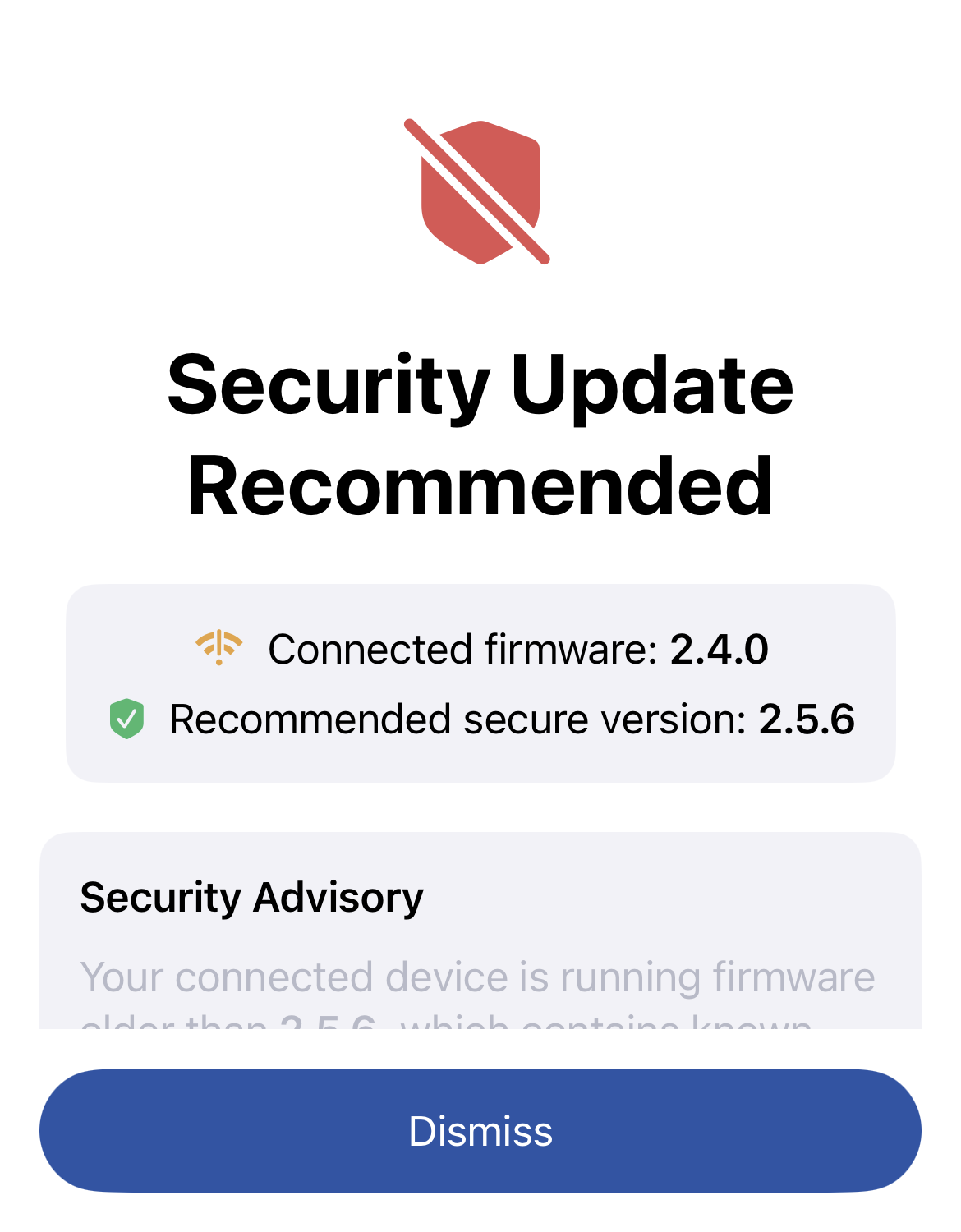
Security update recommended Firmware before 2.6 works but has known security fixes available, so the app recommends updating without blocking anything.
Radio not appearing in firmware list
- The firmware update feature requires a connected radio (BLE or TCP).
- Some older radios do not support OTA updates. Check the hardware compatibility list.
Version shown as unknown
- Ensure the radio has fully connected and synced (usually takes 5–10 seconds after BLE connection is established).