Local Mesh Discovery
Local Mesh Discovery scans your area to find nearby Meshtastic radios operating on different frequency settings. Use it to identify which LoRa configuration is most active in your location before setting up a new node.
What It Does
The scanner switches through a series of LoRa modem presets, listens for a set period on each, and records how many nodes it hears and how busy the airwaves are (channel utilisation). It then presents a ranked list of settings ordered by activity.
When your connected radio reports local statistics, the scanner also captures the noise floor (the background RF energy on the channel, in dBm) for each preset and summarises it in the RF Health section. A lower (more negative) noise floor means a quieter, cleaner channel; a higher one indicates more interference. This helps you pick not just the busiest setting but the one with the healthiest signal environment.
Each preset is scanned on the default frequency slot so the radio listens on the same frequency the public mesh uses. If your radio is set to a custom frequency slot, the scan temporarily uses the default slot while it runs and restores your original LoRa configuration — including your frequency slot — automatically when the scan finishes.
You no longer need to put your primary channel on the default key before scanning. If your primary channel uses a custom key or name, Local Mesh Discovery temporarily switches it to the default public channel so the radio can both decode the public mesh and tune to its frequency, then restores your original channel automatically when the scan finishes. (Channel changes don’t reboot the radio, so this happens instantly at the start and end of the scan.)
On supported devices running iOS 26+, the on-device AI assistant analyses the scan results and recommends the best configuration for your location — no internet connection required.
Running a Scan
- Go to Settings → Local Mesh Discovery.
- Tap Start Scan.
- The scanner cycles through settings automatically. Each cycle takes a few minutes — do not close the app during a scan.
- When the scan completes, results appear ranked by node count and channel activity.
Analyze Current Preset
If you only want a report for the preset your radio is already using, tap Analyze Current Preset. This runs a single, fast (about one minute) pass on your current setting and seeds the report from the nodes already in your database, animating them onto the map as it builds. It’s a quick way to generate an RF Health and node report for your active configuration without cycling through every preset.
Reading Results
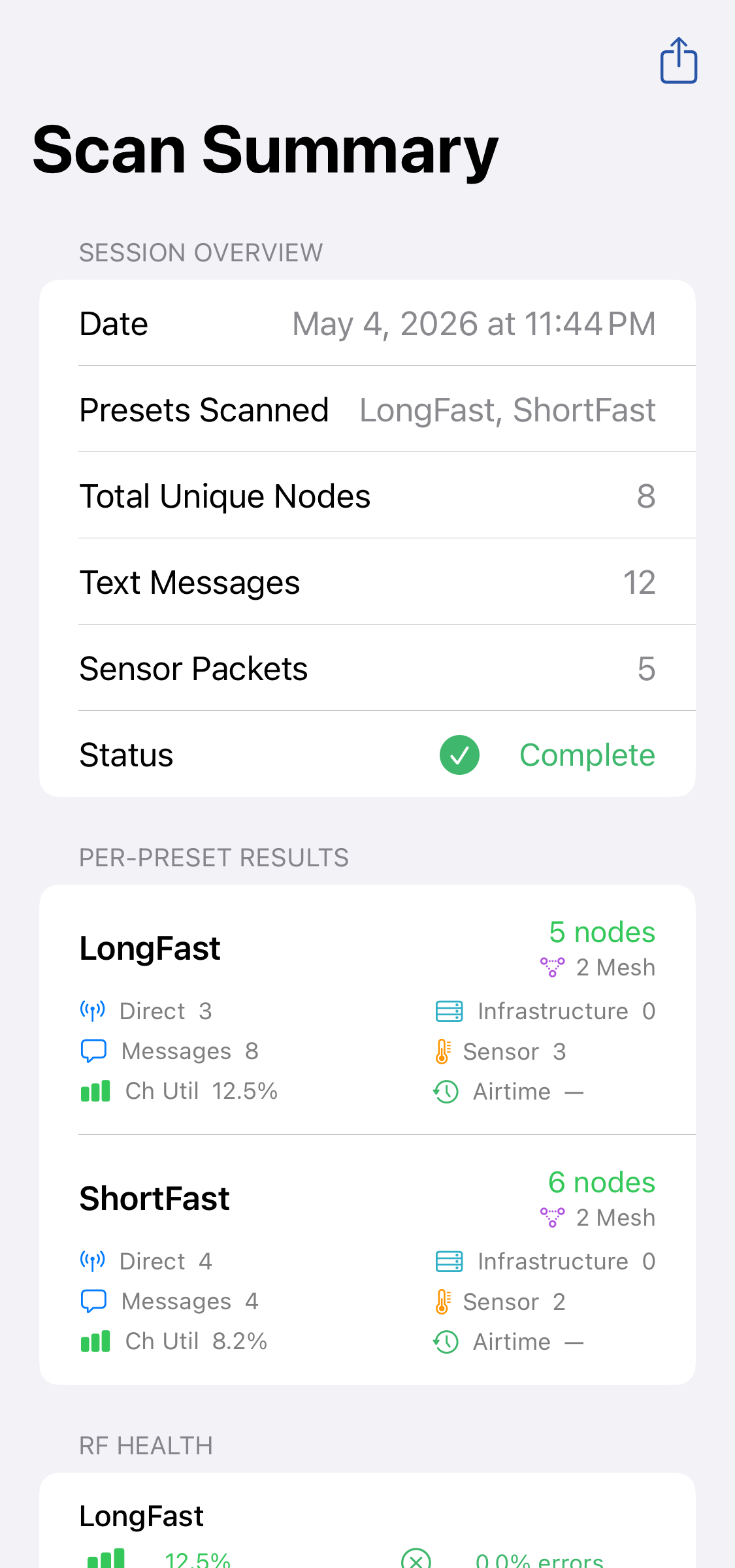
| Column | Description |
|---|---|
| Preset | LoRa modem preset (e.g., Long Fast, Long Slow) |
| Nodes Heard | Number of distinct nodes detected on this setting |
| Channel Utilisation | Percentage of airtime used — higher means more active |
| Noise Floor | Background RF energy in dBm — lower (more negative) is a cleaner channel |
| Recommendation | ✅ Best match for your area |
The RF Health card summarises the noise floor across the scan and calls out the quietest channel. Noise floor (and the rest of the report) is also included when you export the scan as a PDF.
Beacons
Some radios run in beacon mode and periodically broadcast a short message advertising their mesh — optionally the channel, region, and modem preset it runs on. When a scan hears a beacon, it appears in the Beacons section of the results, showing the message, who sent it, and any advertised channel/region/preset.
Beacons also steer the scan for you:
- If a beacon advertises a modem preset on the public channel, that preset is added to the scan automatically, so the run dwells on it too. The next time you set up a scan, any preset you’ve previously heard a beacon for is pre-selected in the Modem Presets list and marked with a beacon icon.
- If a beacon advertises a custom channel (its own name and PSK), the scan tunes the radio to that exact channel — name, key, region, and preset — during a dwell. A custom channel uses a different frequency and encryption than the public mesh, so scanning the bare preset wouldn’t find it; discovery uses the key the beacon broadcast to tune in and measure that mesh directly. These targets appear in the results labeled as Preset · ChannelName.
This means a single beacon is enough for discovery to find and measure the mesh it points to — even a private one — without you having to know its settings in advance.
Switch to a beaconed channel
When a beacon advertises a channel, its entry in the Beacons section has a Switch to this channel button. Tapping it (and confirming) sets your radio’s primary channel to the advertised channel and applies the advertised region and preset. Your radio reboots and reconnects on that mesh, replacing your previous channel settings — so use it when you actually want to join the mesh the beacon is advertising.
Applying a Setting
Tap a result row and then Apply Setting to configure your connected radio to match the most active setting in your area. This updates the LoRa configuration on the radio directly.
Tip — What does this do? This tool scans your local area to find nearby Meshtastic radios on different frequency settings. It switches between settings automatically, listens for a few minutes on each one, and then shows you which setting works best for your location based on how many radios it finds and how busy the airwaves are. On supported devices, local on-device AI will analyse your scan results and recommend the best setting — no internet connection required.