Bluetooth Device Connection
The Meshtastic app connects to your radio over Bluetooth Low Energy (BLE). You can manage multiple radios and switch between them without re-pairing.
Connecting a Radio
- Power on your Meshtastic radio.
- Open the app and tap the Connect tab.
- The app scans for nearby devices automatically when you are not connected.
- Tap your device name in the list to connect.
The app remembers your preferred device and reconnects automatically when the radio is in range.
Disconnecting a Radio
Swipe left on a connected radio in the Connect view and tap Disconnect. The radio continues operating on the mesh — it just stops syncing with the app.
Powering Off a Radio
Long press a connected radio row and choose Power Off to shut the radio down completely. Unlike Disconnect — which only stops the app from syncing — Power Off turns the radio off entirely, and you must physically power it back on to use it again.
Because that is hard to undo on a roof, tower, or other remote node, the app asks you to confirm before sending the shutdown, so an accidental tap (or a misplaced finger) won’t power the device off.
Live Activity
Long press a connected radio row to start a Live Activity (iOS 16.2+). The Live Activity shows mesh status on your Lock Screen and in Dynamic Island.
Managing Multiple Radios
You can pair multiple radios but only one is active at a time. Switch between them by tapping a different device in the Connect view.
When you switch radios, the app restores the last saved local database for that radio if one exists, then reconnects and resumes syncing with the newly active device. After the new radio finishes its initial config handshake, the app first reapplies the bundled Meshtastic hardware catalog that ships with the app, then refreshes the same catalog from the Meshtastic API in the background so hardware names, images, and firmware-target metadata stay current.
BLE Signal Strength
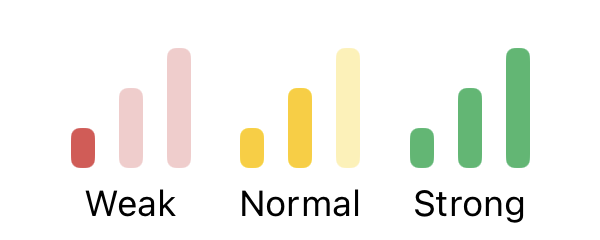
The app displays the Bluetooth signal strength of nearby devices during scanning:
Connection Status Icons
| Icon | Meaning |
|---|---|
 | Connected via BLE |
 | Reconnecting / retrying |
 | Connected via TCP/IP |
 | Connected via serial (macOS) |
Troubleshooting
Radio not appearing in the list
-
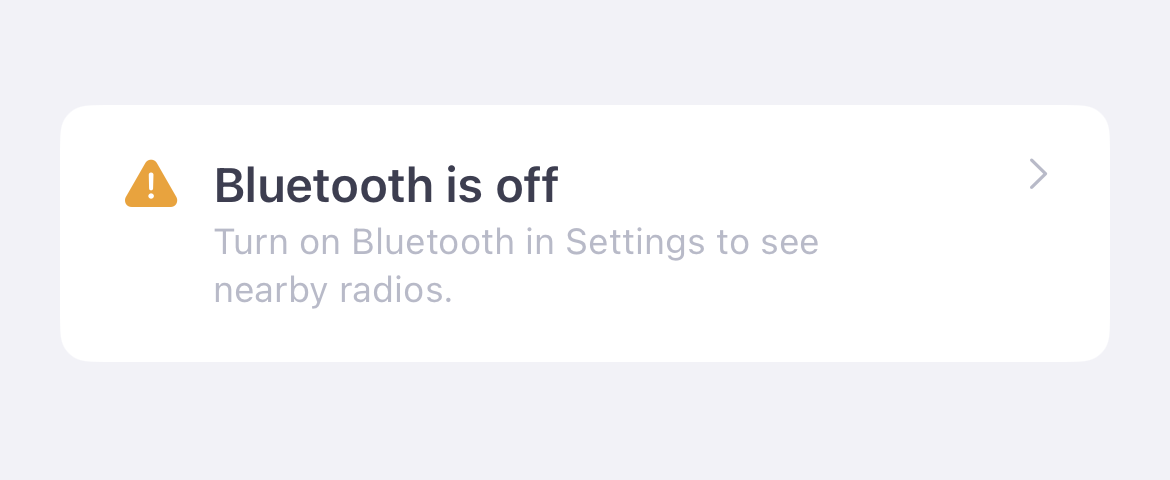
Ensure Bluetooth is enabled in iOS Settings → Bluetooth. If Bluetooth is off, the Connect tab’s Available Radios section shows a “Bluetooth is off” row — tap it to jump straight to Settings.
- Move within 10 meters of the radio.
- Restart the radio.
- The app continuously listens for BLE advertisements — nearby radios should appear within a few seconds. If a device disappears from the list, it will reappear automatically when next heard.
Connection drops repeatedly
- Check battery level on the radio.
- Try forgetting the device in iOS Settings → Bluetooth and reconnecting.
App asks for Bluetooth permission
- Grant permission in iOS Settings → Privacy & Security → Bluetooth → Meshtastic.
Tip — Connected Radio Swipe left to disconnect. Long press to start the Live Activity or to power off the radio (you’ll be asked to confirm).