Messages & Channels
Meshtastic uses a channel system for group broadcasts and direct messages for private one-to-one conversations.
Channels
Message History
Channel conversations load the most recent 50 messages by default. Scroll to the top and tap Load More to fetch the next batch. This keeps the app responsive on channels with thousands of messages.
Channel Index
| Symbol | Meaning |
|---|---|
| 0 (primary circle) | Primary channel — broadcast packets are sent here. Location data is broadcast from the first channel where it is enabled (firmware 2.7+). |
| 1–7 | Secondary channels — separate messaging groups, each secured by their own key. |
Channel Configuration
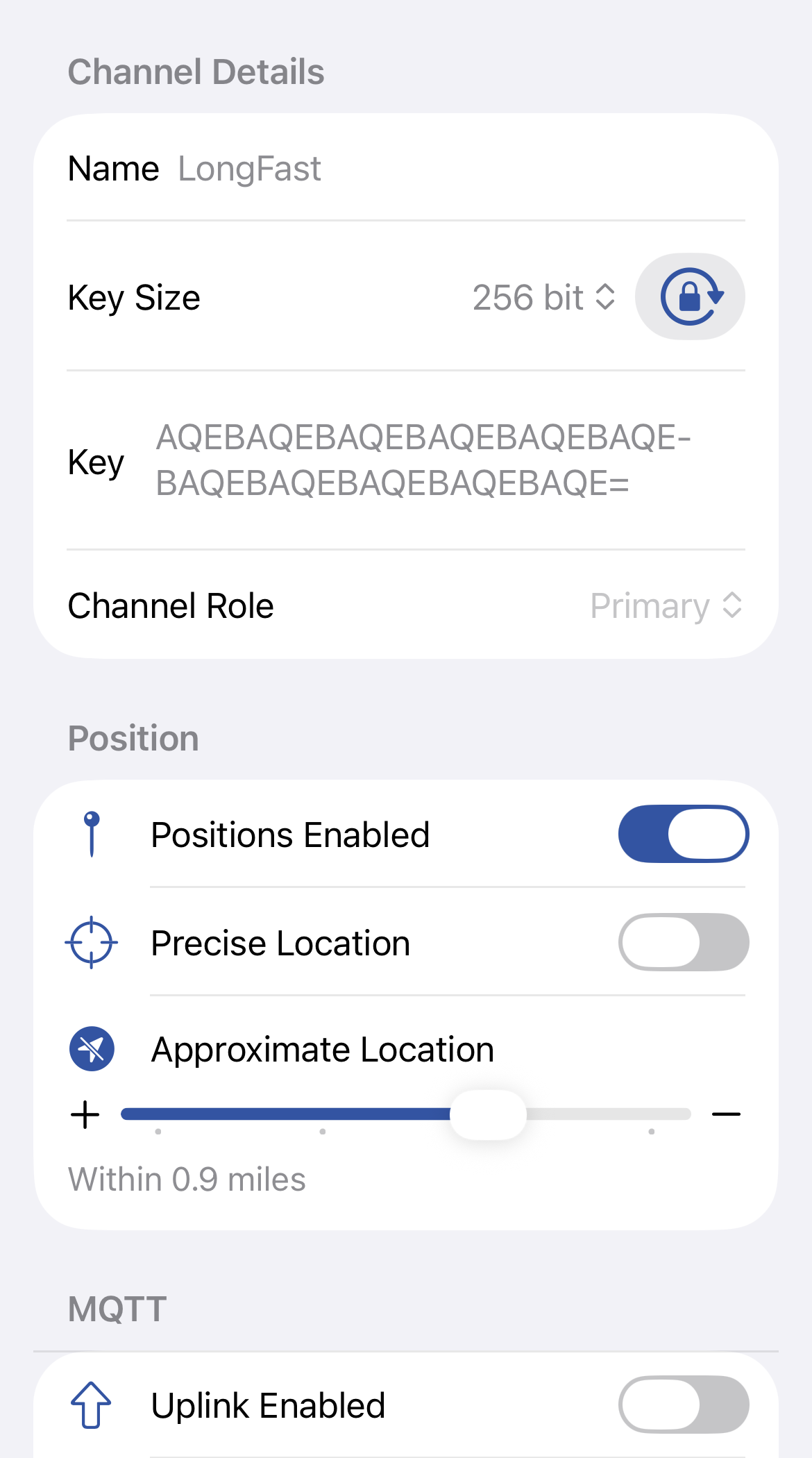
The channel form lets you configure the channel name, encryption key, role, position sharing, and MQTT uplink/downlink settings.
Channel Security
| Icon | Meaning |
|---|---|
 | Securely Encrypted — the channel uses a 128-bit or 256-bit AES key. |
 | Not Securely Encrypted — the channel uses no key or a 1-byte known key, but is not used for precise location data. |
 | Insecure with Location — the channel is not securely encrypted and is used for precise location data. |
 | Insecure with MQTT — not securely encrypted and precise location data is being uplinked to the internet via MQTT. |
Tip — Share Channels A QR code contains the LoRa config and channels needed for radios to communicate. Use Replace Channels to overwrite or Add Channels to append to existing channels.
Tip — Manage Channels The primary channel handles broadcast traffic. Add secondary channels for separate messaging groups, each secured by their own key.
Tip — Administration Enabled Select a node from the drop-down to manage connected or remote devices.
Direct Messages
Contacts
| Element | Meaning |
|---|---|
 | Favorites — favorited contacts and nodes with recent messages appear at the top of the contact list. |
 | Long Press Actions — long press to favorite or mute the contact, or delete a conversation. |
Encryption
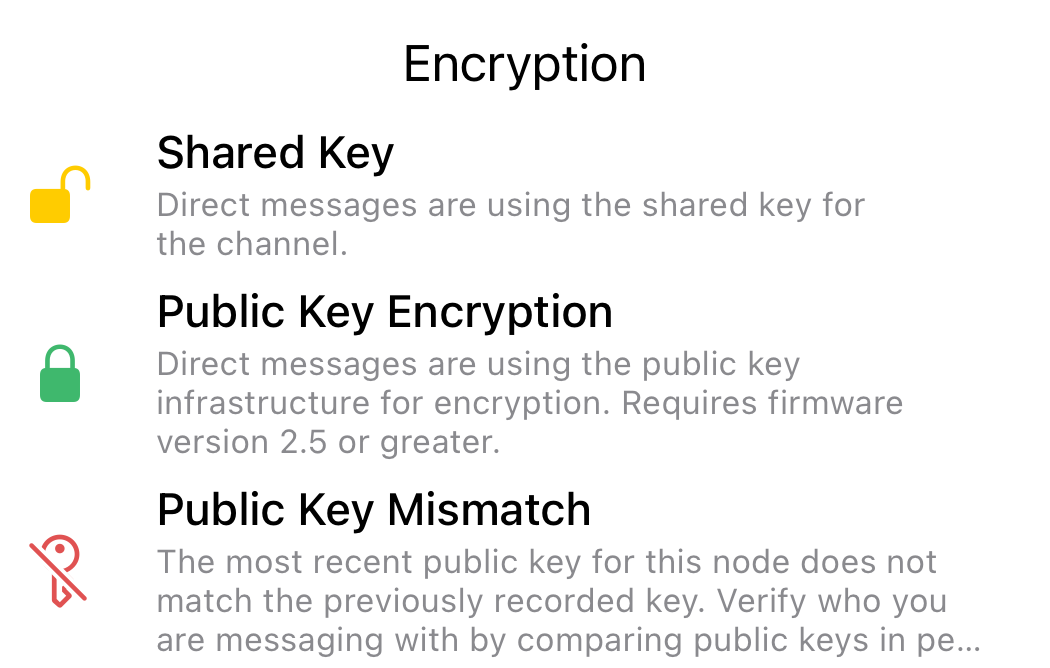
| Icon | Meaning |
|---|---|
| Shared Key — direct messages are using the shared key for the channel. |
| Public Key Encryption — direct messages use the public key infrastructure for encryption. Requires firmware 2.5 or later. |
 | Public Key Mismatch — the most recent public key for this node does not match the previously recorded key. Verify who you are messaging with by comparing public keys in person or over the phone. |
Tapback Reactions
Long press any message and tap Tapback to send an emoji reaction.
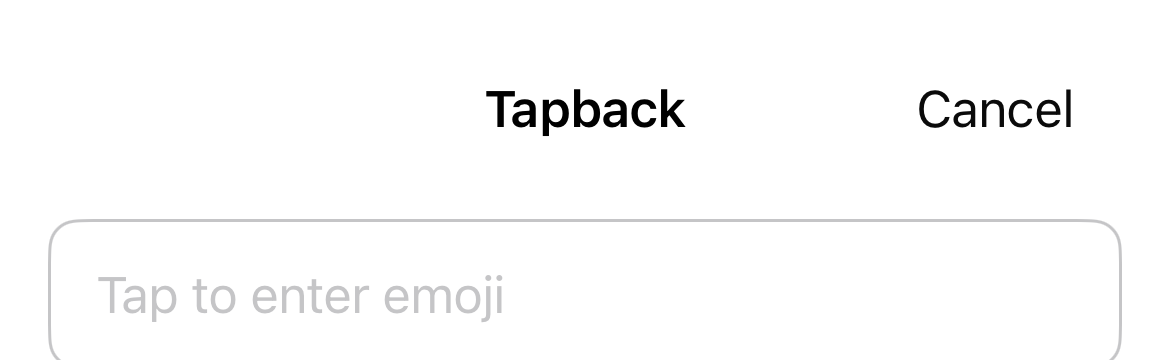
Tip — Messages Send channel broadcasts and direct messages. Long press any message for actions like copy, reply, tapback, and delivery details.
Message Status
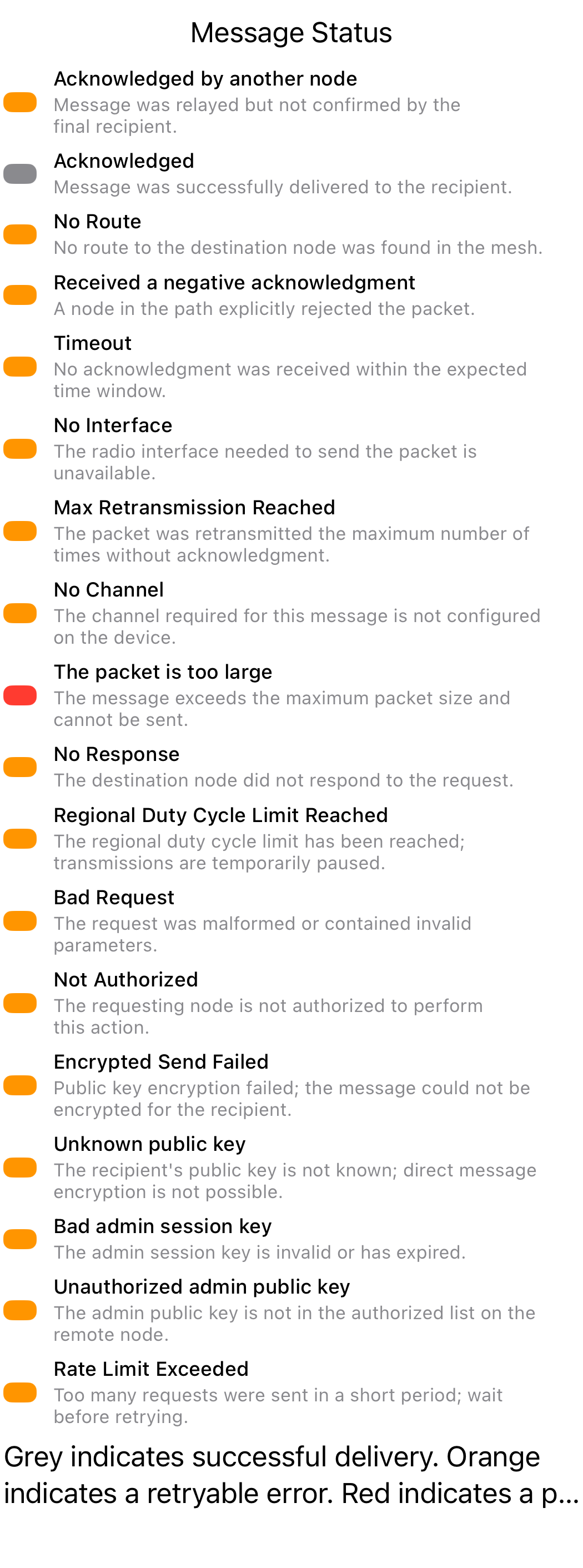
| Colour | Meaning |
|---|---|
| Grey | Successful delivery. |
| Orange bubble | Acknowledged by another node — message was relayed but not confirmed by the final recipient. |
The following errors may appear on a message bubble (red unless noted):
| Status | Description |
|---|---|
| No Route | No route was found to the destination node. |
| Got NAK | The destination node explicitly rejected the message. |
| Timeout | The message timed out waiting for acknowledgement. |
| No Interface | The radio interface is unavailable. |
| Max Retransmit | Maximum retransmission attempts reached without success. |
| No Channel | The specified channel does not exist on the destination. |
| Too Large | The packet exceeds the maximum allowed size. |
| No Response | No response received from the destination. |
| PKI Failed | Public key infrastructure encryption/decryption failed. |
| Bad Request | Malformed packet rejected by the destination. |
| Not Authorized | The destination node refused the request due to permissions. |
Grey indicates successful delivery. Orange indicates a retryable error. Red indicates a permanent failure that will not succeed on retry.
Link Appearance
Links in message bubbles — including URLs, Meshtastic channel links, and markdown [text](url) links — are styled with an underline and the design standards Link color (Blue 400). This makes links visually distinct from regular message text in both light and dark mode. Tapping a link opens it in the browser, or for Meshtastic channel/contact URLs, opens the appropriate in-app handler.

Message Formatting (iOS 18+)
On iOS 18 and later, formatting buttons appear in the compact toolbar below the compose field after you have typed at least 3 characters. The formatting buttons share the toolbar row with the Alert bell, Position pin, and byte counter — all rendered as compact icons. The toolbar scrolls horizontally if it exceeds the screen width.

Supported Styles
| Button | Style | Markdown Syntax |
|---|---|---|
| Bold SF Symbol | Bold | **text** |
| Italic SF Symbol | Italic | *text* |
| Strikethrough SF Symbol | Strikethrough | ~~text~~ |
| Code SF Symbol | Code | `text` |
How to Format Text
- Select text and tap a button — select a word or phrase in the compose field, then tap a formatting button. The appropriate markdown delimiters are inserted around the selection. Any existing markdown delimiters within the selection are stripped first to prevent overlapping syntax. Whitespace at the edges of the selection is moved outside the delimiters so markdown renders correctly.
- Tap a button first, then type — with the cursor placed (no selection), tap a formatting button. Delimiters are inserted and the cursor is placed between them so you can type formatted text immediately.
- Toggle off — select text that is already wrapped with delimiters and tap the same formatting button to remove the delimiters.
Live Preview
When the compose field contains markdown syntax, a preview bubble appears above the compose field showing how the message will look when sent. The preview updates in real time as you type. When no markdown is present, the preview is hidden.
Markdown formatting is also rendered in the channel and user message list previews, so you can see formatted text at a glance.
| Example | Description |
|---|---|
 | Preview showing bold formatting applied to text. |
 | Preview showing bold, italic, code formatting combined. |
Switching Styles
When you select text that already contains markdown delimiters and apply a different style, the existing delimiters are stripped and replaced with the new style. For example, selecting **bold** and tapping Strikethrough produces ~~bold~~.
After applying a style, the selection expands to include the delimiters (e.g., selecting dolphin and tapping Bold selects **dolphin**), making it easy to toggle off or switch to a different style immediately.
Selection Safety
If your selection partially overlaps existing delimiters, the selection automatically expands to include the full delimiter run before formatting. Any orphaned (unpaired) delimiter characters left elsewhere in the text are cleaned up automatically. This prevents garbled markdown like th***~~~~~~e~~.
iOS 17 Users
The formatting toolbar is only available on iOS 18 and later. Users on iOS 17.x see the standard compose field with no changes to their experience.
Mac Catalyst
On Mac Catalyst, pressing Enter sends the message. Press Shift+Enter to insert a line break. The character palette button remains available alongside the formatting buttons.
Tip — Message Limit Messages are limited to 200 bytes. Markdown delimiters count toward this limit (e.g.,
**bold**uses 4 extra bytes for the**pairs). The byte counter in the toolbar shows remaining space.