メッセージとチャンネル
Meshtastic は、チャンネルブロードキャストとダイレクトメッセージの 2 つの通信モードをサポートしています。
チャンネル
チャンネルは、共有された通信グループです。同じチャンネル鍵を設定したすべてのノードが、そのチャンネルでメッセージを読み書きできます。
デフォルトチャンネル
Every Meshtastic radio comes with a default LongFast channel. It is encrypted with a well-known default key, so anyone running Meshtastic on the same preset can read it.
チャンネルのセキュリティ
Each channel carries a lock icon that shows how well it is protected. Tap the icon to see the same explanation inside the app.
| アイコン | 意味 |
|---|---|
| Green closed lock | The channel is securely encrypted, with either a 128-bit or a 256-bit AES key. |
| Yellow open lock | The channel is not securely encrypted — it uses no key at all, or a well-known one-byte key — and it does not carry precise location. |
| Red open lock | Not securely encrypted, and the channel carries precise location data. |
| Red open lock with a warning badge | Not securely encrypted, carrying precise location data, and uplinking that data to the internet over MQTT. |
Key length alone does not change the icon: a 128-bit key and a 256-bit key both show the green lock.
🔒 Security: Always configure a unique PSK for private communications. デフォルトチャンネルは、新規ユーザーがメッシュを見つけられるよう意図的にオープンになっています。ただし、機密性の高い内容には別途、暗号化されたチャンネルを作成してください。
チャンネルを追加する
- Connect to your radio. The Channels row stays grayed out until the app has a connection — see Connections.
- Go to Settings, then tap Channels under Configuration.
- Tap the + button to add a channel. The editor opens on the new entry.
- Set the channel name and the PSK, and choose whether the channel uses MQTT uplink and downlink. Naming a new channel generates a fresh 256-bit key for you; the refresh icon beside PSK generates another one.
- Tap Save to close the editor. The change is still only on your phone.
- Tap Send at the bottom of the channel list to write the changes to the radio. Cancel, or leaving the screen without tapping Send, throws them away.
- Optional: share the channel URL or QR code with the people who need access.
Tapping an existing channel opens the same editor, where you can change the name, the PSK, MQTT uplink and downlink, and position precision. Every edit on this screen — adding, editing, deleting, or dragging a channel into a new order — waits on Send the same way.
Archived Channels
A conversation belongs to the channel it was held on, not to the slot that channel occupied. When a channel leaves your radio — you scan a different channel QR, replace a channel’s key, or switch the modem preset — its conversation is archived rather than deleted or merged into whatever takes the slot.
An archived conversation:
- stays in the Channels list under the name the channel had, below the channels currently on your radio, marked with a history icon;
- keeps its full message history, searchable as usual;
- is read-only — you cannot send, reply, or react, because the channel is no longer on the radio to send on, and it is not offered as a share target;
- comes back automatically if you re-add that exact channel, taking its messages back to the live slot.
Changing the modem preset archives the channel too: the preset is part of a default channel’s identity, so LongFast and MediumFast are different channels even though neither the name nor the key changed. Changing only the region does not archive anything.
To remove an archived conversation for good, long-press it in the conversation list and delete it.
ダイレクトメッセージ
Direct messages (DMs) go to one specific node. When both radios hold each other’s public keys, your radio encrypts the message to that node’s public key, so no one else on the mesh can read it — not even nodes that share your channel.
Your radio must already hold the other node’s public key before it can send a DM. Keys travel inside node info, which nodes broadcast periodically, so the key usually arrives on its own once you have heard from that node. Until it does, a radio that has its own key pair — the default — refuses the send rather than falling back to channel encryption, and the message shows Recipient key unavailable.
A public-key conversation carries a key icon in its top bar. A green closed lock means the direct message is protected by public-key encryption; a red key-off icon means the node’s public key changed and no longer matches the one your radio stored. Tap the icon for the details.
ダイレクトメッセージを送信する
- 「メッセージ」タブを開きます。
- Select a conversation, or tap a node in the node list.
- メッセージを入力し、「送信」をタップします。
Managing the Conversation List
The Messages tab lists your conversations. Each row shows what you need at a glance, and you can act on it directly:
- Unsent drafts survive. Type into a conversation and leave without sending, and the text is still there when you come back. The row shows it as
Draft: …in place of the last message — an unsent draft is the thing the row is waiting on you for. - Unread badge. A count sits on the row until you open the conversation.
- Swipe right to mute (swipe again to unmute) and swipe left to delete. Deleting asks first; muting shows a snackbar with Undo.
- Touch & hold to select one or more conversations, then use the action bar to Pin, Mark unread, mute or delete them together. Pinned conversations carry a pin marker and rise to the top of their own section.
- The list is split into Channels and Direct Messages, each with a collapsible header and each sorted independently — so a pinned direct message rises within its own section, not above the Channels one.
Conversation Bubbles
On Android 11 and later, a message notification can be opened as a floating bubble that stays on top of whatever else you are doing. Tap the bubble icon on the notification to promote a conversation; Android remembers the choice per conversation, and the system Bubbles settings control whether they are offered at all.
メッセージの状態
ステータスラベルは、自分が送信したメッセージの下にのみ表示されます(他のユーザーからの受信メッセージにはステータスラベルは表示されません):
| 状態 | 意味 |
|---|---|
| 送信中… | Queued or already handed to the radio, not yet resolved either way. Both stages share this text, but the icon and color change as it progresses — a yellow upload cloud while queued, a blue arrow once the radio has it |
| 受信者に配信済み | ダイレクトメッセージで最も確実な確認です。受信確認が返ってきています |
| メッシュに配信済み | チャンネルブロードキャストでは、メッセージがメッシュに届いたことを示します(ブロードキャストには受信者ごとの確認応答はありません) |
| 中継済み、受信者による確認なし | ダイレクトメッセージでは警告色で表示されます。メッセージは中継されましたが、まだ受信確認が返ってきていません |
| SF++ チェーン経由でルーティング中… | Store & Forward Plus Plus チェーンによってルーティング/バッファリングされています |
| SF++ チェーンで確認済み | SF++ チェーン経由で配信が確認されました |
| エラー | Delivery failed — tap the status for the specific reason (see Delivery Errors) |
配信エラー
メッセージの配信に失敗すると、エラーインジケーターが何が問題だったかを示します:
| エラー | 意味 | 対処方法 |
|---|---|---|
| ルートがありません | 宛先ノードへの経路が存在しません | 受信者がオフラインか、メッシュの範囲外の可能性があります。時間をおくか、距離を縮めてください。 |
| No radio interface | 送信に使える無線インターフェースがありません | Check that your radio is connected and available. |
| メッシュへの配信に失敗しました | Retries exhausted. The same label covers three underlying causes — a relay refusing (NAK), a plain timeout, and running out of retransmits | Move closer, improve signal, or wait for conditions to improve. Tap the error for the specific cause. |
| Rate limited | The mesh is throttling you for sending too fast | Wait before sending again. |
| Not authorized | The destination refused the request | Check you have the right channel and keys for that node. |
| 受信者にあなたの鍵が必要です | Direct-message encryption could not complete because the other node does not have your public key yet | Exchange node info — the key travels with it. Common on a first DM to a new contact. |
| 受信者の鍵を利用できません | You do not have the recipient’s public key | Wait for their node info to arrive, or ask them to broadcast it. |
| 暗号化メッセージを送信できませんでした | Encryption failed for this direct message | Verify both nodes have exchanged keys and are on compatible firmware. |
| Admin session expired | A remote-admin session timed out | Reopen the remote node’s settings to start a new session. |
| Admin key not authorized | The target node does not accept your admin key | 両方のノードで管理者鍵が一致しているか確認してください。 |
| Channel/key mismatch | Destination channel/key does not match | Verify both nodes share the same channel and PSK. |
| メッセージが大きすぎて送信できません | メッセージが最大ペイロードサイズを超えています | Shorten the message and try again. |
| No app response | App or plugin did not respond to the request | Retry or check the destination app or module state. |
| Duty cycle limit | 地域ごとの電波利用時間の上限に達しました | Wait for the duty cycle window to reset. |
| Invalid request | Malformed or invalid request | Retry after updating or restarting the app if this persists. |
💡 ヒント: ほとんどの配信エラーは自然に解消します。ノードに断続的に到達できる場合、メッシュは再試行します。 For persistent No route errors, check that intermediate Router nodes are online.
メッセージの機能
クイックチャット
Pre-configured messages for rapid communication, useful when typing is impractical (gloves, small screen, urgent):
- The quick chat row is hidden until you turn it on. Open a conversation, tap the overflow menu in the top bar, then tap Show quick chat menu. Hide quick chat menu puts the row away again.
- The row carries one built-in entry, the 🔔 alert bell. It appends an alert message that includes a bell character, which clients that support it flag as an alert. Every other button on the row is one you created.
- Add, edit, reorder, and delete your own entries from the same overflow menu — tap Quick chat options.
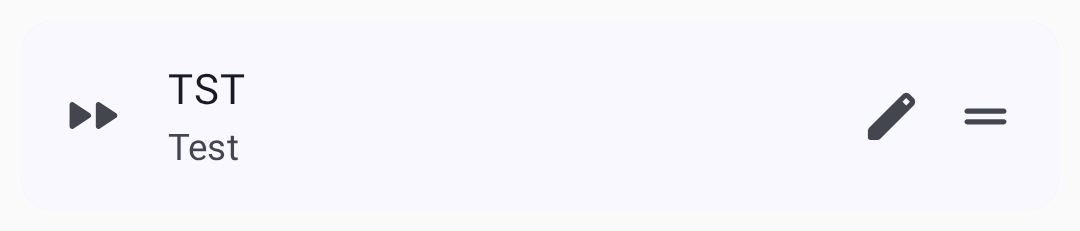
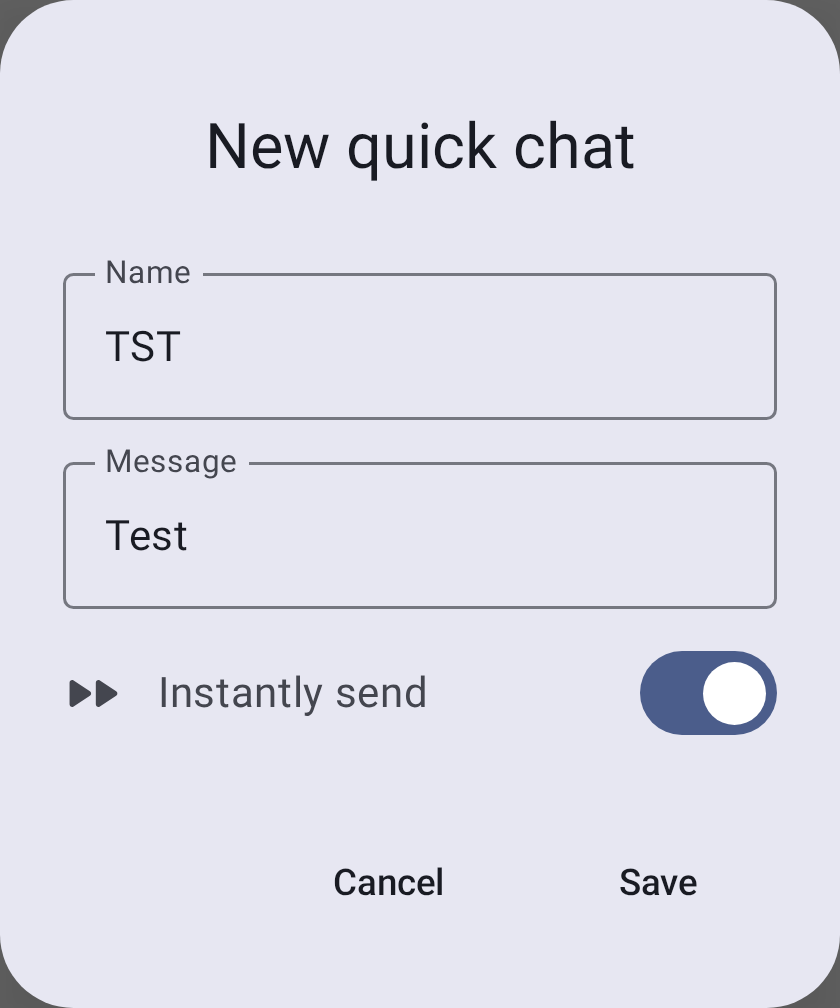
Each quick chat entry has a Name — the button label, capped at five characters, forced to uppercase, and filled in for you from the message text — and the Message it carries. A switch decides what tapping the button does. A new entry starts on Instantly send, so a tap sends the message straight away; turn the switch off and the label changes to Append to message, which puts the text in the input field for you to edit first.
メッセージを検索する
チャット画面から、どの会話でもその全履歴を直接検索できます:
- 会話(チャンネルまたはダイレクトメッセージ)を開きます。
- 上部バーの検索アイコンをタップします。
- 「メッセージを検索…」欄に入力します。検索は入力に応じて、その会話に保存されているすべてのメッセージを対象に実行されます。
- N/M の結果カウンターと前へ/次への矢印を使って、一致箇所間を移動できます。一致箇所は会話内でハイライト表示されます。

💡 ヒント: 検索は全文検索で、開いた会話の中だけを対象とします。他のチャンネルや連絡先をまたいで検索することはありません。デバイスにすでに保存されているメッセージを対象に照合するため、完全にオフラインで動作します。
メッセージの吹き出し
メッセージはチャットの吹き出しとして表示され、送信メッセージは右側、受信メッセージは左側に並びます。各吹き出しには、送信者・タイムスタンプ・配信状況が表示されます。返信付きのメッセージでは、応答の上に元メッセージの引用プレビューが表示されます。
テキストの書式
メッセージは、軽量なインライン Markdown に対応しています。受信したメッセージは、記法の文字が取り除かれた状態でスタイルが適用されて表示されます:
| 種別 | 記法 | 表示結果 |
|---|---|---|
| 太字 | **bold** | 太字 |
| 斜体 | *italic* | 斜体 |
| 取り消し線 | ~~strike~~ | |
| インラインコード | `code` | 等幅の code |
| リンク | [label](https://example.com) | タップできるラベル |
メッセージを作成するときは、入力欄にフォーカスして 3 文字以上入力すると、入力欄の下に書式ツールバーが表示されます。テキストを選択してスタイルをタップすると、そのテキストが囲まれます(もう一度タップすると解除されます)。選択していない場合は、空のペアが挿入され、カーソルがマーカーの間に置かれます。リンクボタンをタップすると、URL を入力するダイアログが開きます。 As you type, the field shows the styled text, but the message you send still contains the Markdown characters.
💡 ヒント: 書式はメッシュ上ではそのままの文字として送られます。iOS が送信するのと同じバイト列です。 Markdown に対応していないクライアント(古いアプリや、素のファームウェアのクライアント)では、
**や~~の文字がそのまま表示されます。 URL、メールアドレス、電話番号は、Markdown を使うかどうかにかかわらず、引き続き自動的にリンクになります。
メンション
メッセージ作成中に @ を入力するとノードにメンションできます。入力に応じて、一致する連絡先がピッカーに提案されます。受信メッセージでは、メンションはノード名を表示したハイライト付きのチップとして現れます。タップすると、そのノードの詳細ページに直接移動できます。
リアクション
絵文字でメッセージにリアクションできます:
- Touch & hold a message — or double-tap it — to raise a quick reaction bar above the bubble. Opening the bar sends nothing.
- Tap an emoji in the bar to send it; tap More reactions to open the full picker, or anywhere outside the bar to dismiss it without sending. A reaction is a real mesh packet, so it only goes out when you pick an emoji.
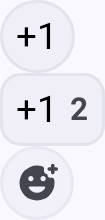
- リアクションはメッセージの吹き出しの下に表示されます
- 複数のユーザーが同じメッセージにリアクションできます
- 自分のメッセージにも、他の人のメッセージにもリアクションできます
💡 ヒント: リアクションは軽量で、通常のテキストメッセージに比べてメッシュの帯域をほとんど消費しません。
Replying
Swipe a message to the right to reply to it — the composer opens with that message quoted. Swiping past the reply threshold arms the action; releasing before it springs back with nothing sent. Reply is also in the actions sheet, reached by touching & holding and then tapping More message actions.
Day Separators
Messages are grouped by day. The separator above the first message of each day reads Today or Yesterday for the two most recent days, and the date itself for older ones.
Jump to Latest
Scrolling back through a conversation raises a jump-to-latest control. When messages arrive while you are scrolled up, it names the most recent sender and adds a count of the other unread messages. That count is messages, not people — five unread from one person reads as their name +4.
メッセージの操作
Touch & hold or double-tap a message to open the quick reaction bar, then tap More message actions (the overflow icon on that bar) to open the actions sheet. The emoji row runs across the top of the sheet — that is where reactions live — and beneath it, along with the message’s timestamp and delivery status, are:
- 返信: そのメッセージを引用して返信します
- Copy — copy the message text to the clipboard
- Translate — translate a received message into your device language, and toggle between the original and translated text (Google Play build only; uses on-device translation). The first translation into a language asks to download a one-time language model and tells you its size, then translates once the download finishes. If the download fails, or the message is already in your language, the app says so instead of translating
- Select — start multi-select, so you can act on several messages at once
- Delete — remove the message from this phone. It works on any message in the conversation, yours or not, and does not remove it from anyone else’s radio or phone
メッセージの優先度
The app sends every message you compose at the same, default priority — there is no emergency or alert tier to choose, and nothing in the app raises a direct message above a channel broadcast. Any prioritising between them happens in firmware, not here. (The app does mark some of its own internal traffic, such as admin and traceroute packets, as reliable or background, but that is not something you control from the message composer.)
メッセージの制限
- 最大長: 200 バイト(ASCII テキストで約 200 文字)
- The 200-byte cap applies to the in-app composer — the mesh payload limit itself is 233 bytes, so messages from other senders (e.g., App Functions) may arrive slightly longer
- レート制限: メッシュは電波利用時間の公平性を確保するため、大量のメッセージは制限されることがあります
- 配信: 受信確認がない場合、メッセージは自動的に再送されます
ベストプラクティス
- グループでの連携にはチャンネルを使います
- 個人間のプライベートな通信にはダイレクトメッセージを使います
- メッセージは短くしてください。メッシュの帯域は限られています
- 機密性の高い通信には暗号化を設定します
関連トピック
- ノード:ノードをタップするとダイレクトメッセージを開始できます
- 設定:無線機とユーザー:チャンネルの暗号化とプリセットを設定します
- MQTT:チャンネルのメッセージをインターネットに橋渡しします
- チャンネル設定:meshtastic.org にある詳細なチャンネル設定