Sõnumid ja kanalid
Meshtastic toetab kahte suhtlusrežiimi: kanalite levitamine ja otsesõnumid.
Kanal
Kanalid on jagatud suhtlusgrupid. Kõik sama kanalivõtmega seadistatud sõlmed saavad sellel kanalil sõnumeid lugeda ja saata.
Vaikekanal
Every Meshtastic radio comes with a default LongFast channel. It is encrypted with a well-known default key, so anyone running Meshtastic on the same preset can read it.
Kanali turvalisus
Each channel carries a lock icon that shows how well it is protected. Tap the icon to see the same explanation inside the app.
| Ikoon | What it means |
|---|---|
| Green closed lock | The channel is securely encrypted, with either a 128-bit or a 256-bit AES key. |
| Yellow open lock | The channel is not securely encrypted — it uses no key at all, or a well-known one-byte key — and it does not carry precise location. |
| Red open lock | Not securely encrypted, and the channel carries precise location data. |
| Red open lock with a warning badge | Not securely encrypted, carrying precise location data, and uplinking that data to the internet over MQTT. |
Key length alone does not change the icon: a 128-bit key and a 256-bit key both show the green lock.
🔒 Security: Always configure a unique PSK for private communications. Vaikimisi kanal on tahtlikult avatud, et uued kasutajad saaksid kärgvõrku avastada – aga kõige tundliku jaoks peaksite looma eraldi krüptitud kanali.
Lisa kanal
- Connect to your radio. The Channels row stays grayed out until the app has a connection — see Connections.
- Go to Settings, then tap Channels under Configuration.
- Tap the + button to add a channel. The editor opens on the new entry.
- Set the channel name and the PSK, and choose whether the channel uses MQTT uplink and downlink. Naming a new channel generates a fresh 256-bit key for you; the refresh icon beside PSK generates another one.
- Tap Save to close the editor. The change is still only on your phone.
- Tap Send at the bottom of the channel list to write the changes to the radio. Cancel, or leaving the screen without tapping Send, throws them away.
- Optional: share the channel URL or QR code with the people who need access.
Tapping an existing channel opens the same editor, where you can change the name, the PSK, MQTT uplink and downlink, and position precision. Every edit on this screen — adding, editing, deleting, or dragging a channel into a new order — waits on Send the same way.
Archived Channels
A conversation belongs to the channel it was held on, not to the slot that channel occupied. When a channel leaves your radio — you scan a different channel QR, replace a channel’s key, or switch the modem preset — its conversation is archived rather than deleted or merged into whatever takes the slot.
An archived conversation:
- stays in the Channels list under the name the channel had, below the channels currently on your radio, marked with a history icon;
- keeps its full message history, searchable as usual;
- is read-only — you cannot send, reply, or react, because the channel is no longer on the radio to send on, and it is not offered as a share target;
- comes back automatically if you re-add that exact channel, taking its messages back to the live slot.
Changing the modem preset archives the channel too: the preset is part of a default channel’s identity, so LongFast and MediumFast are different channels even though neither the name nor the key changed. Changing only the region does not archive anything.
To remove an archived conversation for good, long-press it in the conversation list and delete it.
Otsesõnumid
Direct messages (DMs) go to one specific node. When both radios hold each other’s public keys, your radio encrypts the message to that node’s public key, so no one else on the mesh can read it — not even nodes that share your channel.
Your radio must already hold the other node’s public key before it can send a DM. Keys travel inside node info, which nodes broadcast periodically, so the key usually arrives on its own once you have heard from that node. Until it does, a radio that has its own key pair — the default — refuses the send rather than falling back to channel encryption, and the message shows Recipient key unavailable.
A public-key conversation carries a key icon in its top bar. A green closed lock means the direct message is protected by public-key encryption; a red key-off icon means the node’s public key changed and no longer matches the one your radio stored. Tap the icon for the details.
Sending a Direct Message
- Ava vahekaart Sõnumid.
- Select a conversation, or tap a node in the node list.
- Tippi oma sõnum ja puuduta nuppu Saada.
Managing the Conversation List
The Messages tab lists your conversations. Each row shows what you need at a glance, and you can act on it directly:
- Unsent drafts survive. Type into a conversation and leave without sending, and the text is still there when you come back. The row shows it as
Draft: …in place of the last message — an unsent draft is the thing the row is waiting on you for. - Unread badge. A count sits on the row until you open the conversation.
- Swipe right to mute (swipe again to unmute) and swipe left to delete. Deleting asks first; muting shows a snackbar with Undo.
- Touch & hold to select one or more conversations, then use the action bar to Pin, Mark unread, mute or delete them together. Pinned conversations carry a pin marker and rise to the top of their own section.
- The list is split into Channels and Direct Messages, each with a collapsible header and each sorted independently — so a pinned direct message rises within its own section, not above the Channels one.
Conversation Bubbles
On Android 11 and later, a message notification can be opened as a floating bubble that stays on top of whatever else you are doing. Tap the bubble icon on the notification to promote a conversation; Android remembers the choice per conversation, and the system Bubbles settings control whether they are offered at all.
Sõnumi olek
Olekumärgis kuvatakse ainult sinu enda väljaminevate sõnumite all (teiste sissetulevate sõnumite puhul olekumärgist ei kuvata):
| Olek | Tähendus |
|---|---|
| Saadan… | Queued or already handed to the radio, not yet resolved either way. Both stages share this text, but the icon and color change as it progresses — a yellow upload cloud while queued, a blue arrow once the radio has it |
| Saajale kätte toimetatud | Kõige tugevam kinnitus otsesõnumile – vastus tuli |
| Kärgvõrku kohale jõudnud | Kanali leviedastuse puhul jõuab sõnum kärgvõrku (leviedastustel puudub saajapõhine kinnitus) |
| Vahendatud, saaja pole kinnitanud | Otsesõnumi puhul kuvatakse hoiatusvärviga – sõnum edastati, kuid kinnitust pole veel tulnud |
| Marsruutimine SF++ ahela kaudu… | Being routed/buffered by the Store & Forward Plus Plus chain |
| Kinnitatud SF++ ahel | Kinnitatud kohaletoimetamine SF++ keti kaudu |
| Tõrge | Delivery failed — tap the status for the specific reason (see Delivery Errors) |
Delivery Errors
Kui sõnumit ei õnnestu kohale toimetada, näitab veaindikaator, mis valesti läks:
| Tõrge | Tähendab | Mida teha |
|---|---|---|
| Marsruuti pole | Sihtkoha sõlmeni pole teed olemas | Saaja võib olla võrguühenduseta või võrguühenduse levialast väljas. Try later or move closer. |
| No radio interface | No radio interface available to send | Check that your radio is connected and available. |
| Failed to deliver to mesh | Retries exhausted. The same label covers three underlying causes — a relay refusing (NAK), a plain timeout, and running out of retransmits | Move closer, improve signal, or wait for conditions to improve. Tap the error for the specific cause. |
| Piiratud määr | The mesh is throttling you for sending too fast | Wait before sending again. |
| Pole autoriseeritud | The destination refused the request | Check you have the right channel and keys for that node. |
| Saaja vajab sinu võtit | Direct-message encryption could not complete because the other node does not have your public key yet | Exchange node info — the key travels with it. Common on a first DM to a new contact. |
| Saaja võti pole saadaval | You do not have the recipient’s public key | Wait for their node info to arrive, or ask them to broadcast it. |
| Krüptitud sõnumi saatmine ebaõnnestus | Encryption failed for this direct message | Verify both nodes have exchanged keys and are on compatible firmware. |
| Admin sessioon aegunud | A remote-admin session timed out | Reopen the remote node’s settings to start a new session. |
| Administraatori võti pole autoriseeritud | The target node does not accept your admin key | Veendu, et administraatori võti sobiks mõlemas sõlmele. |
| Channel/key mismatch | Destination channel/key does not match | Verify both nodes share the same channel and PSK. |
| Sõnum on saatmiseks liiga pikk | Sõnum ületab maksimaalset sõnumi mahtu | Lühenda sõnumit ja proovi uuesti. |
| No app response | App or plugin did not respond to the request | Proovi uuesti või kontrolli sihtrakenduse või -mooduli olekut. |
| Töötsükli piirang | Regional airtime limit reached | Oota, kuni töötsükli aken lähtestub. |
| Invalid request | Malformed or invalid request | Retry after updating or restarting the app if this persists. |
💡 Vihje: Enamik kohaletoimetamise vigu laheneb iseenesest. If a node is intermittently reachable, the mesh will retry. For persistent No route errors, check that intermediate Router nodes are online.
Sõnumi omadused
Kiirvestlus
Pre-configured messages for rapid communication, useful when typing is impractical (gloves, small screen, urgent):
- The quick chat row is hidden until you turn it on. Open a conversation, tap the overflow menu in the top bar, then tap Show quick chat menu. Hide quick chat menu puts the row away again.
- The row carries one built-in entry, the 🔔 alert bell. It appends an alert message that includes a bell character, which clients that support it flag as an alert. Every other button on the row is one you created.
- Add, edit, reorder, and delete your own entries from the same overflow menu — tap Quick chat options.
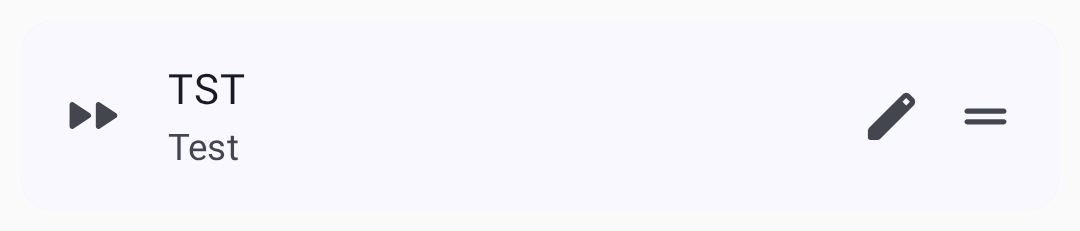
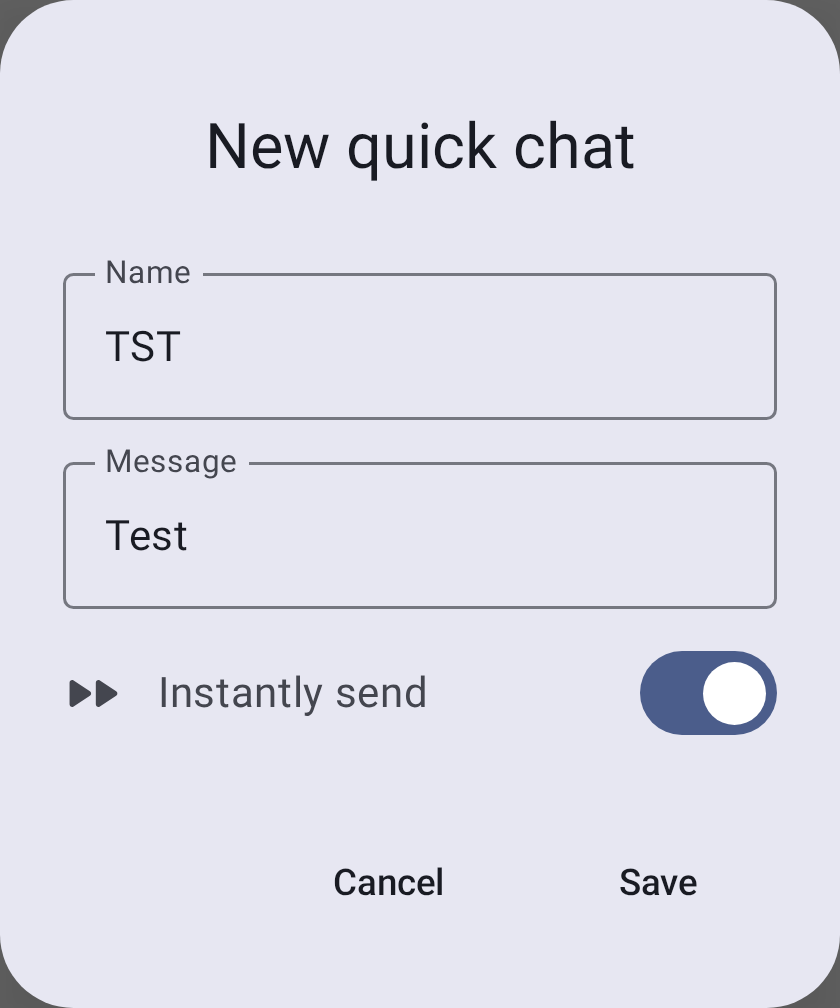
Each quick chat entry has a Name — the button label, capped at five characters, forced to uppercase, and filled in for you from the message text — and the Message it carries. A switch decides what tapping the button does. A new entry starts on Instantly send, so a tap sends the message straight away; turn the switch off and the label changes to Append to message, which puts the text in the input field for you to edit first.
Uus kiirvestluse dialoog nime, sõnumi ja kohese saatmise lülitiga
Otsin sõnumeid
Saad otsida mis tahes vestluse kogu ajaloost otse vestlusekraanilt:
- Ava vestlus (kanal või otsesõnum).
- Puuduta ülemisel ribal otsinguikooni.
- Tipi väljale Otsi sõnumeid…. Otsing toimub tippimise ajal kõigis selle vestluse salvestatud sõnumites.
- Use the N / M result counter and the previous / next arrows to jump between matches, which are highlighted in the conversation.

💡 Vihje: Otsing toimub täisteksti põhjal ja jääb vestlusse, kust sa selle avasid – see ei otsi teistest kanalitest ega kontaktide hulgast. See võrdleb seadmesse juba salvestatud sõnumeid, seega töötab see täielikult võrguühenduseta.
Sõnumimullid
Sõnumid kuvatakse vestlusmullidena – saadetud sõnumid paremal, vastuvõetud sõnumid vasakul. Iga mull näitab saatjat, ajatempli ja kohaletoimetamise olekut. Messages with replies include a quoted preview of the original message above the response.
Teksti vormindamine
Messages support lightweight inline Markdown. Received messages render the styling with the syntax characters removed:
| Tüüp | Syntax | Renders as |
|---|---|---|
| Paks | **paks** | paks |
| Italic | *italic* | italic |
| Läbikriipsutatud | ~~läbikriips~~ | |
| Inline code | `kood` | monospace code |
| Ühendus | [silt](https://example.com) | a tappable label |
When composing, focus the message field and type at least three characters to reveal a formatting toolbar below the input. Vali tekst ja puuduta stiili, et see murda (puuduta uuesti, et see eemaldada); kui valikut pole, lisab stiil tühja paari, kusjuures kursor on markerite vahel. Linginupp avab URL-i sisestamiseks dialoogiboksi. As you type, the field shows the styled text, but the message you send still contains the Markdown characters.
💡 Vihje: Vormindus kantakse kärgvõrgu literaalmärkidena – samad baidid, mida iOS saadab. Kliendid, mis ei toeta Markdowni (vanemad rakendused, tavalised püsivara kliendid), kuvavad toored
**/~~märgid. URL-id, e-posti aadressid ja telefoninumbrid lingitakse endiselt automaatselt olenemata sellest, kas kasutate Markdowni või mitte.
Mainimine
Type @ while composing to mention a node — a picker suggests matching contacts as you type. Saadud sõnumis kuvatakse mainimine esiletõstetud kiibina, mis näitab sõlme nime; puuduta seda, et hüpata otse selle sõlme üksikasjade lehele.
Reaktsioonid
React to messages with emoji:
- Touch & hold a message — or double-tap it — to raise a quick reaction bar above the bubble. Opening the bar sends nothing.
- Tap an emoji in the bar to send it; tap More reactions to open the full picker, or anywhere outside the bar to dismiss it without sending. A reaction is a real mesh packet, so it only goes out when you pick an emoji.
- Reaktsioonid kuvatakse sõnumimulli all
- Mitu kasutajat saavad samale sõnumile reageerida
- Reageeri oma või teiste sõnumitele
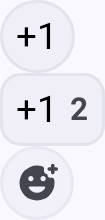
💡 Vihje: Reaktsioonid on kerged – need kasutavad täistekstisõnumitega võrreldes minimaalselt võrgu ribalaiust.
Replying
Swipe a message to the right to reply to it — the composer opens with that message quoted. Swiping past the reply threshold arms the action; releasing before it springs back with nothing sent. Reply is also in the actions sheet, reached by touching & holding and then tapping More message actions.
Day Separators
Messages are grouped by day. The separator above the first message of each day reads Today or Yesterday for the two most recent days, and the date itself for older ones.
Jump to Latest
Scrolling back through a conversation raises a jump-to-latest control. When messages arrive while you are scrolled up, it names the most recent sender and adds a count of the other unread messages. That count is messages, not people — five unread from one person reads as their name +4.
Message Actions
Touch & hold or double-tap a message to open the quick reaction bar, then tap More message actions (the overflow icon on that bar) to open the actions sheet. The emoji row runs across the top of the sheet — that is where reactions live — and beneath it, along with the message’s timestamp and delivery status, are:
- Vasta – tsiteeri oma vastuses sõnumit
- Copy — copy the message text to the clipboard
- Translate — translate a received message into your device language, and toggle between the original and translated text (Google Play build only; uses on-device translation). The first translation into a language asks to download a one-time language model and tells you its size, then translates once the download finishes. If the download fails, or the message is already in your language, the app says so instead of translating
- Select — start multi-select, so you can act on several messages at once
- Delete — remove the message from this phone. It works on any message in the conversation, yours or not, and does not remove it from anyone else’s radio or phone
Sõnumi prioriteet
The app sends every message you compose at the same, default priority — there is no emergency or alert tier to choose, and nothing in the app raises a direct message above a channel broadcast. Any prioritising between them happens in firmware, not here. (The app does mark some of its own internal traffic, such as admin and traceroute packets, as reliable or background, but that is not something you control from the message composer.)
Message Limits
- Maximum length: 200 bytes (approximately 200 characters for ASCII text)
- The 200-byte cap applies to the in-app composer — the mesh payload limit itself is 233 bytes, so messages from other senders (e.g., App Functions) may arrive slightly longer
- Kiiruse piiramine: Võrk tagab eetriaja õigluse; suurte sõnumite mahtu võidakse piirata
- Kohaletoimetamine: Kui kinnitust ei ole saabunud, proovitakse sõnumeid automaatselt uuesti saata
Parimad tavad
- Kasuta kanaleid grupi koordineerimiseks
- Kasutage privaatseks inimestevaheliseks suhtluseks otsesõnumeid
- Hoidke sõnumid lühikesed – võrgu ribalaius on piiratud
- Configure encryption for sensitive communications
Seotud teemad
- [Sõlmed] (nodes) — otsesõnumi alustamiseks puuduta sõlme
- Seaded — Raadio ja kasutaja — kanalite krüpteerimise ja eelseadete konfimine
- MQTT — silda kanali sõnumid internetti
- Kanali konf — üksikasjalikud kanali seaded leiate aadressilt meshtastic.org