訊息與頻道
Meshtastic 支援兩種通訊模式:頻道廣播與私訊。
頻道
頻道是共享的通訊群組。所有設定相同頻道金鑰的節點均可在該頻道上讀取與傳送訊息。
預設頻道
Every Meshtastic radio comes with a default LongFast channel. It is encrypted with a well-known default key, so anyone running Meshtastic on the same preset can read it.
頻道安全性
Each channel carries a lock icon that shows how well it is protected. Tap the icon to see the same explanation inside the app.
| 圖示 | 代表意義 |
|---|---|
| Green closed lock | The channel is securely encrypted, with either a 128-bit or a 256-bit AES key. |
| Yellow open lock | The channel is not securely encrypted — it uses no key at all, or a well-known one-byte key — and it does not carry precise location. |
| Red open lock | Not securely encrypted, and the channel carries precise location data. |
| Red open lock with a warning badge | Not securely encrypted, carrying precise location data, and uplinking that data to the internet over MQTT. |
Key length alone does not change the icon: a 128-bit key and a 256-bit key both show the green lock.
🔒 Security: Always configure a unique PSK for private communications. 預設頻道刻意設計為開放,以便新使用者能探索 mesh 網路 — 但對於任何敏感內容,請另行建立獨立的加密頻道。
新增頻道
- Connect to your radio. The Channels row stays grayed out until the app has a connection — see Connections.
- Go to Settings, then tap Channels under Configuration.
- Tap the + button to add a channel. The editor opens on the new entry.
- Set the channel name and the PSK, and choose whether the channel uses MQTT uplink and downlink. Naming a new channel generates a fresh 256-bit key for you; the refresh icon beside PSK generates another one.
- Tap Save to close the editor. The change is still only on your phone.
- Tap Send at the bottom of the channel list to write the changes to the radio. Cancel, or leaving the screen without tapping Send, throws them away.
- Optional: share the channel URL or QR code with the people who need access.
Tapping an existing channel opens the same editor, where you can change the name, the PSK, MQTT uplink and downlink, and position precision. Every edit on this screen — adding, editing, deleting, or dragging a channel into a new order — waits on Send the same way.
Archived Channels
A conversation belongs to the channel it was held on, not to the slot that channel occupied. When a channel leaves your radio — you scan a different channel QR, replace a channel’s key, or switch the modem preset — its conversation is archived rather than deleted or merged into whatever takes the slot.
An archived conversation:
- stays in the Channels list under the name the channel had, below the channels currently on your radio, marked with a history icon;
- keeps its full message history, searchable as usual;
- is read-only — you cannot send, reply, or react, because the channel is no longer on the radio to send on, and it is not offered as a share target;
- comes back automatically if you re-add that exact channel, taking its messages back to the live slot.
Changing the modem preset archives the channel too: the preset is part of a default channel’s identity, so LongFast and MediumFast are different channels even though neither the name nor the key changed. Changing only the region does not archive anything.
To remove an archived conversation for good, long-press it in the conversation list and delete it.
私訊
Direct messages (DMs) go to one specific node. When both radios hold each other’s public keys, your radio encrypts the message to that node’s public key, so no one else on the mesh can read it — not even nodes that share your channel.
Your radio must already hold the other node’s public key before it can send a DM. Keys travel inside node info, which nodes broadcast periodically, so the key usually arrives on its own once you have heard from that node. Until it does, a radio that has its own key pair — the default — refuses the send rather than falling back to channel encryption, and the message shows Recipient key unavailable.
A public-key conversation carries a key icon in its top bar. A green closed lock means the direct message is protected by public-key encryption; a red key-off icon means the node’s public key changed and no longer matches the one your radio stored. Tap the icon for the details.
傳送私訊
- 開啟「訊息」頁籤。
- Select a conversation, or tap a node in the node list.
- 輸入訊息後點選「傳送」。
Managing the Conversation List
The Messages tab lists your conversations. Each row shows what you need at a glance, and you can act on it directly:
- Unsent drafts survive. Type into a conversation and leave without sending, and the text is still there when you come back. The row shows it as
Draft: …in place of the last message — an unsent draft is the thing the row is waiting on you for. - Unread badge. A count sits on the row until you open the conversation.
- Swipe right to mute (swipe again to unmute) and swipe left to delete. Deleting asks first; muting shows a snackbar with Undo.
- Touch & hold to select one or more conversations, then use the action bar to Pin, Mark unread, mute or delete them together. Pinned conversations carry a pin marker and rise to the top of their own section.
- The list is split into Channels and Direct Messages, each with a collapsible header and each sorted independently — so a pinned direct message rises within its own section, not above the Channels one.
Conversation Bubbles
On Android 11 and later, a message notification can be opened as a floating bubble that stays on top of whatever else you are doing. Tap the bubble icon on the notification to promote a conversation; Android remembers the choice per conversation, and the system Bubbles settings control whether they are offered at all.
訊息狀態
A status label appears under your own outgoing messages only (incoming messages from others show no status label):
| 狀態 | 含義 |
|---|---|
| Sending… | Queued or already handed to the radio, not yet resolved either way. Both stages share this text, but the icon and color change as it progresses — a yellow upload cloud while queued, a blue arrow once the radio has it |
| Delivered to recipient | The strongest confirmation for a direct message — an acknowledgment came back |
| 已傳送至 Mesh | For a channel broadcast, the message reached the mesh (broadcasts have no per-recipient ack) |
| Relayed, not confirmed by recipient | For a direct message, shown in a warning color — the message was relayed but no acknowledgment has come back yet |
| 透過 SF++ 鏈路由… | Being routed/buffered by the Store & Forward Plus Plus chain |
| 已在 SF++ 鏈上確認 | Confirmed delivered via the SF++ chain |
| 錯誤 | Delivery failed — tap the status for the specific reason (see Delivery Errors) |
傳遞錯誤
當訊息傳遞失敗時,錯誤指示器將顯示問題原因:
| 錯誤 | 含義 | 處理方式 |
|---|---|---|
| 無路徑 | 無法找到通往目標節點的路徑 | 收件者可能已離線或超出 mesh 網路範圍。請稍後再試,或靠近對方後重新傳送。 |
| No radio interface | 無可用的無線電介面進行傳送 | Check that your radio is connected and available. |
| Failed to deliver to mesh | Retries exhausted. The same label covers three underlying causes — a relay refusing (NAK), a plain timeout, and running out of retransmits | Move closer, improve signal, or wait for conditions to improve. Tap the error for the specific cause. |
| Rate limited | The mesh is throttling you for sending too fast | Wait before sending again. |
| Not authorized | The destination refused the request | Check you have the right channel and keys for that node. |
| Recipient needs your key | Direct-message encryption could not complete because the other node does not have your public key yet | Exchange node info — the key travels with it. Common on a first DM to a new contact. |
| Recipient key unavailable | You do not have the recipient’s public key | Wait for their node info to arrive, or ask them to broadcast it. |
| Could not send encrypted message | Encryption failed for this direct message | Verify both nodes have exchanged keys and are on compatible firmware. |
| Admin session expired | A remote-admin session timed out | Reopen the remote node’s settings to start a new session. |
| Admin key not authorized | The target node does not accept your admin key | Verify the admin key matches on both nodes. |
| Channel/key mismatch | Destination channel/key does not match | Verify both nodes share the same channel and PSK. |
| Message is too large to send | 訊息超過最大承載大小 | Shorten the message and try again. |
| No app response | App or plugin did not respond to the request | Retry or check the destination app or module state. |
| Duty cycle limit | 已達地區無線電佔用時間上限 | Wait for the duty cycle window to reset. |
| Invalid request | Malformed or invalid request | Retry after updating or restarting the app if this persists. |
💡 提示:大多數傳遞錯誤會自動解決。若節點間歇性可到達,mesh 網路將自動重試。 For persistent No route errors, check that intermediate Router nodes are online.
訊息功能
快速聊天
Pre-configured messages for rapid communication, useful when typing is impractical (gloves, small screen, urgent):
- The quick chat row is hidden until you turn it on. Open a conversation, tap the overflow menu in the top bar, then tap Show quick chat menu. Hide quick chat menu puts the row away again.
- The row carries one built-in entry, the 🔔 alert bell. It appends an alert message that includes a bell character, which clients that support it flag as an alert. Every other button on the row is one you created.
- Add, edit, reorder, and delete your own entries from the same overflow menu — tap Quick chat options.
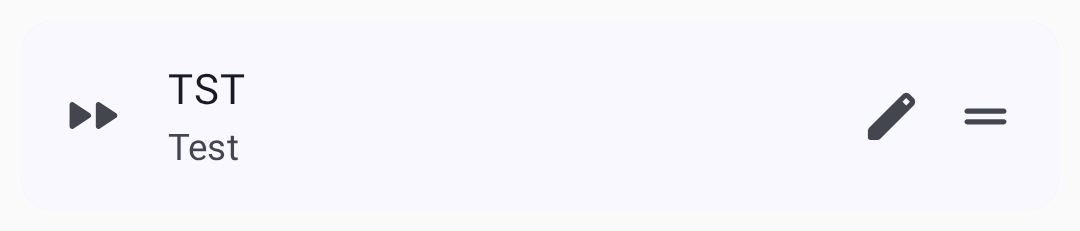
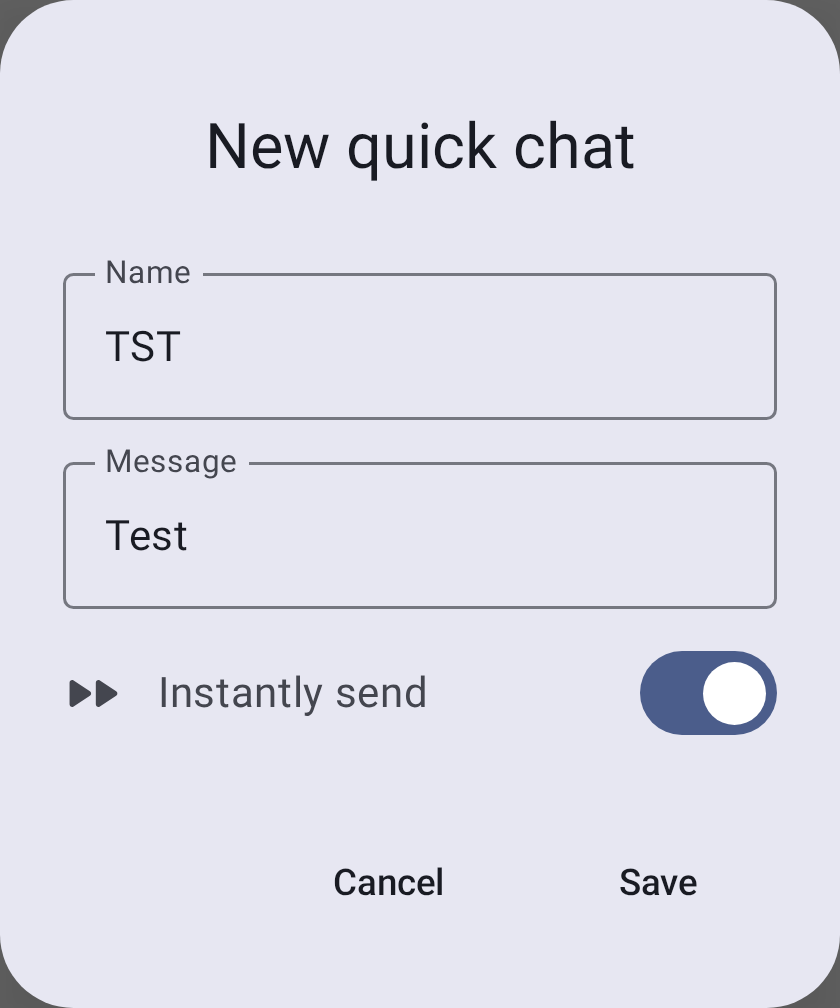
Each quick chat entry has a Name — the button label, capped at five characters, forced to uppercase, and filled in for you from the message text — and the Message it carries. A switch decides what tapping the button does. A new entry starts on Instantly send, so a tap sends the message straight away; turn the switch off and the label changes to Append to message, which puts the text in the input field for you to edit first.
Searching Messages
You can search the full history of any conversation directly from the chat screen:
- Open a conversation (a channel or a direct message).
- Tap the search icon in the top bar.
- Type into the Search messages… field. The search runs as you type, across all stored messages in that conversation.
- Use the N / M result counter and the previous / next arrows to jump between matches, which are highlighted in the conversation.

💡 Tip: Search is full-text and stays within the conversation you opened it from — it doesn’t search across other channels or contacts. It matches against the messages already stored on your device, so it works fully offline.
訊息泡泡
訊息以對話泡泡的形式顯示 — 已傳送的訊息在右側,收到的訊息在左側。每個泡泡顯示傳送者、時間戳記及傳遞狀態。含有回覆的訊息,會在回覆內容上方顯示原始訊息的引用預覽。
Text Formatting
Messages support lightweight inline Markdown. Received messages render the styling with the syntax characters removed:
| 類型 | Syntax | Renders as |
|---|---|---|
| Bold | **bold** | bold |
| Italic | *italic* | italic |
| Strikethrough | ~~strike~~ | |
| Inline code | `code` | monospace code |
| Link | [label](https://example.com) | a tappable label |
When composing, focus the message field and type at least three characters to reveal a formatting toolbar below the input. Select text and tap a style to wrap it (tap again to remove it); with no selection, a style inserts an empty pair with the cursor between the markers. The link button opens a dialog to enter a URL. As you type, the field shows the styled text, but the message you send still contains the Markdown characters.
💡 Tip: Formatting is carried as literal characters on the mesh — the same bytes iOS sends. Clients that don’t support Markdown (older apps, plain firmware clients) will show the raw
**/~~characters. URLs, email addresses, and phone numbers are still auto-linked whether or not you use Markdown.
Mentions
Type @ while composing to mention a node — a picker suggests matching contacts as you type. In a received message, a mention appears as a highlighted chip showing the node’s name; tap it to jump straight to that node’s detail page.
訊息回應
以表情符號對訊息作出回應:
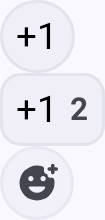
- Touch & hold a message — or double-tap it — to raise a quick reaction bar above the bubble. Opening the bar sends nothing.
- Tap an emoji in the bar to send it; tap More reactions to open the full picker, or anywhere outside the bar to dismiss it without sending. A reaction is a real mesh packet, so it only goes out when you pick an emoji.
- 訊息回應顯示於訊息泡泡下方
- 多位使用者可對同一則訊息作出回應
- 可對自己或他人的訊息作出回應
💡 提示:訊息回應非常輕量 — 相較於完整文字訊息,佔用極少的 mesh 網路頻寬。
Replying
Swipe a message to the right to reply to it — the composer opens with that message quoted. Swiping past the reply threshold arms the action; releasing before it springs back with nothing sent. Reply is also in the actions sheet, reached by touching & holding and then tapping More message actions.
Day Separators
Messages are grouped by day. The separator above the first message of each day reads Today or Yesterday for the two most recent days, and the date itself for older ones.
Jump to Latest
Scrolling back through a conversation raises a jump-to-latest control. When messages arrive while you are scrolled up, it names the most recent sender and adds a count of the other unread messages. That count is messages, not people — five unread from one person reads as their name +4.
訊息動作
Touch & hold or double-tap a message to open the quick reaction bar, then tap More message actions (the overflow icon on that bar) to open the actions sheet. The emoji row runs across the top of the sheet — that is where reactions live — and beneath it, along with the message’s timestamp and delivery status, are:
- 回覆 — 在回覆中引用該訊息
- Copy — copy the message text to the clipboard
- Translate — translate a received message into your device language, and toggle between the original and translated text (Google Play build only; uses on-device translation). The first translation into a language asks to download a one-time language model and tells you its size, then translates once the download finishes. If the download fails, or the message is already in your language, the app says so instead of translating
- Select — start multi-select, so you can act on several messages at once
- Delete — remove the message from this phone. It works on any message in the conversation, yours or not, and does not remove it from anyone else’s radio or phone
訊息優先順序
The app sends every message you compose at the same, default priority — there is no emergency or alert tier to choose, and nothing in the app raises a direct message above a channel broadcast. Any prioritising between them happens in firmware, not here. (The app does mark some of its own internal traffic, such as admin and traceroute packets, as reliable or background, but that is not something you control from the message composer.)
訊息限制
- Maximum length: 200 bytes (approximately 200 characters for ASCII text)
- The 200-byte cap applies to the in-app composer — the mesh payload limit itself is 233 bytes, so messages from other senders (e.g., App Functions) may arrive slightly longer
- 速率限制:mesh 網路會執行無線電佔用時間公平性管制;大量訊息可能會被節流
- 傳遞:若未收到確認回應,訊息將自動重試
最佳實踐
- 群組協調請使用頻道
- 個人私下通訊請使用私訊
- 訊息請盡量簡短 — mesh 網路頻寬有限
- 敏感通訊請設定加密
相關主題
- 〔節點〕(nodes) — 點選節點以開始傳送私訊
- 〔設定——無線電與使用者〕(settings-radio-user) — 設定頻道加密與預設值
- 〔MQTT〕(mqtt) — 將頻道訊息橋接至網際網路
- Channel configuration — detailed channel settings on meshtastic.org