Yhteydet
Meshtastic tukee useita yhteystapoja puhelimen tai työpöydän ja radion väliseen tiedonsiirtoon.
Bluetooth (BLE)
Bluetooth Low Energy on oletus ja yleisin yhteystapa Androidilla.
Radion pariliittäminen
- Power on your radio. Most radios advertise over Bluetooth as soon as they boot — there is no pairing mode to enter. Radios with a color touchscreen ship with Bluetooth switched off, so turn it on from the radio’s own on-screen menu first.
- Avaa sovellus ja siirry Yhdistä-välilehdelle.
- Napauta Hae bluetooth-laitteita — lähellä olevat Meshtastic-radiot ilmestyvät näkyville.
- Valitse radiosi luettelosta.
- Android asks you to pair. If your radio has a screen, it shows a six-digit PIN — type that into the Android dialog. If your radio has no screen, the PIN is
123456.

You can change the pairing method, or turn Bluetooth on for a radio that ships with it off, under Settings → Device configuration → Bluetooth — see Settings — Radio & User. For more information, see Bluetooth configuration on meshtastic.org.
Vaihda bluetooth-, verkko- ja USB-yhteyksien välillä käyttämällä yhteyskortin alapuolella olevaa yhteysvalitsinta (vain yksi yhteystapa voi olla aktiivinen kerrallaan):

💡 Vinkki: Jos radioasi ei näy, varmista, ettei se ole jo yhdistetty toiseen puhelimeen tai ettei se ole kantaman ulkopuolella.
Näytössä kerrotaan kaikki sovelluksen puolella olevat syyt, jotka estävät haun, sekä niiden ratkaisut:
| Näet seuraavan | Mitä se tarkoittaa |
|---|---|
| Kortti pyytää Lähistön laitteet -käyttöoikeutta | Käyttöoikeutta ei ole myönnetty. Myönnä käyttöoikeus pyytää sitä. Kun Android lakkaa kysymästä, painikkeeksi muuttuu Avaa asetukset. |
| Bluetooth on pois käytöstä | Bluetooth-sovitin on poistettu käytöstä – kortti avaa Bluetooth-asetukset. |
| Bluetooth-laitteiden haku edellyttää myös sijaintipalvelujen käyttöä | Vain Android 11:ssä ja vanhemmissa versioissa: käyttöoikeus on myönnetty, mutta järjestelmän sijaintipalvelut ovat pois käytöstä. |
| No card, and No Bluetooth devices seen under the header | Nothing on this side is blocking the scan. The radio is out of range, off, or already connected elsewhere. |
The explanation lives in that card, not in the scan control: tapping Scan for Bluetooth devices after you have declined once asks Android again directly.
Yhteyden tila
| Ikoni | Tila | Kuvaus |
|---|---|---|
| 🟢 | Yhdistetty | Aktiivinen radiolinkki muodostettu |
| 🟡 | Yhdistetään | Yhteyden muodostus käynnissä |
| 🔴 | Ei yhdistetty | No active connection. The app retries automatically, with a growing delay between attempts |
| ⚪ | Laite on lepotilassa | Radio on kevyessä lepotilassa — sovellus odottaa sen heräävän ja muodostavan yhteyden uudelleen, kyse ei ole virheestä |
Nämä ovat neljä yhteystilaa, joita sovellus käyttää. “Laite lepotilassa” on normaali virransäästöasetuksissa eikä vaadi mitään toimenpiteitä.
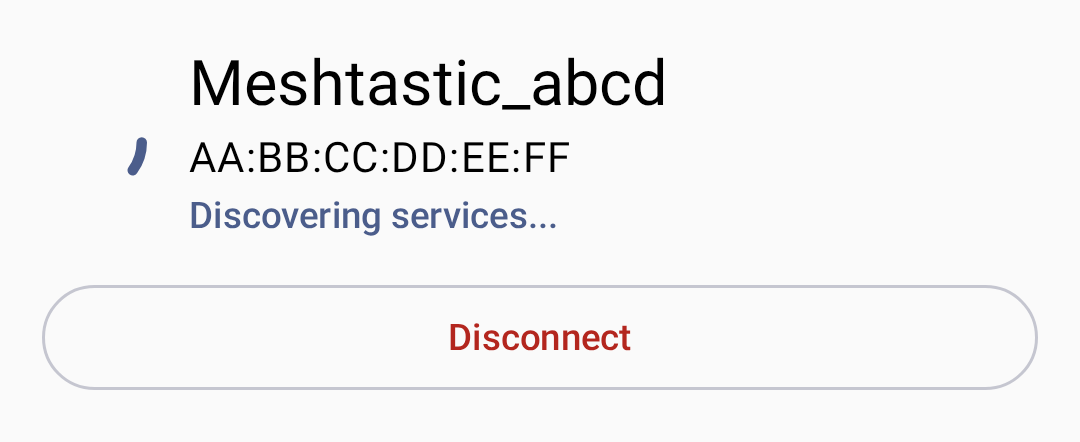
Yhteyttä muodostettaessa tilailmaisin näyttää nykyisen yhteyden tilan — napauta Lopeta yhteyden muodostaminen keskeyttääksesi yrityksen:
With no radio chosen yet, the connection card reads No device selected. A pane with nothing to list says so under its header, with a hint:
| Pane | What it shows |
|---|---|
| Bluetooth | No Bluetooth devices seen, and “Ensure you’re within range of the device.” Start a scan from the header. |
| Verkko | No network devices seen, and “Ensure you’re connected to the same network as the device.” Shown only while nothing has been discovered and Recent Network Devices is empty. Add device manually… stays below it. |
| USB | No USB devices detected, and “Connect a device with a USB data cable to use serial.” |
Bluetoothin vianmääritys
- Radio not found: Turn Bluetooth off and back on. On Android 11 and older, also check that system location services are switched on — those releases do not return scan results without them.
- Bluetooth scan couldn’t start: Try again, and toggle Bluetooth off and on if it repeats.
- Yhteys katkeaa: Siirry lähemmäs radiota ja tarkista mahdolliset häiriöt.
- Pairing failed, or pairing did not complete: Check that the Nearby devices permission is granted, then pair again.
- Paritus hylätty: Poista laite Androidin Bluetooth-asetuksista ja yritä uudelleen.
- Could not establish a stable connection after repeated attempts: The app stopped retrying after three failed handshakes — a radio that keeps failing here is usually crashing on reconnect. Power-cycle the radio, then tap it again on the Connect tab to start a fresh attempt.
USB-sarjaporttiyhteys
USB-yhteydet tarjoavat langallisen vaihtoehdon, hyödyllinen työpöytäkäytössä tai kun Bluetooth ei ole käytettävissä.
Asetukset
- Connect your radio to your phone with a USB data cable. Charge-only cables carry no data lines, and a radio on one never appears in the list.
- Sovellus pyytää USB-käyttöoikeutta — napauta Salli.
- Yhteys muodostetaan automaattisesti.
ℹ️ Huomautus: USB-yhteydet edellyttävät Android-laitteissa OTG-tukea.
Troubleshooting USB
- USB permission denied: Unplug the radio and plug it back in — Android asks again on reconnect.
- No radio in the list: Check that the cable carries data rather than only power, and that the phone supports OTG.
TCP/IP (Verkko)
Jotkin Meshtastic-radiot tukevat WiFi-/Ethernet-yhteyttä, jolloin TCP-pohjaiset yhteydet toimivat lähiverkon kautta. Get the radio onto your network first. Connect to it over Bluetooth or USB, open Settings → Device configuration → Network, and under Wi-Fi Options turn on Wi-Fi enabled and enter the SSID and Password. The Network screen appears only for radios whose hardware supports Wi-Fi or Ethernet. Once the radio has an address, come back and connect to it over the network.
Yhdistäminen verkon kautta
- Varmista, että radio on samassa lähiverkossa kuin puhelimesi tai tietokoneesi.
- On the Connect tab, select Network in the transport selector.
- Valitse radio jommallakummalla seuraavista tavoista:
- Hae verkkolaitteita — ota tämä käyttöön, jotta lähiverkossa itsensä ilmoittavat radiot löytyvät automaattisesti (mDNS /
_meshtastic._tcp). Löydetyt laitteet näkyvät luettelossa; yhdistä napauttamalla haluamaasi laitetta. - Lisää laite manuaalisesti — anna radion IP-osoite (tai isäntänimi) ja portti (oletus:
4403).
- Hae verkkolaitteita — ota tämä käyttöön, jotta lähiverkossa itsensä ilmoittavat radiot löytyvät automaattisesti (mDNS /
- Aiemmin käytetyt verkko-osoitteet muistetaan kohdassa Viimeisimmät verkkolaitteet, jotta yhteyden muodostaminen uudelleen käy nopeasti (poista osoite koskettamalla sitä pitkään).
Network discovery uses mDNS, which only works when both your phone and the radio are on the same subnet. If the phone is not on Wi-Fi at all, the app warns that a network scan may find nothing. On Android 17 and newer, the app needs the Local network permission to reach a radio on your own Wi-Fi at all — not only to discover it — so typing the address by hand does not work around a denied permission. Grant it from the card on the Network pane, or from the Permissions section of Settings. A radio on a public address, or one reached over a VPN, needs no permission.
Milloin TCP-yhteyttä kannattaa käyttää
- Radio on samassa lähiverkossa
- Testaus simuloidulla radiolla
- Ympäristöt, joissa Bluetoothissa on häiriöongelmia
WiFi-määritys mPWRD-OS:lle
Settings → Wi-Fi Provisioning for mPWRD-OS is a separate, narrower tool. It sends Wi-Fi credentials over Bluetooth to mPWRD-OS devices only, using their own protocol — it does not configure Wi-Fi on an ordinary Meshtastic radio. It is available on both Android and desktop.
- Open the screen and wait while the app finds the device over Bluetooth.
- Tap Scan for Networks, then pick a network from Available Networks — or turn on Hidden network and type the name into Network Name (SSID).
- Enter the Password and tap Apply.
If the scan reports No networks found or fails outright, move the phone closer to the device and scan again. If Failed to apply Wi-Fi configuration comes back, check the password and try again.
After Your First Connection
Being connected is not the same as being able to transmit.
A radio leaves the factory with no LoRa region set, and it does not transmit until you set one. When you connect such a radio, the Connect tab shows a Set your region card; tap it to open the LoRa screen and choose the region you are in.
Once the region is set, the tab warns you if the radio is receive-only: a Transmit is disabled card, reading “This device can receive but will not send anything over LoRa.” Tap it to open the same screen and turn Transmit Enabled back on. Only one of the two cards appears at a time — an unset region already stops the radio transmitting, so the app names that first and holds the transmit card back until you have set a region.
For more information, see Settings — Radio & User.
Uudelleenyhdistämisen toiminta
Sovellus muodostaa käynnistyessään automaattisesti yhteyden viimeksi valittuun radioon. You can switch transports from the Connect tab at any time.
To disconnect, tap the disconnect button on the Connect tab:

Työpöytäyhteydet
Työpöydällä (Linux/macOS/Windows) sovellus tukee:
- Bluetooth (BLE) — Kable-kirjaston kautta; toimii macOS:llä, Linuxilla ja Windowsilla
- USB-sarjaportti — ensisijainen langallinen yhteystapa
- TCP/IP — verkkoyhteydellä oleville radioille
Katso Työpöytäsovellus alustakohtaiset tiedot ja pikanäppäimet.
Aiheeseen liittyvät aiheet
- Aloitus — ensikäynnistyksen käyttöönotto ja käyttöoikeudet
- Settings — Radio & User — Bluetooth, region, and network configuration
- Messages & Channels — send your first message once the radio is connected
- Radiot — katso, ketkä muut ovat mesh-verkossasi
- Työpöytäsovellus — työpöytäkohtaiset yhteystiedot
- Tuetut laitteet — täydellinen lista yhteensopivista radioista meshtastic.org -sivustolla