Ühendus
Meshtastic supports multiple transport methods to communicate between your phone or desktop and a radio.
Sinihammas (BLE)
Sinihamba madal voolutarve on Androidi vaike- ja levinuim ühendusviis.
Pairing a Radio
- Power on your radio. Most radios advertise over Bluetooth as soon as they boot — there is no pairing mode to enter. Radios with a color touchscreen ship with Bluetooth switched off, so turn it on from the radio’s own on-screen menu first.
- Ava rakendus ja navigeeri vahekaardile Ühendused.
- Puuduta valikut Otsi sinihamba seadmeid – kuvatakse lähedalasuvad Meshtasticu raadiod.
- Select your radio from the list.
- Android asks you to pair. If your radio has a screen, it shows a six-digit PIN — type that into the Android dialog. If your radio has no screen, the PIN is
123456.

You can change the pairing method, or turn Bluetooth on for a radio that ships with it off, under Settings → Device configuration → Bluetooth — see Settings — Radio & User. For more information, see Bluetooth configuration on meshtastic.org.
Sinihamba, võrgu ja USB-transpordi vahel vahetamiseks (üks on korraga aktiivne) kasutage transpordivalijat – ühenduskaardi all asuvat segmenteeritud nuppude rida:

💡 Tip: If your radio doesn’t appear, check that it isn’t already connected to another phone, or out of range.
The screen names anything on the app’s side that is blocking a scan, with the fix attached:
| What you see | What it means |
|---|---|
| A card asking for Nearby devices | The permission has not been granted. Grant permission requests it; once Android stops prompting, the button becomes Open settings. |
| Bluetooth is off | The adapter is disabled — the card opens Bluetooth settings. |
| Bluetooth scanning also needs location services | Android 11 and older only: the permission is held but the system location toggle is off. |
| No card, and No Bluetooth devices seen under the header | Nothing on this side is blocking the scan. The radio is out of range, off, or already connected elsewhere. |
The explanation lives in that card, not in the scan control: tapping Scan for Bluetooth devices after you have declined once asks Android again directly.
Ühenduse olek
| Ikoon | Olek | Kirjeldus |
|---|---|---|
| 🟢 | Ühendatud | Aktiivne raadioside loodud |
| 🟡 | Ühendan | Kätlemine on pooleli |
| 🔴 | Ühendus katkenud | No active connection. The app retries automatically, with a growing delay between attempts |
| ⚪ | Seade on unerežiimis | The radio is in light sleep — the app is waiting for it to wake and reconnect, not failing |
These are the four states the app models. “Device sleeping” is normal on power-saving configurations and needs no action.
When connecting, a status indicator shows the current connection state — tap Stop Connecting to abandon the attempt:
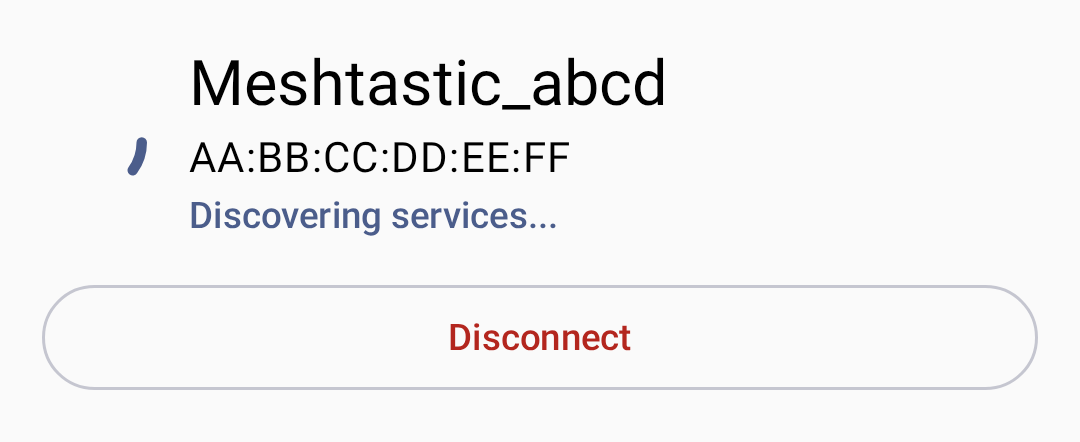
With no radio chosen yet, the connection card reads No device selected. A pane with nothing to list says so under its header, with a hint:
| Pane | What it shows |
|---|---|
| Sinihammas | No Bluetooth devices seen, and “Ensure you’re within range of the device.” Start a scan from the header. |
| Võrk | No network devices seen, and “Ensure you’re connected to the same network as the device.” Shown only while nothing has been discovered and Recent Network Devices is empty. Add device manually… stays below it. |
| USB | No USB devices detected, and “Connect a device with a USB data cable to use serial.” |
Sinihamba veaotsing
- Radio not found: Turn Bluetooth off and back on. On Android 11 and older, also check that system location services are switched on — those releases do not return scan results without them.
- Bluetooth scan couldn’t start: Try again, and toggle Bluetooth off and on if it repeats.
- Connection drops: Move closer to the radio; check for interference.
- Pairing failed, or pairing did not complete: Check that the Nearby devices permission is granted, then pair again.
- Sidumine tagasi lükatud: Unusta seade Androidi sinihamba seadetes ja proovi uuesti.
- Could not establish a stable connection after repeated attempts: The app stopped retrying after three failed handshakes — a radio that keeps failing here is usually crashing on reconnect. Power-cycle the radio, then tap it again on the Connect tab to start a fresh attempt.
USB port
USB ühendused pakuvad juhtmega alternatiivi, mis on kasulik lauaarvutite puhul või kui sinihammas pole saadaval.
Seadistamine
- Connect your radio to your phone with a USB data cable. Charge-only cables carry no data lines, and a radio on one never appears in the list.
- The app prompts for USB permission — tap Allow.
- The connection is established automatically.
ℹ️ Note: USB connections require OTG support on Android devices.
Troubleshooting USB
- USB permission denied: Unplug the radio and plug it back in — Android asks again on reconnect.
- No radio in the list: Check that the cable carries data rather than only power, and that the phone supports OTG.
TCP/IP (võrk)
Some Meshtastic radios support Wi-Fi/Ethernet connectivity, allowing TCP-based connections over your local network. Get the radio onto your network first. Connect to it over Bluetooth or USB, open Settings → Device configuration → Network, and under Wi-Fi Options turn on Wi-Fi enabled and enter the SSID and Password. The Network screen appears only for radios whose hardware supports Wi-Fi or Ethernet. Once the radio has an address, come back and connect to it over the network.
Connecting over the Network
- Veendu, et raadio on samas kohtvõrgus kui sinu telefon/lauaarvuti.
- On the Connect tab, select Network in the transport selector.
- Choose the radio one of two ways:
- Võrguseadmete otsimine – lülita see sisse, et automaatselt avastada raadioid, mis reklaamivad end kohalikus võrgus (mDNS /
_meshtastic._tcp). Leitud seadmed kuvatakse loendis; ühenduse loomiseks puuduta neist ühte. - Lisa seade käsitsi… — Sisesta raadio IP-aadress (või hostinimi) ja port (vaikimisi: 4403).
- Võrguseadmete otsimine – lülita see sisse, et automaatselt avastada raadioid, mis reklaamivad end kohalikus võrgus (mDNS /
- Previously-used network addresses are remembered under Recent Network Devices for quick reconnection (touch & hold to remove one).
Network discovery uses mDNS, which only works when both your phone and the radio are on the same subnet. If the phone is not on Wi-Fi at all, the app warns that a network scan may find nothing. On Android 17 and newer, the app needs the Local network permission to reach a radio on your own Wi-Fi at all — not only to discover it — so typing the address by hand does not work around a denied permission. Grant it from the card on the Network pane, or from the Permissions section of Settings. A radio on a public address, or one reached over a VPN, needs no permission.
Millal kasutada TCP
- Raadio on samas kohalikus võrgus
- Testing with a simulated radio
- Asukohad kus sinihambal on häireid
WiFi ühenduse loomine mPWRD-OS-i jaoks
Settings → Wi-Fi Provisioning for mPWRD-OS is a separate, narrower tool. It sends Wi-Fi credentials over Bluetooth to mPWRD-OS devices only, using their own protocol — it does not configure Wi-Fi on an ordinary Meshtastic radio. It is available on both Android and desktop.
- Open the screen and wait while the app finds the device over Bluetooth.
- Tap Scan for Networks, then pick a network from Available Networks — or turn on Hidden network and type the name into Network Name (SSID).
- Enter the Password and tap Apply.
If the scan reports No networks found or fails outright, move the phone closer to the device and scan again. If Failed to apply Wi-Fi configuration comes back, check the password and try again.
After Your First Connection
Being connected is not the same as being able to transmit.
A radio leaves the factory with no LoRa region set, and it does not transmit until you set one. When you connect such a radio, the Connect tab shows a Set your region card; tap it to open the LoRa screen and choose the region you are in.
Once the region is set, the tab warns you if the radio is receive-only: a Transmit is disabled card, reading “This device can receive but will not send anything over LoRa.” Tap it to open the same screen and turn Transmit Enabled back on. Only one of the two cards appears at a time — an unset region already stops the radio transmitting, so the app names that first and holds the transmit card back until you have set a region.
For more information, see Settings — Radio & User.
Reconnection Behavior
The app reconnects to the last selected radio on startup. You can switch transports from the Connect tab at any time.
To disconnect, tap the disconnect button on the Connect tab:

Desktop Connections
On Desktop (Linux/macOS/Windows), the app supports:
- Sinihammas (BLE) — Kable’i teegi kaudu; töötab macOS-is, Linuxis ja Windowsis
- USB port – peamine juhtmega ühendusmeetod
- TCP/IP – võrguühendusega raadiote jaoks
Platvormipõhiste üksikasjade ja kiirklahvide kohta vaata [Töölauarakendus] (desktop).
Seotud teemad
- Alustamine — esmakäivituse seadistamine ja load
- Settings — Radio & User — Bluetooth, region, and network configuration
- Messages & Channels — send your first message once the radio is connected
- Nodes — see who else is on your mesh
- Desktop App — desktop-specific connection details
- Supported devices — full list of compatible radios on meshtastic.org