Settings — Radio & User
Configure your node’s user identity, region and LoRa parameters, position and power behavior, network and Bluetooth connectivity, and security settings.
How these screens work
Everything here is on the Settings screen. User, LoRa, Channels and Security are listed there directly. Device, Position, Power, Network, Display and Bluetooth are one level down, under Settings → Device configuration. Network appears only on nodes with Wi-Fi or Ethernet, and Bluetooth only on nodes with Bluetooth.
Settings use standard preference controls — dropdowns, toggles, and sliders:
| Control | Screenshot |
|---|---|
| Dropdown | 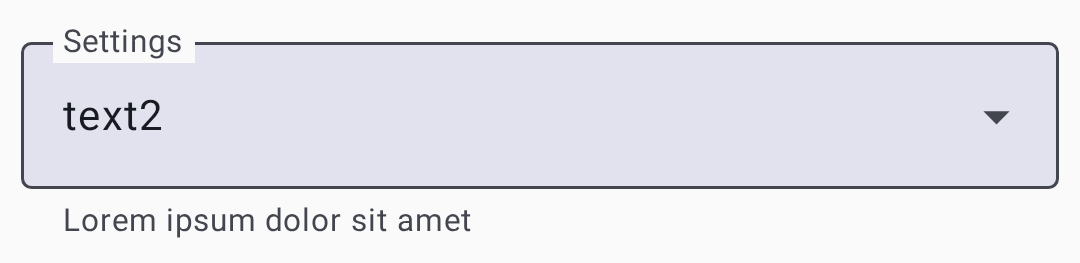 |
| Toggle |  |
| Slider | 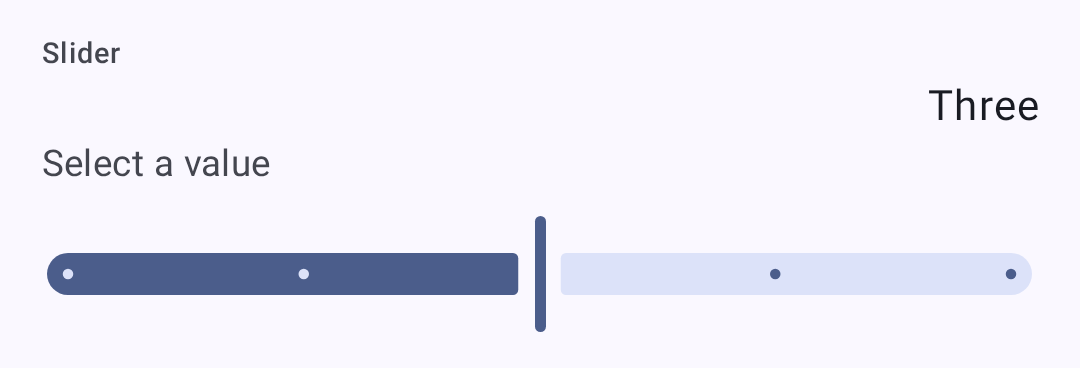 |
User Settings
User Profile
On Settings → User.
| Setting | الوصف |
|---|---|
| Long Name | Your display name (up to 39 characters) |
| Short Name | 4-character abbreviated name |
| Status Message | A short, public free-text status other nodes display alongside your node — up to 80 bytes, cleared with the ✕ in the field. The node broadcasts it to the mesh when you change it and again every 12 hours. Needs firmware 2.8 or newer, and is absent otherwise |
| Unmessageable | Marks the node as one nobody should try to message — for an unmonitored or infrastructure node. Other clients hide it from the contact list. Needs supporting firmware |
| Licensed amateur node (Ham) | Enable if you hold an amateur node license (permits higher power). Turning it on is staged behind a confirmation dialog. On your own node it then relabels Long Name as Call sign and adds a separate Long Name field; over remote admin the field stays Long Name |
Applying changes
The footer appears as soon as you change something. Discard throws the change away, and the other button writes it to the node: it reads Save & restart on the screens the firmware applies with a reboot — Position, Network, Bluetooth, Security, and most module screens — and Save everywhere else.
The status message is saved with the same Save, but it never reboots the node — and, like the rest of this screen, it can be edited on a remote node you administer. For your own node there is a shortcut while it is connected: touch & hold your node in the node list and choose Update status. Older firmware and a disconnected node have no shortcut — the field itself is still the way in.
Configuration
Device Config
On Settings → Device configuration → Device.
| Setting | الوصف | Default |
|---|---|---|
| Device Role | Node behavior. The picker lists the firmware names (CLIENT, ROUTER, ROUTER_LATE, TAK, and so on), and the description of whichever role is selected appears under the field. Choosing ROUTER or ROUTER_LATE asks you to confirm you have read the device-role guidance first | CLIENT |
| Rebroadcast Mode | How the node retransmits messages. As with the role, the picker lists the firmware names and describes only the selected one | ALL |
| Node Info Broadcast Interval | How often the node re-announces itself. A dropdown of fixed intervals — Unset, then 3 to 72 hours — not a value you type in seconds | 3 hours |
| Double Tap as Button | Treat a double tap as a button press | Disabled |
| Triple Click Ad Hoc Ping | Send an ad-hoc position ping on a triple click | Enabled |
| LED Heartbeat | Blink the status LED periodically | Enabled |
| Time Zone | POSIX time-zone string for the device clock, with buttons to copy your phone’s zone or clear it | — |
| Button / Buzzer GPIO | Advanced: which pins the button and buzzer are wired to | — |
LoRa Config
On Settings → LoRa.
| Setting | الوصف | Default |
|---|---|---|
| الجهة | Regulatory region for frequency bands. You must set this before transmitting. On firmware 2.8 or newer, the first region set also creates the node’s identity key and gives it a new node number | Unset (must configure) |
| Presets | Speed/range tradeoff | LongFast |
| Number of Hops | Maximum retransmit hops | 3 |
| Transmit Power (dBm) | Transmission power; 0 = max allowed for region | 0 (region max) |
| Frequency Override | Overrides the computed operating frequency outright (MHz). It doesn’t offset the calculated value — leave at 0 unless you know you need a specific frequency | 0 (use calculated) |
| Use Preset | On by default. Turn it off to set Spread Factor, Coding Rate and Bandwidth by hand instead of taking them from the modem preset | On |
| Coding Rate Override | Preset mode only, firmware 2.7.18 or newer: raises the preset’s coding rate for more error correction while keeping its bandwidth and spread factor. Only rates above the preset’s own are offered, and a preset already at 4/8 has none. Nodes on the same preset still hear each other, but every packet takes longer on air and uses more of the duty cycle. Switching to a preset that already meets the override resets it to the preset default | Preset default |
| Spread Factor | Manual mode only: 5–12. Higher spreads further but slower. On SX127x (RF95) radios the firmware doesn’t accept 5 or 6 and uses 11 instead | From preset |
| Coding Rate | Manual mode only: 5–8. More redundancy costs airtime | From preset |
| Bandwidth | Manual mode only: the channel bandwidth in kHz, typed in directly. On the 2.4 GHz region the app offers a list of the bandwidths your node supports instead, and a stored value that isn’t on that list shows as Unsupported and blocks saving until you pick a supported one | From preset |
| Frequency Slot | Which slot within the region’s band to use. 0 derives it from the primary channel name | 0 (automatic) |
| Transmit Enabled | Turning this off makes the node receive-only | On |
| Override Duty Cycle | Ignores the region’s duty-cycle limit. Illegal in most regions; turn it on only where your license permits | Off |
| Ignore MQTT | Drop packets that arrived from MQTT rather than over the air. The firmware turns this on for you whenever you set a region that has a duty-cycle limit — the EU bands, Thailand, and Ukraine 433 | Off, until you set a duty-cycle-limited region |
| Ok to MQTT | Allow your packets to be forwarded to MQTT by gateways | Off |
| RX Boosted Gain | Extra receive gain on SX126x radios; costs a little current | Off |
| PA fan disabled | Turn off the power-amplifier fan on hardware that has one | Off |
The preset list is also filtered to what your region legally permits, so a preset allowed in one region doesn’t appear in another. Changing region can therefore leave your current preset illegal — the app repairs it for you, switching to the region’s own default rather than leaving an unusable setting in place. The region list itself is filtered by what your firmware supports, so the newer regions appear only on 2.8 or later, alongside whichever region the node already has set.
Some regions are amateur-node allocations whose presets only licensed operators may use. On firmware 2.8 or newer the app knows which regions those are and grays the whole Presets list out until Licensed amateur node (Ham) is turned on for the node you are configuring; the text under the field says so while it is grayed out.
⚠️ Important: Operating without the correct region may violate local radio regulations. See the region configuration guide on meshtastic.org for details.
Modem presets
The Lite, Narrow, Medium Turbo, and Tiny presets need firmware 2.8 or newer — the app hides them on older nodes.
💡 Tip: The SNR Limit values are negative on purpose. LoRa can decode signals below the noise floor, so a more-negative limit means the preset tolerates a weaker, noisier signal (more range). See How the Signal Meter Works for the full explanation.
| Preset | Range | Speed | SNR Limit | Best For |
|---|---|---|---|---|
| Short Turbo | ~1 km | 21.9 kbps | −7.5 dB | Dense urban with line-of-sight; data-heavy applications |
| Short Fast | ~3 km | 10.9 kbps | −7.5 dB | Urban neighborhoods; buildings within a few blocks |
| Short Slow | ~5 km | 6.25 kbps | −10 dB | Suburban short-range; moderate building density |
| Medium Fast | ~5 km | 3.52 kbps | −12.5 dB | Suburban areas; moderate building density |
| Medium Slow | ~8 km | 1.95 kbps | −15 dB | Suburban/rural; moderate range with slower speed |
| Long Turbo | ~10 km | 1.34 kbps | −17.5 dB | Similar range to Long Fast but with 500 kHz bandwidth; faster throughput |
| Long Fast | ~10 km | 1.1 kbps | −17.5 dB | General use (default) — balanced range and speed |
| Long Moderate | ~20 km | 0.34 kbps | −17.5 dB | Rural with some terrain; occasional use |
| Lite Fast | ~5 km | 1.76 kbps | −12.5 dB | EU 866 MHz SRD band (125 kHz BW); comparable to Medium Fast |
| Lite Slow | ~10 km | 0.98 kbps | −15 dB | EU 866 MHz SRD band (125 kHz BW); comparable to Long Fast |
| Narrow Fast | ~5 km | 2.28 kbps | −7.5 dB | EU 868 MHz band (62.5 kHz BW); avoids interference with other devices |
| Narrow Slow | ~10 km | 1.30 kbps | −10 dB | EU 868 MHz band (62.5 kHz BW); comparable to Long Fast |
| Medium Turbo | ~5 km | 7.0 kbps | −12.5 dB | Like Medium Fast but with 500 kHz bandwidth; not legal in every region. Needs firmware 2.8 or newer |
| Tiny Fast | ~10 km | 0.68 kbps | −7.5 dB | Amateur bands that cap occupied bandwidth; these presets use 15.6 kHz. Needs firmware 2.8 or newer, an SX126x or SX127x radio, and a TCXO of ±5 ppm or better |
| Tiny Slow | ~20 km | 0.33 kbps | −10 dB | Same band restrictions as Tiny Fast, longer range. Same firmware, node, and TCXO requirements |
| ~30 km | 0.18 kbps | −20 dB | ⚠️ Deprecated — still selectable but may be removed in a future firmware release | |
| ~40+ km | 0.09 kbps | −20 dB | ⚠️ Deprecated — still selectable but may be removed in a future firmware release |
ℹ️ Note: This table uses the common short names. The app’s Presets dropdown lists the raw firmware names instead —
SHORT_FAST,LONG_FAST,LITE_FAST,NARROW_FAST, and so on. Local Mesh Discovery shows the same presets as Long Fast and Short Turbo.
Choosing a modem preset
The modem preset controls the fundamental tradeoff between range and data rate:
- Slower presets use more spreading, making signals decodable at weaker signal levels (lower SNR limit). This means longer range but fewer bytes per second.
- Faster presets pack more data per transmission but require a stronger signal to decode.
Practical guidance:
- Urban mesh (many nodes, short distances): Use Long Fast (default) or Short Fast. Higher speed means less airtime congestion when many nodes share the channel.
- Rural/sparse mesh (few nodes, long distances): Use Long Moderate. Range matters more than speed when nodes are far apart.
- EU 866/868 MHz regulatory compliance: Use Lite Fast, Lite Slow, Narrow Fast, or Narrow Slow — these are optimized for the EU SRD/868 MHz bands with narrower bandwidths.
- Fixed infrastructure links: Use Short Turbo or Long Turbo for dedicated point-to-point links with good antennas and line-of-sight.
- Mixed environments: Stick with Long Fast — it’s the community default and ensures compatibility with others in your area.
All nodes on the same channel must use the same modem preset. Nodes with mismatched presets can’t communicate even if they share the same frequency and encryption key.
The range estimates in the Modem Presets table assume flat terrain and modest antennas. Elevation advantage (hilltop, rooftop) dramatically increases effective range. A well-placed Router with Long Fast can often outperform a ground-level node with Long Slow.
Display Config
On Settings → Device configuration → Display. These control the node’s own screen, not the app’s.
| Setting | الوصف |
|---|---|
| Screen on for | How long the display stays lit before sleeping |
| Carousel interval | How often the node cycles between screens on its own |
| Display mode | Screen layout/density used by the firmware |
| Display units | Metric or Imperial on the node’s screen |
| Use 12h clock format | Show the node’s clock as 12-hour rather than 24-hour |
| Bold Heading | Draw the screen’s heading text in bold |
| Flip screen | Rotate the display 180° for an inverted mounting |
| OLED type | Six values, shown as the raw constants: OLED_AUTO, OLED_SSD1306, OLED_SH1106, OLED_SH1107, OLED_SH1107_128_128, OLED_SH1107_ROTATED |
| Wake on tap or motion | Light the screen when the node is tapped or moved |
| Compass orientation | Rotation offset for the compass rose. Eight values, shown as the raw constants DEGREES_0 through DEGREES_270 plus an _INVERTED variant of each |
| Always point north | Locks the compass rose north-up instead of rotating it with your heading. Independent of Compass orientation — neither replaces the other |
Position Config
On Settings → Device configuration → Position.
| Setting | الوصف |
|---|---|
| GPS Mode (Physical Hardware) | Three-state: GPS enabled, disabled, or not present. Not a simple on/off |
| GPS Polling Interval | How often the node asks its GPS for a fix |
| Broadcast Interval | How often the position is shared with the mesh |
| Smart Position | Broadcast based on movement rather than purely on the clock |
| Smart Interval | With Smart Position on, the shortest gap between broadcasts |
| Smart Distance | With Smart Position on, how far you must move before broadcasting |
| Fixed Position | Use a manually entered latitude, longitude and altitude instead of the GPS |
| Position Flags | A group of toggles choosing which fields ride along with a position — altitude, its reference and precision, satellites in view, timestamp, and so on |
| GPS EN / Receive / Transmit GPIO | Advanced: the pins the GPS module is wired to |
Power Config
On Settings → Device configuration → Power.
| Setting | الوصف |
|---|---|
| Enable power saving mode | Let the node sleep aggressively between activity |
| Shutdown on power loss | Power the device down after external power disappears |
| Super deep sleep duration | How long the deepest sleep state lasts |
| Minimum wake time | The shortest time the node stays awake once woken |
| Wait for Bluetooth duration | How long to wait for a phone to connect before sleeping |
| ADC multiplier override | Turn on a manual correction for battery-voltage readings |
| ADC multiplier override ratio | The correction factor itself, used only when the override is on |
| Battery INA_2XX I2C address | Address of an external INA-series power sensor, if fitted |
Network Config
On Settings → Device configuration → Network, on nodes with Wi-Fi or Ethernet.
⚠️ Warning: Turning on Wi-Fi enabled or Ethernet enabled ends the Bluetooth connection between your phone and the node. Reconnect over the network afterwards from the Connections screen, or turn Wi-Fi off again from the node’s own screen or over USB. Saving this screen also always reboots the node.
| Setting | الوصف |
|---|---|
| Wi-Fi enabled | Enable the Wi-Fi node (ESP32 nodes) |
| SSID | Network name to connect to. Appears only once Wi-Fi enabled is on, along with Password. Scan Wi-Fi QR code fills both from a standard Wi-Fi QR code; on Android, holding the phone against a Wi-Fi NFC tag while this screen is open fills them the same way, and the app offers to open system settings if NFC is turned off |
| Password | Network password |
| Ethernet enabled | Use a wired connection on hardware that has one |
| IPv4 mode | DHCP, or a static address configured with the four fields that follow |
| Wi-Fi IP / Subnet / Gateway / DNS | The static address, only used when IPv4 mode is static |
| UDP broadcasting | Share mesh traffic with other nodes over the local network |
| NTP server | Time synchronization server |
| rsyslog server | Remote logging server |

Bluetooth Config
On Settings → Device configuration → Bluetooth, on nodes with Bluetooth.
| Setting | الوصف |
|---|---|
| Bluetooth enabled | Enable/disable BLE radio |
| Pairing mode | Fixed PIN, Random PIN, or No PIN |
| Fixed PIN | PIN code for pairing. Must be exactly six digits — the field rejects anything else |
Security Config
On Settings → Security. The screen is grouped into cards: Packet authenticity, Direct Message Key (your node’s key pair), Admin Keys, Logs, and Administration.
| Setting | الوصف |
|---|---|
| Public Key | Your node’s public key (read-only) |
| Admin Key | Keys permitted to administer this node remotely — up to three |
| Private Key | Your node’s private key (handle securely). Shown redacted when you are viewing another node over remote admin — the firmware doesn’t send it |
| Regenerate Private Key | Issues a new keypair for this node, behind a confirmation. Every peer that knew your old key must learn the new one |
| ⚠️ Removed — now configured automatically when an admin key is set | |
| Serial console | Serial console over the Stream API |
| Debug log API enabled | Output live debug logging over serial, and view and export position-redacted node logs over Bluetooth |
| Managed Mode | Locks the whole Configuration list, not just channels — every setting on the node becomes read-only and only an admin can change anything. Only selectable once an Admin Key is set |
| Backup Keys | Save an encrypted backup of the node’s keys on this phone (only for your own node) |
| Restore Keys | Write the backed-up keys back to the node (available once a backup exists) |
| Delete Key Backup | Remove the stored key backup from this phone |
| Protection level | How unsigned or relayed packets are treated: Strict — Require authentication, Balanced — Prefer authenticated, or Compatible — Accept unsigned (requires supporting firmware; Strict asks for confirmation) |
Lockdown Mode
Lockdown encrypts the device’s storage and requires a passphrase for each connection. It needs supporting firmware; the row doesn’t appear otherwise.
Enabling it asks you to set and confirm a passphrase, and to acknowledge that it locks the debug (SWD) port on hardware where the lockout takes effect. That part isn’t reversible from the app. Turning lockdown off later decrypts your storage and reboots the device, but the port stays locked. Reopening it takes a full chip erase with a debug probe, which destroys everything on the device.
Alongside the passphrase you set the limits that end a session automatically:
| Field | What it does |
|---|---|
| Boots remaining | How many device boots the unlocked state survives |
| Hours until expiry | Wall-clock lifetime of the unlocked state |
| Session cap (minutes) | A per-boot uptime cap on the unlocked state. 0, the default, means no cap |
Once active, the row reads Active — storage encrypted, this connection authenticated when unlocked, or Active — enter your passphrase to unlock this connection when not. Lock Now ends the current session immediately. Repeated wrong passphrases are rate-limited with a back-off before you can try again.
⚠️ Warning: There is no passphrase recovery. Losing it means erasing the device to get it back, which destroys its keys, channels and settings.
Related Topics
- Settings — Modules & Admin — optional feature modules and device administration
- Signal Meter — how modem presets affect signal quality thresholds
- LoRa configuration — detailed LoRa settings reference on meshtastic.org
- Initial configuration — region setup guide on meshtastic.org