Обновления прошивки
Поддерживайте своё радио Meshtastic в актуальном состоянии с помощью последней прошивки для получения новых функций, исправлений ошибок и улучшений безопасности.
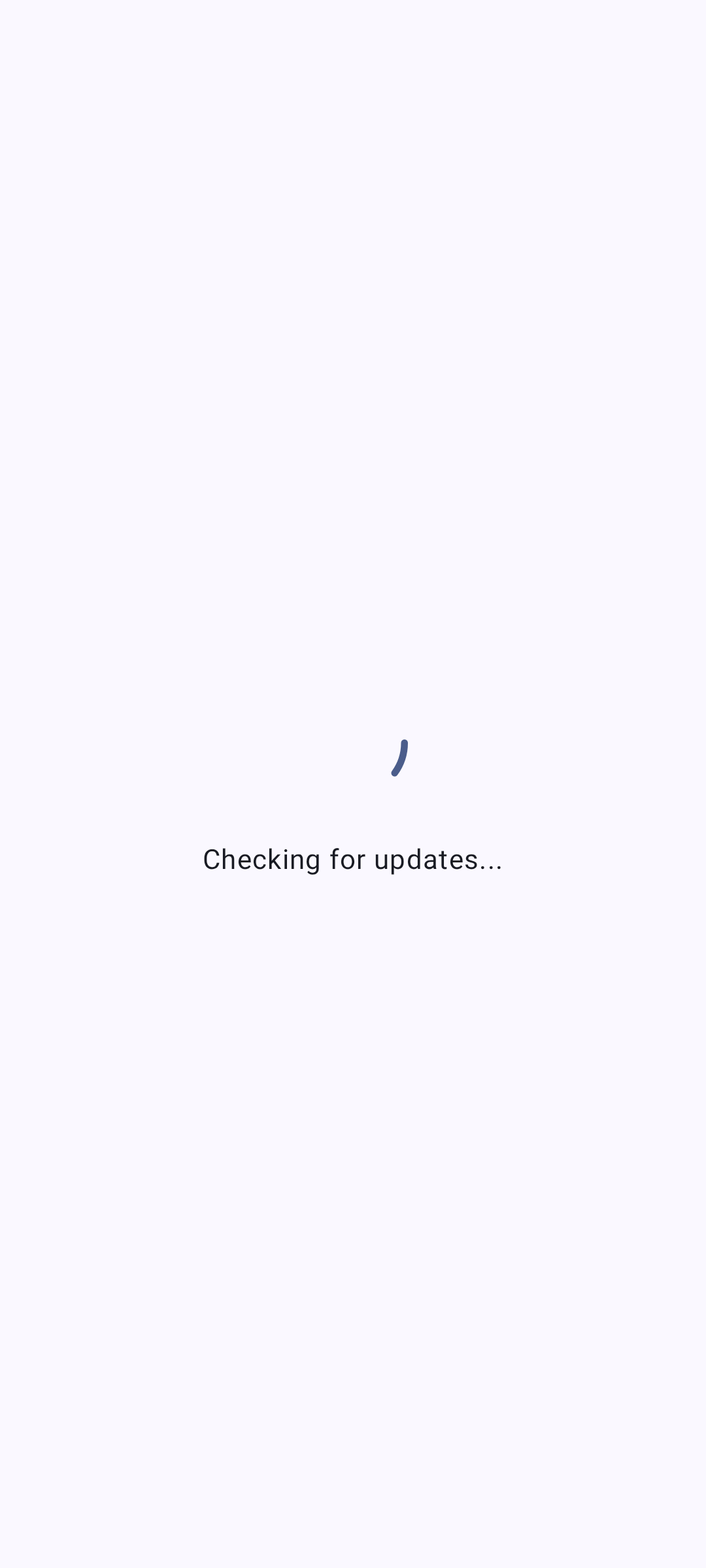
Проверка обновлений
- Откройте конфигурацию подключённого радио и в разделе “Дополнительно” нажмите “Обновление прошивки”. Этот пункт появляется только для устройств, поддерживающих OTA.
- Приложение проверяет доступные версии прошивки.
- Доступные обновления показывают номер версии и сводку изменений.
Методы обновления
OTA (беспроводное обновление) через Bluetooth
Наиболее распространённый способ обновления для пользователей Android:
⚠️ Предупреждение: Прерывание обновления прошивки может привести к невозможности загрузки устройства. Держите телефон рядом и оба устройства включенными до завершения обновления.
- Убедитесь, что твоё радио подключено по Bluetooth.
- Перейдите на экран “Обновление прошивки”.
- Выберите нужную версию прошивки.
- Нажмите Обновить. An Update Warning dialog lists the pre-flight checks — read it, then tap I know what I’m doing. to start. This dialog appears for every update method, including Wi-Fi OTA, USB, and a local firmware file.
- Дождитесь завершения обновления — не отключайте устройство во время обновления.
While the update downloads, uploads or verifies, you can tap Play Chirpy Hop to play a short runner game: tap to jump, swipe down to crouch. The update’s progress stays visible above the game, and back returns to the update screen. When the update finishes or fails, the game stops and offers Back to update. Your best score is kept on this device.
Очистить устройство при обновлении
Where the app offers it, an Erase device during update checkbox appears next to the update button. It is a per-update opt-in and is never remembered.
| Method | What erasing does |
|---|---|
| BLE / Wi-Fi OTA | Factory-resets the device once the update is verified. All settings and Bluetooth pairing are removed. |
| USB | Полностью стирает флэш-память устройства, а затем устанавливает выбранную прошивку с нуля. |
It is not offered for a local firmware file, during a recovery update, on USB devices whose board does not support the erase step, or over USB in the desktop app — the USB erase runs the Android-only maintenance sequence below. Afterwards the device needs setting up — and pairing — again.
OTA via Wi-Fi (network-connected ESP32)
When an ESP32 radio is connected over the network rather than Bluetooth, the app offers Wi-Fi OTA, which pushes the same update over TCP:
- Connect to the radio over the network (see Connections).
- Open the Firmware Update screen and pick a version.
- Tap Update. Keep the radio and phone on the same network for the whole transfer.
Wi-Fi OTA takes the ESP32 -update.bin image rather than the .uf2 a USB update uses; the app selects the right artifact for you.
Обновление внутри приложения по USB
Когда твоё радио подключено по USB/serial (а не по Bluetooth), на экране обновления прошивки появляется опция “Передача файла по USB”. Приложение перезагружает устройство в режим DFU, а затем предлагает сохранить файл .uf2 на DFU-диск устройства с помощью системного выбора файлов. Эта опция появляется только при подключении по USB/serial — она недоступна по Bluetooth.
ℹ️ Note: A vendor nRF bootloader supplied as a
.zip(e.g. RAK WisBlock RAK4631) has to be flashed with a serial DFU tool such asadafruit-nrfutil— copying that.zipto the drive won’t work. Загрузчик, поставляемый в видеupdate-....uf2, можно установить, скопировав его на диск; именно так работает обновление загрузчика из самого приложения. Приложение показывает подсказку, когда требуется использование последовательного способа.
Полное стирание и обновление загрузчика
On a USB/serial connection, nRF52 and RP2040 devices can be wiped as part of an update — that is the Erase device during update opt-in described earlier on this page. nRF52 devices additionally offer Upgrade bootloader where an upgraded bootloader is published for the board; RP2040 devices run no Adafruit bootloader, so they never see it.
Both are Android-only. They depend on Android’s update-drive checks, so the desktop app does not show them — use the Web Flasher there instead.
Select a firmware version before either one: the app hides both until a release is chosen, because the firmware is reinstalled after the device is wiped or the new bootloader is written.
Both a USB erase and a bootloader upgrade write two files in turn, so you are asked to select the device’s update drive twice: once for the erase or bootloader image, then again for the firmware.
Приложение считывает INFO_UF2.TXT с выбранного тобою диска, чтобы убедиться, что это действительно диск обновления устройства, и определить плату до записи чего-либо.
For a bootloader upgrade, the app also reads the installed bootloader version from INFO_UF2.TXT and shows it next to the latest release before writing anything. The running firmware doesn’t report its bootloader, so the installed version appears only once the device has restarted into update mode, never on the firmware screen while connected. If the two match, the bootloader is left as it is and the app moves straight on to reinstalling the firmware. Otherwise choose Upgrade bootloader to write it, or Skip to reinstall the firmware without changing it.
On nRF52 the app must already know which Bluetooth stack your device uses before it starts, because it can’t read the bootloader until the device has rebooted. If it can’t confirm the stack, it refuses to erase and points you at the Web Flasher instead. In the Web Flasher, choosing the wrong Bluetooth stack can leave the radio recoverable only with a hardware programmer.
Once the drive is readable, how an nRF52 device is erased depends on its bootloader:
- Newer bootloaders erase themselves. A bootloader that advertises factory-erase support in
INFO_UF2.TXT(newer OTAFIX bootloaders) takes a single, board-agnostic erase file. The bootloader wipes your settings, channels, keys and the stored node list itself, leaves the installed firmware in place, and comes back as an update drive a second or two later for the firmware file. There is no Bluetooth-stack choice to get wrong on this path. - Older bootloaders need a Bluetooth-stack-specific erase. On these the app writes a small erase program matched to your device’s Bluetooth stack, then starts it over the serial port. If the drive reports a different stack than expected, the app refuses rather than guessing.
The app picks the path from what the drive reports; you don’t choose it.
Другие способы прошивки
Для восстановления или когда ни OTA, ни внутри приложение USB недоступны:
- Используйте Meshtastic Web Flasher
- Или инструмент командной строки Meshtastic CLI на компьютере
Каналы версий
| Канал | Описание |
|---|---|
| Стабильная | Рекомендуется для большинства пользователей; протестированные релизы |
| Альфа | Предварительные релизы; могут содержать ошибки |
| Локальный файл | Прошить файл прошивки, который ты выбираешь сам, вместо загруженного релиза |
Предполётная проверка
Перед обновлением:
- Заряд батареи > 50%
- Стабильное соединение Bluetooth
- Запишите свои текущие настройки (они могут сброситься при смене мажорной версии)
- Проверьте примечания к релизу на наличие критических изменений
- Update the Meshtastic app itself, before or alongside firmware updates, to ensure compatibility
После обновления
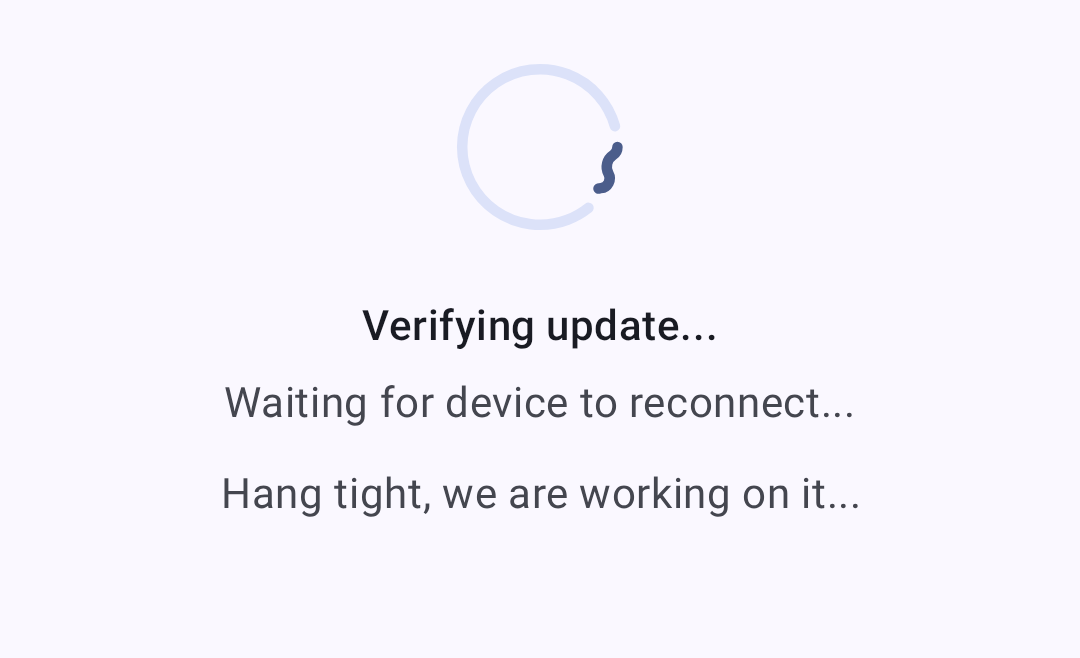
После записи прошивки приложение проверяет обновление и ждёт, пока устройство снова станет доступным:
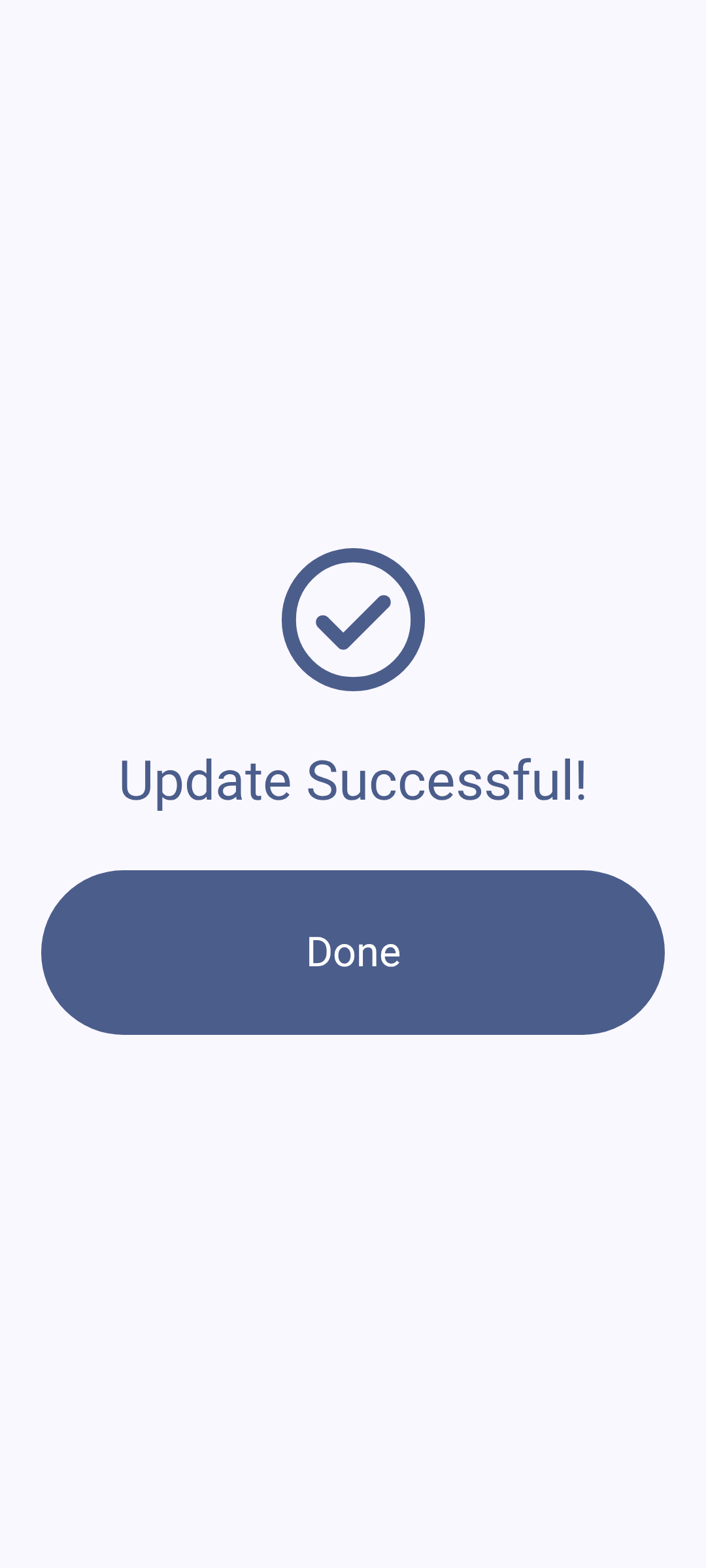
После успешного обновления:
- The radio reboots automatically
- The Bluetooth connection re-establishes
- Убедись, что твои настройки сохранились
- Проверьте новую версию в разделе “Установленная версия” на экране обновления прошивки — она также отображается на странице сведений о ноде и на экране “Подключения”
Устранение неполадок
Обновление зависло
Если обновление кажется зависшим:
- Give it a minute. After writing the image the app waits up to 60 seconds for the radio to come back and report its new version, so a pause at the verify step is expected.
- If it is still stuck after that, power-cycle the radio.
- Attempt the update again.
The message Verification timed out. Device did not reconnect in time. means the image was written but the radio did not come back within that window — power-cycle it and check the version under Currently Installed before re-running the update.
Radio Won’t Boot After Update
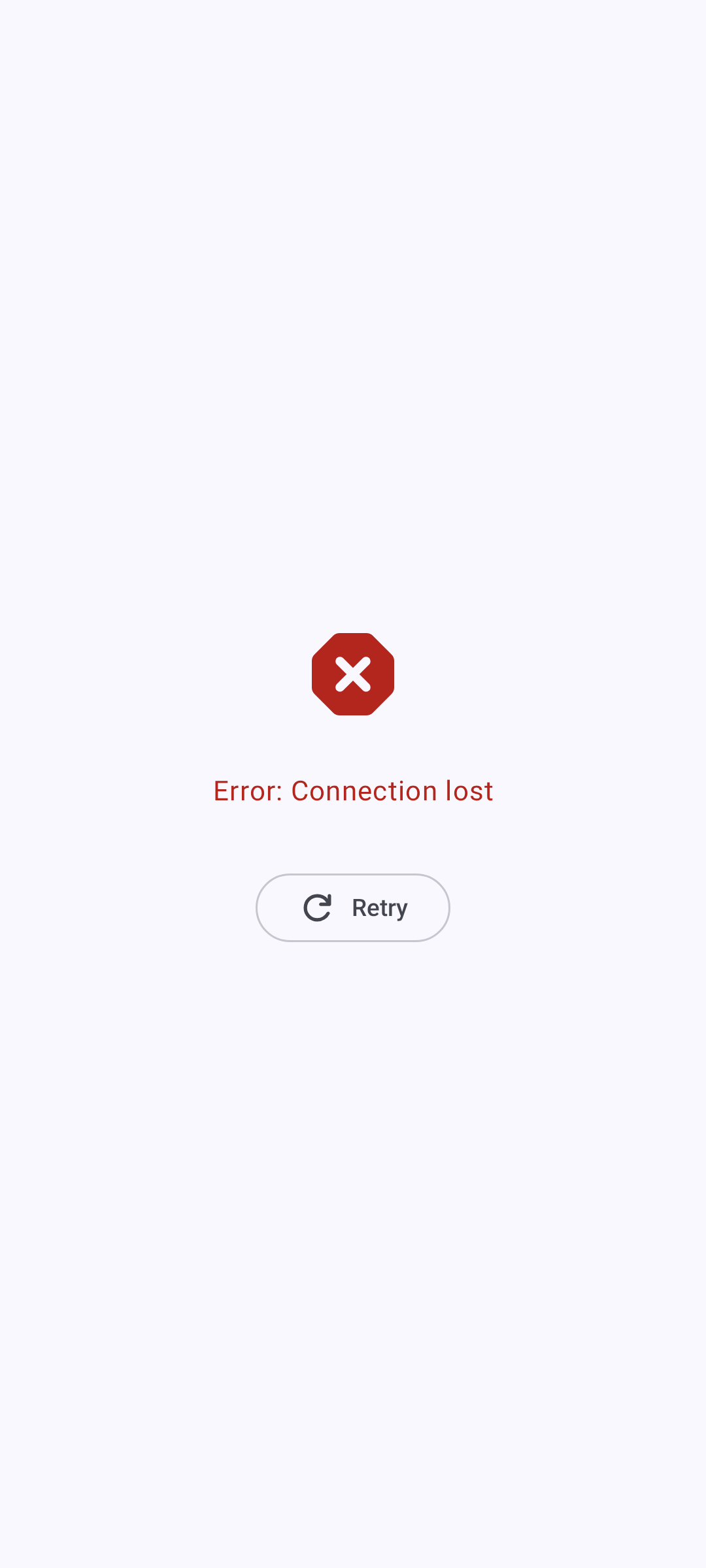
If the app told you the Bluetooth update could not be finished, follow the instruction it gave: connect the radio to a computer over USB and re-flash it with the vendor’s serial DFU tool, such as adafruit-nrfutil. A stock nRF bootloader cannot reliably complete an interrupted over-the-air update.
Otherwise, if your radio fails to boot:
- Попробуйте подключиться по USB к компьютеру
- Используйте Web Flasher в режиме восстановления/DFU
- Прошивайте заведомо рабочую версию прошивки
- Обратитесь к Discord-серверу Meshtastic для получения инструкций по восстановлению, специфичных для твоего устройства
Предупреждения о совместимости
On connecting, the app compares the radio’s firmware against two thresholds and reacts differently to each:
| Версия прошивки | What you see | What happens |
|---|---|---|
| Below 2.3.15 | Firmware update required. | The app disconnects from the radio. It does not operate against firmware this old. |
| 2.3.15 up to, but not including, 2.5.14 | Firmware Update Recommended. | Advisory only — dismiss it and carry on. The dialog names the latest stable release. |
| 2.5.14 or newer | Nothing | — |
A version string the app cannot parse is ignored rather than treated as too old, so a transient read never disconnects a working radio.
Связанные темы
- Подключения — восстановление соединения после обновления прошивки
- Руководство по прошивке— полное пошаговое руководство по полной прошивке на meshtastic.org
- Поддерживаемые устройства — проверьте совместимость прошивки с устройством
- FAQ — общие вопросы на meshtastic.org