訊息與頻道
Meshtastic 支援兩種通訊模式:頻道廣播與私訊。
頻道
頻道是共享的通訊群組。 所有設定相同頻道金鑰的節點均可在該頻道上讀取與傳送訊息。
預設頻道
每台 Meshtastic 裝置均內建預設的 LongFast 頻道。 此為未加密頻道,供一般 mesh 網路通訊使用。
頻道安全性
頻道支援多種加密等級:
| 圖示 | 安全等級 | 描述說明 |
|---|---|---|
| 🔒 | PSK(256 位元 AES) | 使用強力預共享金鑰進行完整加密。 僅持有相符金鑰的節點可讀取訊息。 |
| 🔐 | PSK(128 位元 AES) | 使用較短的金鑰進行加密。 適用於大多數情境,但敏感資料建議使用 256 位元加密。 |
| 🔓 | 預設/開放 | 使用眾所周知的預設金鑰。 使用相同預設值的任何 Meshtastic 裝置均可讀取這些訊息。 |
| ⚠️ | 不安全 + 位置 | 開放頻道,同時廣播您的 GPS 位置。 在公開 mesh 網路中使用時請謹慎。 |
🔒 安全提示:私人通訊請務必設定專屬的 PSK。 預設頻道刻意設計為開放,以便新使用者能探索 mesh 網路 — 但對於任何敏感內容,請另行建立獨立的加密頻道。
新增頻道
- 前往「設定 → 頻道」。
- 點選「新增頻道」或掃描 QR Code。
- 設定頻道名稱與加密金鑰。設定頻道名稱與加密金鑰。
- 將頻道網址或 QR Code 分享給需要加入的人。
點選頻道可查看其詳細資訊與分享選項。
私訊
私訊(DM)是兩個特定節點之間的點對點加密通訊。
傳送私訊
- 開啟「訊息」頁籤。
- 從聯絡人清單中選取節點,或在節點清單中點選節點。
- 輸入訊息後點選「傳送」。
訊息狀態
A status label appears under your own outgoing messages only (incoming messages from others show no status label):
| 狀態 | 含義 |
|---|---|
| Sending… | Queued or already handed to the radio, not yet resolved either way (queued and en-route both show this same text) |
| Delivered to recipient | The strongest confirmation for a direct message — an acknowledgment came back |
| 已傳送至 Mesh | For a channel broadcast, the message reached the mesh (broadcasts have no per-recipient ack) |
| Relayed, not confirmed by recipient | For a direct message, shown in a warning color — the message was relayed but no acknowledgment has come back yet |
| 透過 SF++ 鏈路由… | Being routed/buffered by the Store & Forward Plus Plus chain |
| 已在 SF++ 鏈上確認 | Confirmed delivered via the SF++ chain |
| 錯誤 | Delivery failed — tap the status for the specific reason (see Delivery Errors below) |
傳遞錯誤
當訊息傳遞失敗時,錯誤指示器將顯示問題原因:
| 錯誤 | 含義 | 處理方式 |
|---|---|---|
| 無路由 | 無法找到通往目標節點的路徑 | 收件者可能已離線或超出 mesh 網路範圍。 請稍後再試,或靠近對方後重新傳送。 |
| 收到 NAK | 下一個跳躍點節點拒絕轉送 | 中繼節點可能發生壅塞。 請稍候後重試。 |
| Timeout - 超時 | 在重試時間內未收到確認回應 | 收件者可能剛好超出訊號範圍。 請嘗試提高跳躍限制,或移動至訊號較佳的位置。 |
| 無介面 | 無可用的無線電介面進行傳送 | 請確認無線電裝置已連線,且頻道已正確設定。 |
| 已達最大重傳次數 | 所有重試次數均已用盡 | Mesh 網路路徑不穩定。 請嘗試切換至其他頻道,或等待網路狀況改善。 |
| 無頻道 | 目標頻道不存在 | 請確認兩個節點使用相同的頻道設定。 |
| 訊息過大 | 訊息超過最大承載大小 | Shorten your message (max ~200 characters). |
| 無回應 | 節點已收到訊息但未回應 | 收件者的無線電裝置可能正忙碌,或處於低功耗睡眠模式。 |
| 佔空比限制 | 已達地區無線電佔用時間上限 | 您的無線電裝置已用完允許的傳輸時間。 請等待佔空比時間窗口重設(在歐盟地區通常為 1 小時)。 |
| 錯誤請求 | 格式錯誤或無效的訊息 | 這通常表示存在軟體錯誤。 請嘗試重新啟動應用程式。 |
💡 提示:大多數傳遞錯誤會自動解決。 若節點間歇性可到達,mesh 網路將自動重試。 若持續出現「無路由」錯誤,請確認中間的路由器節點是否在線。
訊息功能
快速聊天
預先設定的訊息,可快速進行通訊:
- 透過訊息輸入區的快速聊天按鈕開啟
- 從內建短語或自訂訊息中選取
- 在「設定 → 快速聊天」中自訂快速聊天訊息
- 適用於不便打字的情況(戴手套、螢幕過小、緊急狀況)
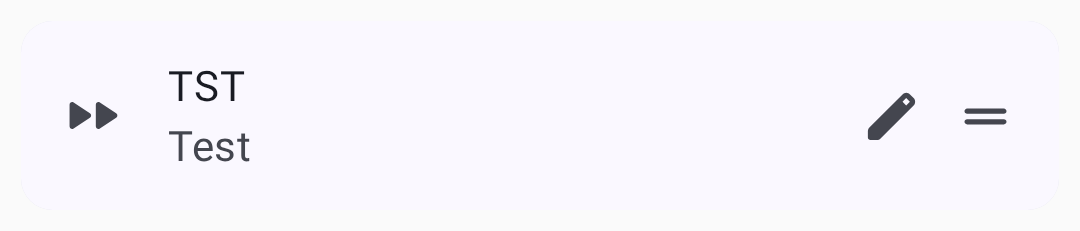
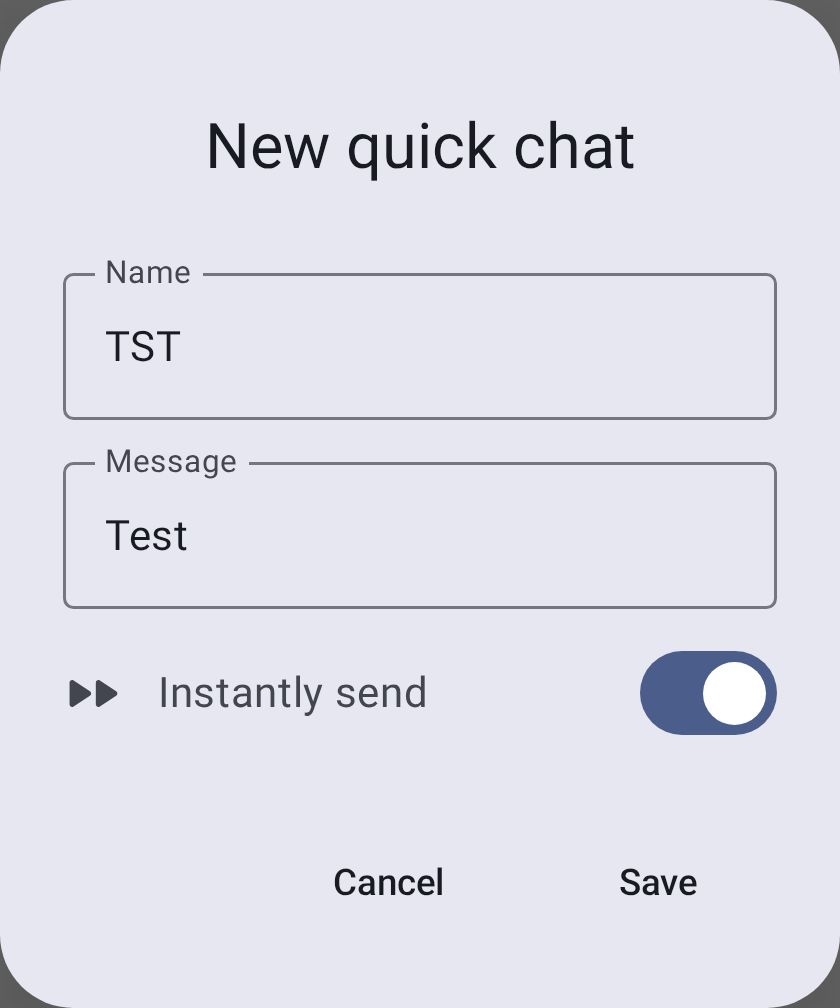
Each quick chat entry has a short Name (the button label), the Message it inserts, and an Instantly send toggle — when enabled, tapping the button sends the message immediately instead of placing it in the input field for editing:
頻道清單會顯示每個頻道及其最新訊息預覽。
Searching Messages
You can search the full history of any conversation directly from the chat screen:
- Open a conversation (a channel or a direct message).
- Tap the search icon in the top bar.
- Type into the Search messages… field. The search runs as you type, across all stored messages in that conversation.
- Use the N / M result counter and the previous / next arrows to jump between matches, which are highlighted in the conversation.

💡 Tip: Search is full-text and stays within the conversation you opened it from — it doesn’t search across other channels or contacts. It matches against the messages already stored on your device, so it works fully offline.
訊息泡泡
訊息以對話泡泡的形式顯示 — 已傳送的訊息在右側,收到的訊息在左側。 每個泡泡顯示傳送者、時間戳記及傳遞狀態。 含有回覆的訊息,會在回覆內容上方顯示原始訊息的引用預覽。
Text Formatting
Messages support lightweight inline Markdown. Received messages render the styling with the syntax characters removed:
| 類型 | Syntax | Renders as |
|---|---|---|
| Bold | **bold** | bold |
| Italic | *italic* | italic |
| Strikethrough | ~~strike~~ | |
| Inline code | `code` | monospace code |
| Link | [label](https://example.com) | a tappable label |
When composing, focus the message field and type at least three characters to reveal a formatting toolbar below the input. Select text and tap a style to wrap it (tap again to remove it); with no selection, a style inserts an empty pair with the cursor between the markers. The link button opens a dialog to enter a URL. As you type, the draft styles live in the field while the underlying text keeps its Markdown characters.
💡 Tip: Formatting is carried as literal characters on the mesh — the same bytes iOS sends. Clients that don’t support Markdown (older apps, plain firmware clients) will show the raw
**/~~characters. URLs, email addresses, and phone numbers are still auto-linked whether or not you use Markdown.
Mentions
Type @ while composing to mention a node — a picker suggests matching contacts as you type. In a received message, a mention appears as a highlighted chip showing the node’s name; tap it to jump straight to that node’s detail page.
訊息回應
以表情符號對訊息作出回應:
- 長按訊息以開啟動作選單
- 點選「新增回應」以選擇表情符號
- 訊息回應顯示於訊息泡泡下方
- 多位使用者可對同一則訊息作出回應
- 可對自己或他人的訊息作出回應
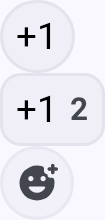
💡 提示:訊息回應非常輕量 — 相較於完整文字訊息,佔用極少的 mesh 網路頻寬。
訊息動作
長按任意訊息可使用以下功能:
- 複製 — 將訊息文字複製至剪貼簿
- 回覆 — 在回覆中引用該訊息
- 回應 — 新增表情符號回應
- Translate — translate a received message into your device language and toggle between the original and translated text (Google Play build only; uses on-device translation)
- 刪除 — 移除您傳送的訊息(僅限本機刪除)
訊息優先順序
訊息依優先順序排入佇列並傳送:
- 緊急/警示訊息(最高)
- 私訊
- 頻道廣播(最低)
訊息限制
- Maximum length: 200 bytes (approximately 200 characters for ASCII text)
- The 200-byte cap applies to the in-app composer — the mesh payload limit itself is ~233 bytes, so messages from other senders (e.g., App Functions or Android Auto) may arrive slightly longer
- 速率限制:mesh 網路會執行無線電佔用時間公平性管制;大量訊息可能會被節流
- 傳遞:若未收到確認回應,訊息將自動重試
最佳實踐
- 群組協調請使用頻道
- 個人私下通訊請使用私訊
- 訊息請盡量簡短 — mesh 網路頻寬有限
- 敏感通訊請設定加密
相關主題
- 〔節點〕(nodes) — 點選節點以開始傳送私訊
- 〔設定——無線電與使用者〕(settings-radio-user) — 設定頻道加密與預設值
- 〔MQTT〕(mqtt) — 將頻道訊息橋接至網際網路
- Channel configuration — detailed channel settings on meshtastic.org