Messages & Channels
Meshtastic supports two communication modes: channel broadcasts and direct messages.
القنوات
Channels are shared communication groups. All nodes configured with the same channel key can read and send messages on that channel.
Default Channel
Every Meshtastic device comes with a default LongFast channel. This is an unencrypted channel used for general mesh communication.
Channel Security
Channels support multiple encryption levels:
| Icon | Security Level | الوصف |
|---|---|---|
| 🔒 | PSK (256-bit AES) | Fully encrypted with a strong pre-shared key. Only nodes with the matching key can read messages. |
| 🔐 | PSK (128-bit AES) | Encrypted with a shorter key. Secure for most uses but 256-bit is preferred for sensitive data. |
| 🔓 | Default / Open | Uses the well-known default key. Any Meshtastic device on the same preset can read these messages. |
| ⚠️ | Insecure + Position | Open channel that also broadcasts your GPS position. Use with caution in public meshes. |
🔒 Security Tip: Always configure a unique PSK for private communications. The default channel is intentionally open so new users can discover the mesh — but you should create a separate encrypted channel for anything sensitive.
Adding a Channel
- Navigate to Settings → Channels.
- Tap Add Channel or scan a QR code.
- Configure the channel name and encryption key.
- Share the channel URL/QR code with others who need access.
Tapping a channel shows its details and sharing options.
Direct Messages
Direct messages (DMs) are point-to-point encrypted communications between two specific nodes.
Sending a Direct Message
- Open the Messages tab.
- Select a node from your contacts list or tap a node in the node list.
- Type your message and tap Send.
Message States
A status label appears under your own outgoing messages only (incoming messages from others show no status label):
| State | Meaning |
|---|---|
| Sending… | Queued or already handed to the radio, not yet resolved either way (queued and en-route both show this same text) |
| Delivered to recipient | The strongest confirmation for a direct message — an acknowledgment came back |
| Delivered to mesh | For a channel broadcast, the message reached the mesh (broadcasts have no per-recipient ack) |
| Relayed, not confirmed by recipient | For a direct message, shown in a warning color — the message was relayed but no acknowledgment has come back yet |
| Routing via SF++ chain… | Being routed/buffered by the Store & Forward Plus Plus chain |
| Confirmed on SF++ chain | Confirmed delivered via the SF++ chain |
| غلط | Delivery failed — tap the status for the specific reason (see Delivery Errors below) |
Delivery Errors
When a message fails to deliver, the error indicator shows what went wrong:
| غلط | Meaning | What to Do |
|---|---|---|
| No Route | No path exists to the destination node | The recipient may be offline or out of mesh range. Try later or move closer. |
| Got NAK | The next-hop node refused to relay | The relay node may be congested. Wait and retry. |
| استغرق وقت طويل | No acknowledgment within retry window | The recipient may be just out of range. Try increasing hop limit or moving to a better position. |
| لم يجد وسيط | No radio interface available to send | Check that your radio is connected and the channel is configured. |
| Max Retransmit | All retry attempts exhausted | The mesh path is unreliable. Try a different channel or wait for conditions to improve. |
| لا يوجد قناه | The destination channel doesn’t exist | Verify both nodes share the same channel configuration. |
| Too Large | Message exceeds maximum payload size | Shorten your message (max ~200 characters). |
| No Response | Node received message but didn’t respond | The recipient’s radio may be busy or in low-power sleep mode. |
| Duty Cycle Limit | Regional airtime limit reached | Your radio has used its allowed transmit time. Wait for the duty cycle window to reset (typically 1 hour in EU regions). |
| طلب غير جيد | Malformed or invalid message | This usually indicates a software bug. Try restarting the app. |
💡 Tip: Most delivery errors resolve themselves. If a node is intermittently reachable, the mesh will retry. For persistent “No Route” errors, check that intermediate Router nodes are online.
Message Features
Quick Chat
Pre-configured messages for rapid communication:
- Access via the Quick Chat button in the message input area
- Choose from built-in phrases or custom messages
- Customize quick chat messages in Settings → Quick Chat
- Useful when typing is impractical (gloves, small screen, urgent)
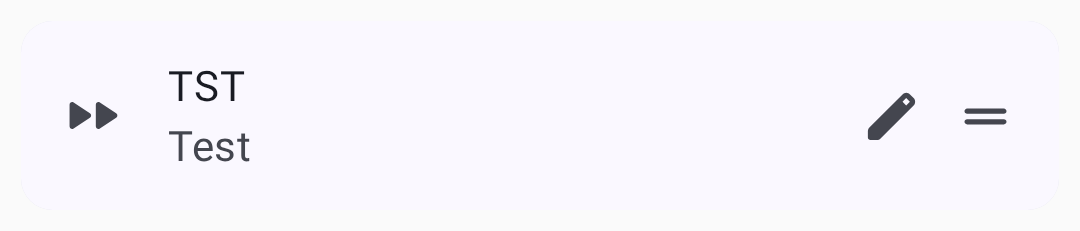
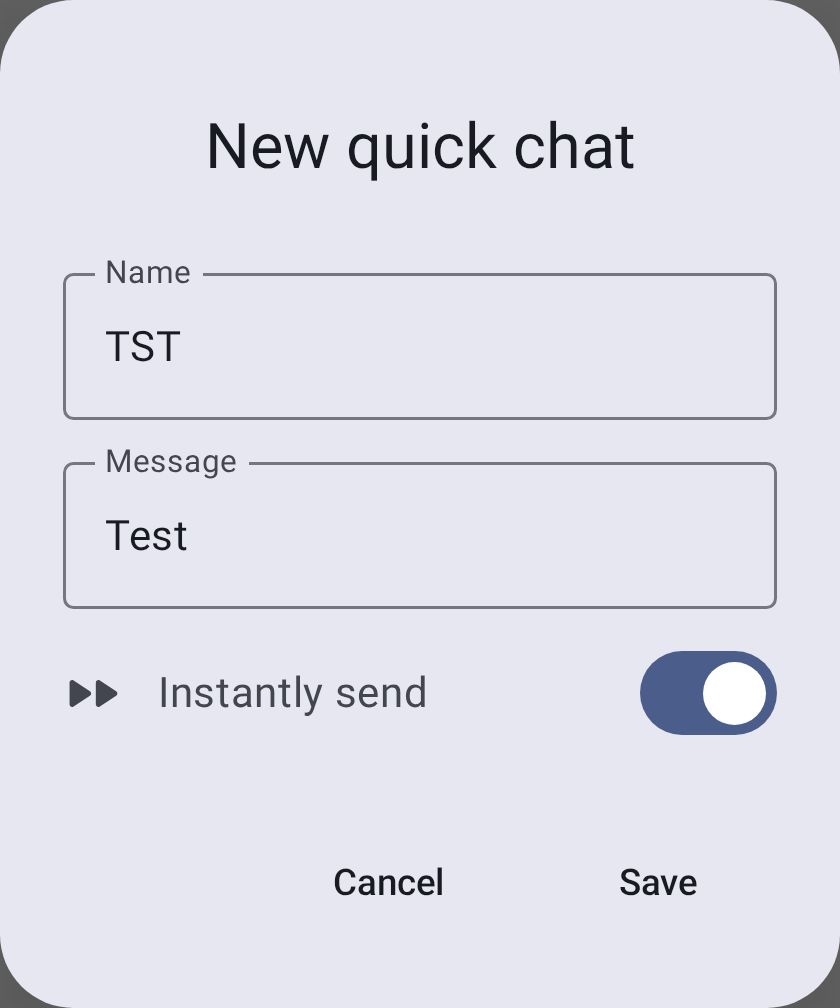
Each quick chat entry has a short Name (the button label), the Message it inserts, and an Instantly send toggle — when enabled, tapping the button sends the message immediately instead of placing it in the input field for editing:
The channel list shows each channel with its latest message preview.
Searching Messages
You can search the full history of any conversation directly from the chat screen:
- Open a conversation (a channel or a direct message).
- Tap the search icon in the top bar.
- Type into the Search messages… field. The search runs as you type, across all stored messages in that conversation.
- Use the N / M result counter and the previous / next arrows to jump between matches, which are highlighted in the conversation.

💡 Tip: Search is full-text and stays within the conversation you opened it from — it doesn’t search across other channels or contacts. It matches against the messages already stored on your device, so it works fully offline.
Message Bubbles
Messages appear as chat bubbles — sent messages on the right, received messages on the left. Each bubble shows the sender, timestamp, and delivery status. Messages with replies include a quoted preview of the original message above the response.
Text Formatting
Messages support lightweight inline Markdown. Received messages render the styling with the syntax characters removed:
| Type | Syntax | Renders as |
|---|---|---|
| Bold | **bold** | bold |
| Italic | *italic* | italic |
| Strikethrough | ~~strike~~ | |
| Inline code | `code` | monospace code |
| Link | [label](https://example.com) | a tappable label |
When composing, focus the message field and type at least three characters to reveal a formatting toolbar below the input. Select text and tap a style to wrap it (tap again to remove it); with no selection, a style inserts an empty pair with the cursor between the markers. The link button opens a dialog to enter a URL. As you type, the draft styles live in the field while the underlying text keeps its Markdown characters.
💡 Tip: Formatting is carried as literal characters on the mesh — the same bytes iOS sends. Clients that don’t support Markdown (older apps, plain firmware clients) will show the raw
**/~~characters. URLs, email addresses, and phone numbers are still auto-linked whether or not you use Markdown.
Mentions
Type @ while composing to mention a node — a picker suggests matching contacts as you type. In a received message, a mention appears as a highlighted chip showing the node’s name; tap it to jump straight to that node’s detail page.
Reactions
React to messages with emoji:
- Long-press a message to open the actions menu
- Tap Add Reaction to choose an emoji
- Reactions appear below the message bubble
- Multiple users can react to the same message
- React to your own messages or others’ messages
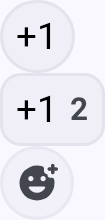
💡 Tip: Reactions are lightweight — they use minimal mesh bandwidth compared to full text messages.
Message Actions
Long-press any message to access:
- Copy — copy message text to clipboard
- Reply — quote the message in your response
- React — add an emoji reaction
- Translate — translate a received message into your device language and toggle between the original and translated text (Google Play build only; uses on-device translation)
- Delete — remove a message you sent (local deletion)
Message Priority
Messages are queued and transmitted based on priority:
- Emergency/alert messages (highest)
- Direct messages
- Channel broadcasts (lowest)
Message Limits
- Maximum length: 200 bytes (approximately 200 characters for ASCII text)
- The 200-byte cap applies to the in-app composer — the mesh payload limit itself is ~233 bytes, so messages from other senders (e.g., App Functions or Android Auto) may arrive slightly longer
- Rate limiting: The mesh enforces airtime fairness; heavy message volume may be throttled
- Delivery: Messages are retried automatically if no acknowledgment is received
Best Practices
- Use channels for group coordination
- Use direct messages for private person-to-person communication
- Keep messages short — mesh bandwidth is limited
- Configure encryption for sensitive communications
Related Topics
- Nodes — tap a node to start a direct message
- Settings — Radio & User — configure channel encryption and presets
- MQTT — bridge channel messages to the internet
- Channel configuration — detailed channel settings on meshtastic.org