Telemetry & Sensors
Meshtastic nodes can collect and share sensor data across the mesh network. Telemetry allows nodes equipped with sensors to broadcast environmental, power, and device health information, visible on the node detail screen and logged over time.
Device Telemetry
All Meshtastic nodes report basic device telemetry:
| Metric | Aprašymas | Typical Range |
|---|---|---|
| Battery Level | Charge percentage | 0–100% |
| Voltage | Battery voltage | 3.0–4.2V (LiPo) |
| ChUtil | % of local airtime in use | 0–100% |
| AirUtil | % of the last hour this node spent transmitting | 0–100% |
| Uptime | Seconds since last boot | Varies |
Environment Sensors
Supported environmental sensors:
Temperature & Humidity
| Sensor | Temperatūra | Drėgmė | Pressure | Notes |
|---|---|---|---|---|
| BME280 | ✓ | ✓ | ✓ | Recommended all-in-one |
| BME680 | ✓ | ✓ | ✓ | Adds gas resistance/IAQ |
| SHT31 | ✓ | ✓ | — | High accuracy |
| MCP9808 | ✓ | — | — | Precision temperature |
| LPS22 | — | — | ✓ | Pressure only |
Air Quality
| Sensor | Metric | Notes |
|---|---|---|
| BME680 | Gas Resistance / IAQ | Volatile organic compounds |
| PMSA003I | PM1.0, PM2.5, PM10 | See Air Quality Metrics |
| SEN55 | PM, Temp, Humidity | Multi-sensor. Its NOx and VOC indices are recorded and included in a CSV export, but are not shown as cards or charts |
| SEN6x | PM, CO₂, Temp, Humidity | Its status register is always exported; when it reports a fault (fan, RH&T, gas, CO₂, HCHO or PM), the fault names appear as a Sensor Status card and on each Air Quality log entry |
Soil
| Metric | Unit | Notes |
|---|---|---|
| Soil Temp | °C / °F | Reported alongside soil moisture by soil probes |
| Soil Moist | % | Volumetric water content |
Both appear as info cards on the node detail screen, next to the other environment readings.
Soil probe and water-quality sonde chemistry (pH, conductivity, salinity, NPK, dissolved oxygen, ORP, turbidity, nitrate, ammonium, oxygen demand, solar irradiance) appears as a Soil & Water row of info cards on the node detail screen once a node reports any of it, and is included in the node database export. There is no chart or log screen for it yet.
Light & UV
| Sensor | Metric |
|---|---|
| OPT3001 | Ambient light (lux) |
| VEML7700 | Ambient light (lux) |
| LTR390 | UV index |
Weather and Other Readings
| Metric | Unit | Where it appears |
|---|---|---|
| Wind speed | km/h or mph | Card and chart. Sensors report meters per second; the app converts to match your unit setting, and the chart uses the same unit as the card |
| Wind direction, gust, and lull | degrees, km/h or mph | Listed with each reading on the Environment Metrics screen; not charted |
| Rainfall, last hour and last 24 hours | mm or in | Listed with each reading on the Environment Metrics screen; not charted |
| Lightning, strikes in the last hour and storm distance | count, km or mi | Card and listed with each reading on the Environment Metrics screen; not charted. From an AS3935 detector. Storm distance is always in km or mi, since the detector resolves whole kilometres |
| Radiation | µR/h | Card and chart |
| Weight | kg or lb | Card only — load cells, such as a beehive scale |
| Atstumas | mm or in | Card only — water level, from a distance sensor |
| Dew point | °C or °F | Card only — computed from temperature and humidity |
| 1-Wire temperature | °C or °F | Card and chart, up to eight DS18B20-style probes |
| ADC voltage | V | Card and chart, up to eight raw analog channels |
Power Metrics
Nodes with INA-series power sensors can report:
| Metric | Aprašymas |
|---|---|
| Voltage | Per-channel voltage reading |
| Current | Per-channel current draw, in mA |
The node detail screen shows read-only cards for channels 1 to 3. Use the chart button on the Power Metrics row to open the chart screen, which lists a chip for every channel that reported data — up to eight — and charts the one you select. Rename a channel there, in the label field under the chips, to something like Solar or Battery. There is no separate wattage reading; the app charts voltage and current, and does not compute power from them.
Useful for monitoring solar charging or battery health on remote nodes.
Configuring Telemetry
- Navigate to Settings → Module configuration → Telemetry.
-
Each metric group has its own enable toggle and its own interval:
- Device Metrics — battery, voltage, uptime, ChUtil, and AirUtil. Its enable toggle, Send Device Telemetry, appears only on firmware 2.7.12 and later; on older firmware you can change the interval but not turn the group off
- Environment Metrics — temperature, humidity, pressure and the other sensor readings
- Air Quality Metrics — particulate and CO₂ readings
- Power Metrics — the per-channel voltage and current readings
Environment and Power each have an extra toggle to show their readings on the radio’s own screen, and Environment has one more to show its temperatures there in Fahrenheit.
Choosing an Interval
These are nominal values, not hard schedules. On a congested mesh the firmware automatically backs off to longer intervals based on how many nodes are online, so you do not need to hand-tune them for mesh size. Lengthen them deliberately only to save battery.
Air Quality Metrics
Nodes with particulate matter or CO₂ sensors report air quality data:
| Metric | Unit | Aprašymas |
|---|---|---|
| PM1.0 | µg/m³ | Ultrafine particulate matter |
| PM2.5 | µg/m³ | Fine particulate matter |
| PM10 | µg/m³ | Coarse particulate matter |
| CO₂ | ppm | Carbon dioxide concentration |
CO₂ sensors such as the SCD4x also report their own temperature and humidity, which appear alongside the readings above. From PM2.5 history the app additionally derives an EPA NowCast AQI value.
The CO₂ reading is color-coded by severity (Good → Stuffy → Poor → Unsafe → Evacuate). See Node Metrics — Air Quality for the exact ppm bands, colors, and AQI detail.
Air quality data can be viewed as info cards on the node detail screen, charted over time, and exported to CSV.
Viewing Telemetry
- Navigate to Nodes and select a node.
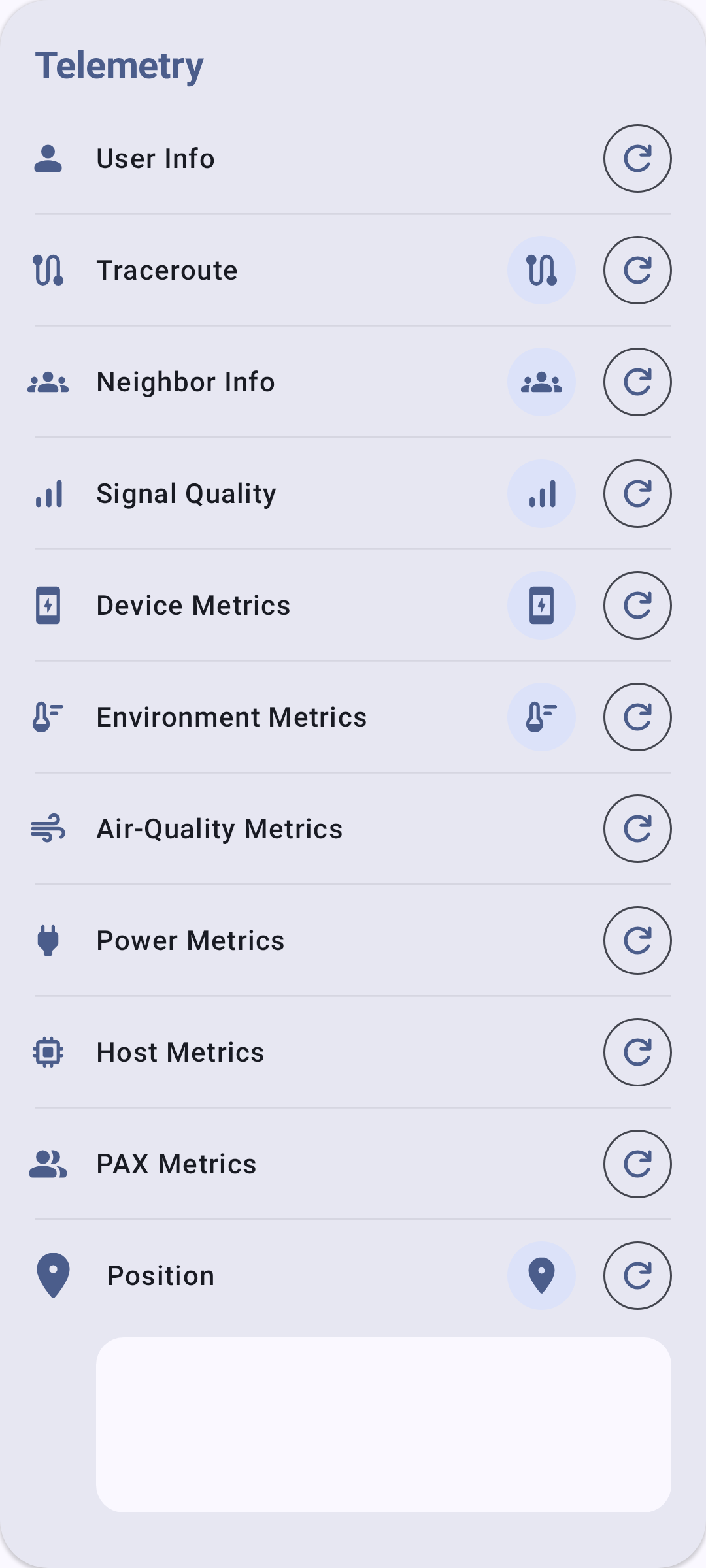
- The Telemetry section lists a row for every metric type — Device, Environment, Air Quality, Power, and the rest — whether or not this node has reported it. A row fills in with readings, and grows a chart button, once that node has actually sent that kind of telemetry. An empty row means nothing has arrived yet, not that the sensor is missing.
- Use the chart button on a row to open that metric’s history, where you can pick a time frame and export the readings as CSV.
Troubleshooting
- No environment data showing? The remote node needs a physical sensor connected (e.g., BME280 on I2C). Device telemetry (battery, uptime) is always available, but environment metrics require hardware.
- Stale readings? Check the reporting interval — very long intervals (7200s+) mean data updates infrequently. Also verify the remote node is still online.
- Sensor conflict on I2C bus? Some sensors share I2C addresses. If you have multiple sensors on the same bus, check for address collisions in the radio’s serial debug output.
Related Topics
- Node Metrics — view telemetry data on the node detail screen
- Settings — Modules & Admin — telemetry module configuration
- Units & Locale — temperature and pressure display units