Kohalik kärgvõrgu avastaja
Avastamistööriistad aitavad mõista, kuidas kärgvõrk on ühendatud – millised sõlmed üksteist kuulevad, milliseid teid sõnumid läbivad ja kus esinevad kitsaskohad või nõrgad lülid.
The app offers two complementary approaches:
- Local Mesh Discovery (Scanner) — an automated mode that cycles your connected node through different LoRa presets, listens on each, and ranks which preset performs best at your location.
- Manuaalne uurimine – traceroute, naabri info ja sõlmede loend, mida saate igal ajal kasutada konkreetsete teede ja topoloogia uurimiseks.
Kohalik kärgvõrgu avastaja (skanner)
Kohalik kärgvõrdu avastaja on spetsiaalne skaneerimisrežiim, mis aitab leida oma asukoha jaoks parima LoRa modemi eelseadistuse ja näha, millised sõlmed on igal eelseadistusel aktiivsed. It cycles your connected node through one or more presets you choose, dwells on each one — listens for a set time — to collect packets, then analyzes and ranks the results.
Connect your node, then open Settings → Advanced → Local Mesh Discovery. On Android the Advanced section appears only for a locally connected node, never over remote admin, and stays grayed out until the app has finished reading the node’s configuration. On a managed device its entries are disabled, except Debug Panel, which reads app-local logs and stays available. On desktop, Local Mesh Discovery has its own entry on the Settings screen, with no such gate.
ℹ️ Note: Discovery temporarily changes your node’s LoRa settings while it scans, then restores your original configuration when it finishes.
Each preset is scanned on the public mesh: the default frequency slot for that preset, decoded with the default public channel. If your node uses a custom frequency slot, the scan uses the default slot and puts your slot back when it finishes. If your primary channel has a custom name or key, the scan switches it to the default public channel before the first preset change and restores your channel when the scan ends, whether it completes, you stop it, or it fails. Channel changes don’t reboot the node, so this happens at once at the start and end of the scan. You no longer need to put your primary channel on the default key before scanning.
Setting up a scan
Before starting, configure these controls:
| Control | Kirjeldus |
|---|---|
| LoRa preset picker | Vali skannimiseks üks või mitu eelseadistust. Otsing peatub kordamööda iga valitud eelseadistuse juures, et kuulata liiklust. |
| Kuulamisaeg | Time to listen on each preset. Vali 1, 5, 15, 30, 45, 60, 90, 120 või 180 minutit. Pikemad kuulamisajad koguvad rohkem pakette ja annavad selgema pildi, kuid võtavad kauem aega. |
| Keep screen awake | Keeps the display on for the scan. The scan itself holds a CPU wake lock for its whole run and posts a Scanning LoRa presets… notification, so it keeps collecting with the screen off or the app in the background. |
The Start Scan button stays disabled — with an explanation of why — until the scan can run. Common reasons it’s disabled:
- The node is not connected.
- Skannimiseks pole ühtegi eelseadet valitud.
- Valitud eelseadistus kasutab 2,4 GHz sagedust, mida sinu riistvara ei toeta.
Live progress
Skanni ajal näitab Discovery selle praegust etappi:
| Stage | What’s happening |
|---|---|
| Preparing scan | Saving your current LoRa configuration and primary channel and getting ready to scan. |
| Shifting to <preset> | Switching the node to the next preset to test. |
| Reconnecting on <preset> | Re-establishing the connection after the preset change. |
| Dwelling on <preset> | Kuulatakse praegust eelseadistust pakettide kogumiseks ja järgmise sammuni on oodata loendurit. |
| Analyzing results | Kogutud pakettide töötlemine ja eelseadete järjestamine. |
| Restoring home preset | Algsete LoRa seadete taastamine. |
| Cancelling scan | You tapped Stop Scan; partial results are saved before the original preset is restored. |
| Scan failed: <reason> | The scan could not continue — most often the node didn’t come back within a minute of a preset change. The results collected so far are saved, and the original preset is restored automatically. |

If a scan is interrupted — the app is closed, or the node goes away — the app restores your original preset and primary channel the next time it reconnects to that node, and tells you it has done so. Reconnect the same node to let that happen; until you do, the node stays on whichever preset and channel the scan left it on.
Reading the results
Kui skann on lõppenud, kuvab Discovery iga testitud eelseadistuse kohta tulemuste kaardi ja üldise kokkuvõtte.
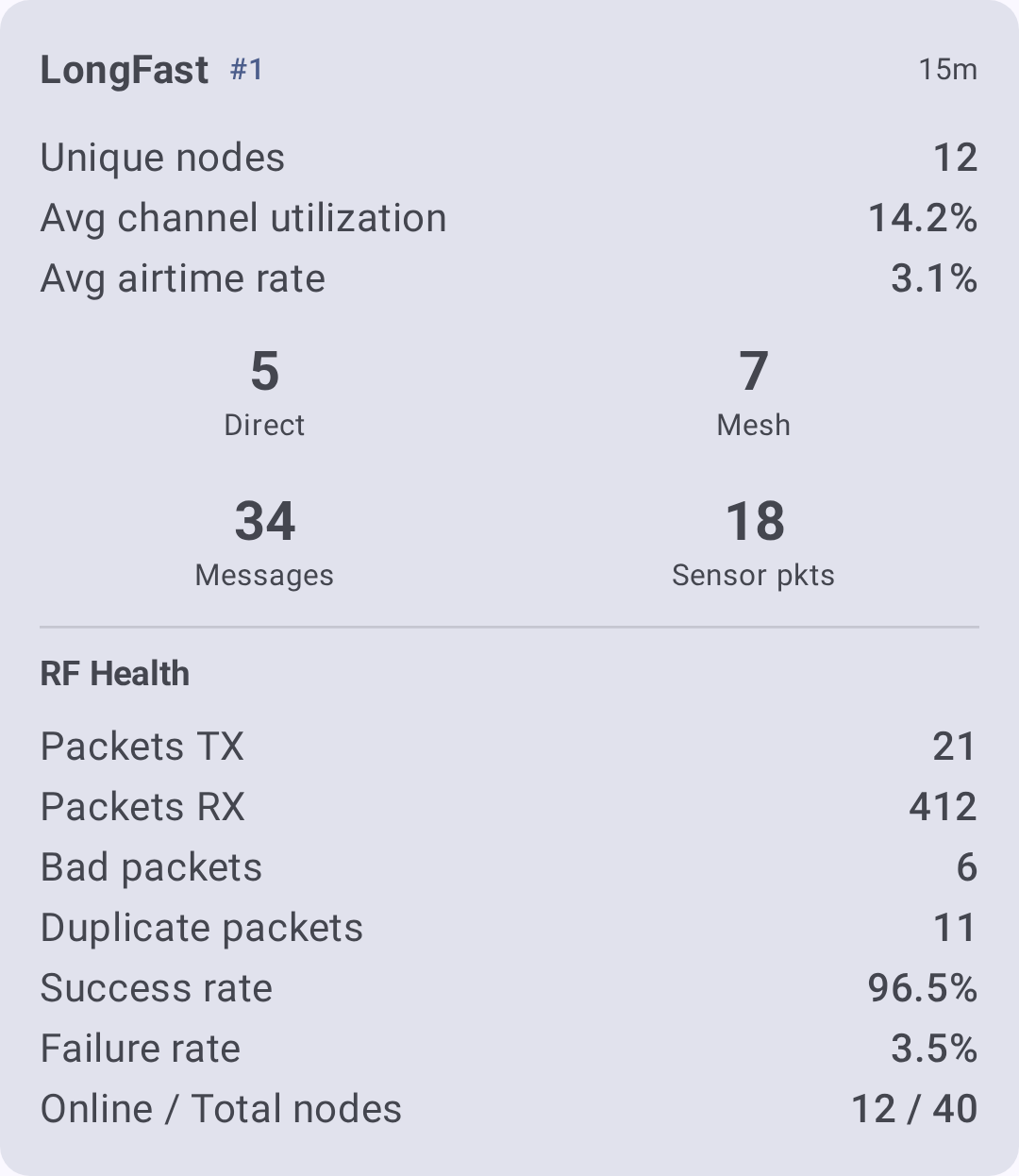
Metrics include:
| Meetriline | What it tells you |
|---|---|
| RF health | Overall quality of the radio environment on that preset. |
| Kanali kasutus | Kui hõivatud olid eetrisagedused kuulamise ajal. |
| Airtime | Transmission time observed. |
| Otse- ja vahendussõlmed | Kui mitu võrgusõlme kuuldi otse, võrreldes vahendaja kaudu. |
| Halvad / duplikaatpaketid | Rikutud ja korduvate pakettide arv, mis näitab ummikuid või häireid. |
Tulemustest saadaolevad lisafunktsioonid:
- Scan History — saved sessions you can revisit; view or delete past scans.
- Avastuskaart – skanni käigus leitud sõlmede kaart.
- Aruande eksport – ekspordi aruanne PDF-failina Androidis või tekstina muudel platvormidel.
💡 Tip: On Google Play builds, Discovery can generate an on-device AI summary (Gemini Nano) of your results. F-Droid builds always use the algorithmic summary — the proprietary ML Kit dependency is deliberately excluded from that flavor — so you get a readable interpretation of the scan either way.
Kärgvõrgu majakas
Kärgvõrgu majakas võimaldab sõlmedel kutsuda teisi oma võrguga liituma. A beaconing node periodically broadcasts an invitation — optionally advertising a channel, region, and modem preset — that nearby nodes can hear even before they share a configuration.
Configure it under Settings → Module configuration → Mesh Beacon. The entry appears only on nodes running firmware 2.8.0 or newer. A read-only Region row at the top of the screen shows the region the beacon advertises: that region, and the preset, are always the ones the node itself uses, so a beacon can’t invite anyone onto settings your node isn’t running.
- Kuula majakaid — võta vastu teiste sõlmede edastatud kutseid.
- Broadcast a beacon — periodically advertise this mesh to nearby nodes, with an optional Beacon message of up to 100 bytes, a Broadcast interval picked from fixed intervals between 1 hour and 72 hours, and an Offered channel chosen from your node’s own channels. The offered channel is required, and defaults to your primary channel. Over remote admin the picker offers the primary channel only.
- Broadcast targets — where the beacon actually transmits. The list always holds at least one row: the first is the beacon’s own transmission, not an extra. Each row picks a Channel and a Transmit preset. Add target appends a row, and Remove target deletes one — removing the last row replaces it with a fresh default rather than emptying the list.
Two conditions block beacon setup:
- The node has no region set. The screen shows nothing but Set your node’s region before setting up a beacon. Set the region on Settings → LoRa first.
- The node uses custom LoRa settings. A beacon advertises a modem preset for others to join, so a node with Use Preset turned off has no standard preset to offer. In that state Broadcast a beacon can be turned off but not on, and the broadcast settings are read-only. Listening for beacons is unaffected.
Received invitations appear as Mesh invitations cards on the Discovery screen. Igal kaardil kuvatakse saatja sõnum koos pakutava kanali, piirkonna, eelseadistuse ja signaali kvaliteedi ning järgmiste toimingutega:
- Join — switch to the offered channel and preset (retunes the node and reboots). Kui pakkumine sobib praeguse sageduspesaga, lisab toiming Lisa kanal selle taaskäivituseta.
- Avasta – sisesta pakutud eelseadistusega avastusskannimisskeem, et saaksid enne liitumist seda võrku uurida (kuvatakse ainult siis, kui majakas pakub eelseadistust).
- Dismiss — ignore the invitation.
Majakate poolt reklaamitud kanalid kuvatakse skannimise seadistuses ka Majakakanalitena – valige üks, et see skannimise sihtmärgina lisada.
An invitation to a mesh your node is already on is suppressed: no card, no notification, and no Beacon channels entry. A channel counts as one you already have only when both its name and its key match a channel on your node — the same name with a different key is a different mesh, so that invitation still reaches you.
Manual exploration
The following tools are available at any time from the node list and node detail screens. Use them to investigate specific paths and build a topology picture, alongside or instead of a full scan.
Marsruudi
Traceroute näitab täpset teed, mida sõnum sõlmest mis tahes teise kärgvõrgu sõlme kulgeb. See on kõige kasulikum tööriist ühenduvusprobleemide tõrkeotsinguks.
Traceroute’i käivitamine
- Mine valikuni Sõlmed ja puuduta sõlme, mida soovid jälgida.
- On the node detail screen, find Traceroute in the Telemetry section and tap its request button. Once a result arrives, a second button on the same row opens the traceroute log, where each hop is listed with its signal quality.
Reading the results
Traceroute’i tulemus näeb välja selline:
Route traced toward destination:

■ Your Node (YOUR)
⇊ 8.5 dB
■ Relay Node (RLAY)
⇊ -8.75 dB
■ Target Node (TGT1)
Each ⇊ line between two nodes is one relay hop, and the SNR on that line is the quality of that segment alone. The app colors it against the demodulation floor of the preset in use, not a fixed number: green above the floor, yellow within 5.5 dB below it, orange within 7.5 dB, and red beyond that. The floor is −7.5 dB on Short Fast and improves 2.5 dB per spreading-factor step, so it is −17.5 dB on Long Fast — the same SNR reads differently on different presets. See Signal Meter. A request that also gets a reply adds a second block under Route traced back to us:.
| What to look for | What it means |
|---|---|
| All hops show Good SNR (green) | Healthy path — messages flow reliably |
| One hop shows a poor SNR (orange or red) | Kehv ühendus – see releesegment on habras |
| Mitu hüppet (4+) | Pikk tee – kaalu sõlme ümberpaigutamist selle lühendamiseks |
| Different path on retry | Mesh is adapting — multiple routes exist (this is good!) |
💡 Vihje: Käivita traceroute’i mitu korda mõne minuti tagant. If the path changes, your mesh has redundant routes — a sign of a well-connected network.
Veaotsing koos Traceroute
- No Response — The traceroute got nothing back. The target node may be offline, out of range, or on a different channel. Kontrolli, et mõlemad sõlmed jagaksid vähemalt ühte kanalit sama krüpteerimisvõtmega.
- Traceroute aegus — Tee võib olla liiga pikk (ületab hüppete limiidi) või on vahendussõlm ülekoormatud. Try increasing the hop limit in Settings → LoRa.
- Cannot show traceroute map because the start or destination node has no position information — The path was traced, but one end has never shared a position.
- Asümmeetrilised teed – Jälgimismarsruut teelt A→B võib minna teist teed kui teelt B→A. This is normal — radio propagation isn’t always symmetric.
Naabruse teave
Naabriinfo moodul võimaldab igal sõlmel levitada nimekirja sõlmedest, mida see otse kuuleb (üksik-hüpe). Kui mitu sõlme jagavad oma naaberloendeid, saate kokku panna kogu võrgu topoloogiakaardi.
Naabriinfo lubamine
- Navigate to Settings → Module configuration → Neighbor Info.
- Luba moodul.
- Set Update Interval. The app accepts whatever you type; the firmware enforces its own minimum and resets a value below it.
- Turn on Transmit over LoRa. Without it, your neighbor list goes only to MQTT and to this app, never over the air.
Once enabled and transmitting over LoRa, your node periodically broadcasts its neighbor list. Teised sõlmed, millel on naabriinfo lubatud, teevad sama.
Viewing neighbor data
- Open a node’s detail screen and find Neighbor Info in the Telemetry section. The request button asks the node for its current neighbor list; once the app has received one, a second button on the same row opens the log of everything that node has reported. The row appears only on nodes that can answer a neighbor request, or that have already reported neighbors.
- Iga naabri-kirje näitab otse kuuldud sõlme ja selle signaali kvaliteeti.
- Kogu kärgvõrgu topoloogia mõistmiseks kombineerige mitme sõlme naaberandmeid.
ℹ️ Note: Neighbor Info increases airtime usage because every enabled node periodically broadcasts its neighbor list. The firmware doesn’t accept an interval shorter than 14400 seconds (4 hours) for this reason; on busy meshes, leave it at the 21600-second default or raise it further.
Node list as a discovery tool
Sõlmede loend ise on võimas avastusvahend, kui kasutada selle filtreerimis- ja sortimisfunktsioone tõhusalt.
Finding new nodes
- Sorteeri Viimati kuuldud järgi, et näha kõige hiljutisemaid aktiivseid sõlmi ülaosas.
- Enable Include unknown to see nodes that have appeared on the mesh but haven’t sent user info yet — these are often newly powered-on nodes.
Assessing connectivity
- Sorteeri Hüpete arvu järgi, et näha, millised sõlmed on otse kättesaadavad (0 hüpet) ja millised vahendatavate sõlmedega.
- Sort by Distance to find nearby nodes and verify they’re reachable.
- Use Exclude MQTT to focus on nodes reachable over LoRa (not via internet bridge).
Infrastructure audit
- Disable Exclude infrastructure to see Router, Router Late, and Client Base nodes.
- Kontrolli nende signaali kvaliteeti ja viimase kuulmise aegu, et veenduda oma infrastruktuuri sõlmede töökorras olekus.
Filtreerimis- ja sortimisvalikute kohta leiate lisateavet jaotisest Nodes.
Tips for Mesh exploration
- Alusta traceroute’ist — see annab sulle kohest ja praktilist teavet konkreetse tee kohta.
- Luba naabriinfo funktsioon võtmesõlmedes – eriti ruuterites ja repiiterites, et saada ülevaade magistraalvõrgust.
- Kontrolli kaarti — sõlmede asukohad [Kaart] (map-and-waypoints) koos signaaliandmetega aitavad sul mõista, miks mõned ühendused on tugevad ja teised nõrgad.
- Compare signal over time — use the Signal Meter guide to interpret SNR and RSSI values correctly.
Seotud teemad
- Nodes — the node list these scans populate
- Map & Waypoints — see discovered nodes geographically
- Signal Meter — interpret the SNR and RSSI a scan reports
- Settings — Modules & Admin — configure the Mesh Beacon and Neighbor Info modules
- Messages & Channels — join a mesh you found and start talking