Ноды
The Nodes screen lists every node visible on your mesh.
Node list
The node list shows every node your node has heard, including:
- Имя ноды — длинное имя, настроенное пользователем
- Короткое имя — 4-символьный идентификатор
- Signal quality — SNR, RSSI, and a quality word, shown only for nodes your node heard directly. In the Complete layout a node reached through a relay shows its hop count here instead; a node heard only over MQTT shows neither
- Последнее услышанное — время с последнего общения
- Расстояние — предполагаемое расстояние (если позиции общие)
- Батарея — уровень заряда батареи удалённой ноды (если включена телеметрия)
Choosing what the list shows
The list has two densities, set at Settings → Node Layout. Complete shows every field a node has reported and hides the ones it hasn’t. Compact fits more nodes on screen and lets you pick the fields yourself — Power, Last Heard Time, Relative Last Heard Time, Distance and Bearing, Hops Away, Signal (Direct Only), Channel, and Device & Role. The Environment Metrics toggle applies to both densities. A preview above the toggles shows the effect before you leave the screen.
Node Status indicators
| Индикатор | Значение |
|---|---|
| Green last-heard time | Нода слышна за последние 2 часа |
| Plain last-heard time | Нода не отвечала больше 2 часов |
| Orange last-heard time with a crossed-out signal icon | Not heard since your node’s LoRa settings changed, so it can’t be reached from here |
| Struck-through name | Node you have ignored |
| ⭐ Избранный | Node you marked as a favorite. |
There is no separate “away” tier, but the orange unreachable state takes precedence over the green one: a node can be online and still be unreachable on your current settings. Nodes known only over MQTT are never shown as unreachable.
Роли ноды
У нод можно настраивать разные роли, которые влияют на их поведение в сети:
| Роль | Описание |
|---|---|
| Client | Standard end-user node |
| Client Base | Обрабатывает трафик избранных нод как приоритет Router Late; весь остальной трафик как Client |
| Client Mute | Принимает, но не ретранслирует |
| Client Hidden | Как Client Mute, плюс скрыт из списка нод |
| Router | Ставит в приоритет пересылку сообщений; не засыпает чтобы передавать их |
| Router Late | Инфраструктурная нода, которая ретранслирует один раз, но только после всех остальных режимов (обеспечивает дополнительное покрытие) |
| ⚠️ Устарело (удалено в прошивке 2.3.15) — больше не выбирается; используй вместо этого Router или Client | |
| ⚠️ Устарело (удалено в прошивке 2.7.11) — больше не выбирается; используй вместо этого Router | |
| Tracker | Оптимизировано для передачи данных о местоположении через регулярные промежутки времени |
| Sensor | Оптимизировано для данных телеметрии |
| Тактический | Взаимодействует с системами TAK (отправляет/принимает CoT) |
| TAK Tracker | Только отчет о позиции TAK |
| Lost and Found | Sends its position to the default channel as a text message at regular intervals, to help recover a lost node |
Choosing a role
Большинству пользователей стоит оставить роль Client по умолчанию. Рассмотри другую роль, когда:
- Router — У тебя есть узел в фиксированном, высоком месте с надежным источником питания (крыша, вершина холма). Router постоянно бодрствуют, чтобы пересылать сообщения для других, и они необходимы для расширения покрытия сети. Don’t use Router on battery-powered handheld nodes.
- Router Late — инфраструктурная нода, которая всегда пересылает пакеты только один раз, но только после того, как все другие режимы маршрутизации выполнили свои ходы. Обеспечивает дополнительное покрытие для локальных кластеров, не конкурируя с основными роутерами.
- Client Base — обрабатывает трафик от/к вашим избранным нодам с приоритетом Router Late (обеспечивая этим сообщениям дополнительное ретранслирование), а всё остальное обрабатывает как обычный Client.
- Client Mute — хочешь принимать трафик сети, но не участвовать в его ретрансляции. Useful for monitoring-only nodes or to reduce congestion in dense areas.
- Tracker — An unattended node whose sole purpose is broadcasting its GPS position (e.g., a vehicle, pet, or asset). Спит между передачами для экономии батареи.
- Sensor — An unattended node reporting environmental telemetry (temperature, humidity, air quality). Похожий профиль мощности на Tracker.
- TAK / TAK Tracker — нужно только если работать с системами ATAK/WinTAK. Смотри Интеграция TAK для подробностей.
💡 Совет: Сеть работает лучше, когда большинство нод Client или Router. Too many Client Mute nodes reduce mesh resilience; too many Routers in a dense area can cause congestion. Хорошее практическое правило: один роутер на 5–10 клиентов в вашей зоне.
Security indicators
Each node carries one security icon beside its name in the node list. Tap it to read what it means, and choose Show All Meanings in that dialog for the full legend. The detail screen shows the same state in words, as a Security row that opens the same dialog.
| Значок | Значение | Shown for |
|---|---|---|
| Person with a shield check (green) | Verified contact — you verified this node’s key in person by exchanging contact QR codes, so its identity is confirmed. The strongest trust the list shows. Your own connected node carries it too | Any firmware version |
| Nodes icon with a shield check (green) | Signed node — this node signs its broadcasts with its identity key, so its identity is consistent over time, but you haven’t verified it in person. On firmware 2.8 the icon appears from the version alone, before any signed broadcast has been heard | Firmware 2.8 or newer, and any node whose signed broadcast your node has verified |
| 🔒 Closed lock | A public key is on file and matches, so direct messages to this node are encrypted | Firmware before 2.8, or no reported version |
| 🔓 Open lock | No public key has been received for this node, so it can’t be direct messaged — use Request User Info on the node detail page to ask for one | Firmware before 2.8, or no reported version |
| ⚠️ Несовпадение | Public key mismatch — a different key arrived for this node after one was stored. Investigate before trusting | Any firmware version |
Every node on firmware 2.8 or newer signs its broadcasts, so on that firmware the signed state is the baseline and the locks aren’t shown.
Direct messages always use public-key encryption, so your node needs the other node’s public key before it can send one. It refuses the send rather than falling back to channel encryption. Keys arrive inside node info, which is why an open lock usually clears itself once that node is heard from properly.
A mismatch never replaces the key you already hold. The app keeps the first key it recorded and refuses the new one, as the firmware does, so a stray or hostile node info can’t silently break encrypted messaging to a contact. To clear a mismatch, first confirm through another trusted channel that the key change was intentional — a factory reset causes one. Then touch & hold the node, choose Remove, and let the two nodes exchange keys again the next time yours hears it.
Быстрые действия
Из списка нод ты можешь:
- Нажмите на ноду, чтобы увидеть её страницу с деталями
- Touch & hold for quick actions:
- Отметить/убрать из избранного
- Отключить/включить уведомления
- Отправить личное сообщение
- Трассировка
- Игнорировать/разблокировать
- Удалить
Touch & hold your own node instead and you get one action, Update status, which opens the User settings screen with the cursor already in the Status Message field. It only appears while the node is connected and running firmware 2.8 or newer — see Settings — Radio & User for the field itself.
Sharing a contact
On a node’s detail screen, tap Share Contact to produce a link and a QR code for that node. From the same dialog, Share link opens the Android share sheet (on desktop it copies the link instead), Write to NFC tag saves it to a writable NFC tag, and Copy puts it on the clipboard. While that dialog is open and in front of you, the phone also offers the same link to any NFC reader, so someone can take the contact by tapping their phone against yours with no tag involved.
Sharing your own contact this way marks it as verified in person, so whoever imports it sees the Verified contact icon rather than the signed one. Relaying someone else’s contact passes on only what your app had already recorded about them.
To add someone else’s contact, use the import button on the node list and choose Scan Shared Contact QR Code, Scan Shared Contact NFC, or Input Shared Contact URL. The app asks you to confirm with Import Shared Contact?, and warns you when the contact is one you already have.
Filtering & sorting
Text search
Введи в поле поиска, чтобы отфильтровать ноды по имени или короткому имени. Фильтр обновляется в реальном времени по мере набора текста.
Filter toggles
| Фильтр | Описание |
|---|---|
| Hide offline nodes | Показывать только ноды, услышанные за последние 2 часа |
| Only show direct nodes | Show only nodes your node heard directly, with no relay in between |
| Включить неизвестные | Show nodes that haven’t sent user info yet. On by default, so a node heard before its info arrives stays visible; these carry a badge marking them incomplete, and can’t be direct messaged until their user info brings a public key |
| Исключить инфраструктуру | Hide infrastructure-role nodes (Router, Router Late, Client Base, and legacy Repeater nodes) and any node that can’t be messaged, whatever its role |
| Исключить MQTT | Скрыть ноды, слышимые только через интернет-мост MQTT |
| Hide unheard nodes | Hide nodes your own node hasn’t heard since its LoRa settings changed. Off by default, and it does nothing on firmware that doesn’t report whether a node was heard on the current settings |
| Signed only | Show only nodes whose signed broadcasts your node has actually heard and verified. Stricter than the icon: a node on 2.8 shows as signed by its firmware version before any signed broadcast arrives, and a contact verified in person on older firmware isn’t signed at all |
| Encrypted only | Show nodes with a matching public key on file, the key an encrypted direct message needs. A node with a key mismatch is excluded |
| Only show ignored Nodes | Replace the list with the nodes you have ignored. Every other node is hidden while this is on, and a banner appears at the top of the list to take you back |
Nodes not heard on your current Settings
When your node’s LoRa settings change — a different preset, region or frequency slot — nodes heard under the old settings are still in the list but can no longer be reached. The app marks them with an orange last-heard time and a crossed-out signal icon, and shows a banner at the top of the list: N nodes not heard on your current LoRa settings.
The banner offers two actions:
- Keep dismisses the banner and leaves every node in place.
- Remove deletes those nodes from the list. Your favorites and your own node are never removed.
Remove is a bulk delete and there is no undo, so use Keep if you expect to switch back to the old settings. Removed nodes reappear if your node hears them again.
The Hide unheard nodes filter does the same hiding without deleting anything.
Sort options
| Сортировка | Описание |
|---|---|
| Last heard | Сначала недавно слышимые ноды |
| A-Z | Сортировать по полному имени ноды |
| Расстояние | Сначала ближайшие ноды (требуется обмен позициями) |
| Меньше хопов | Сначала с наименьшим количеством ретрансляций |
| Канал | Группировать по индексу канала |
| via MQTT | Grouped by MQTT vs. node-heard |
| via Favorite (default) | Favorited nodes first, then the rest |
Nodes per hop
Нажми на значок гистограммы хопов в панели приложений списка нод, чтобы открыть столбчатую диаграмму того, сколько нод находится на каждом расстоянии хопа (0 = напрямую, 1 = через один ретранслятор и так далее). Filter the chart to a last heard window — All, 1 Hour, 8 Hours or 24H — to see how the mesh looks right now versus over a longer period. Это быстрый способ понять, насколько занята и разветвлена твоя местная сеть.
Node detail
Нажатие на ноду открывает подробный вид с полной информацией. Смотри Метрики ноды для полной информации о метриках и телеметрии.
Signal quality is rated against your modem preset. The same SNR can be good on a long-range preset and poor on a faster one. Traceroute and neighbor-info SNR colors use that preset too. RSSI text has its own strength colors; it affects the quality rating only when a noise-floor reading is also available.
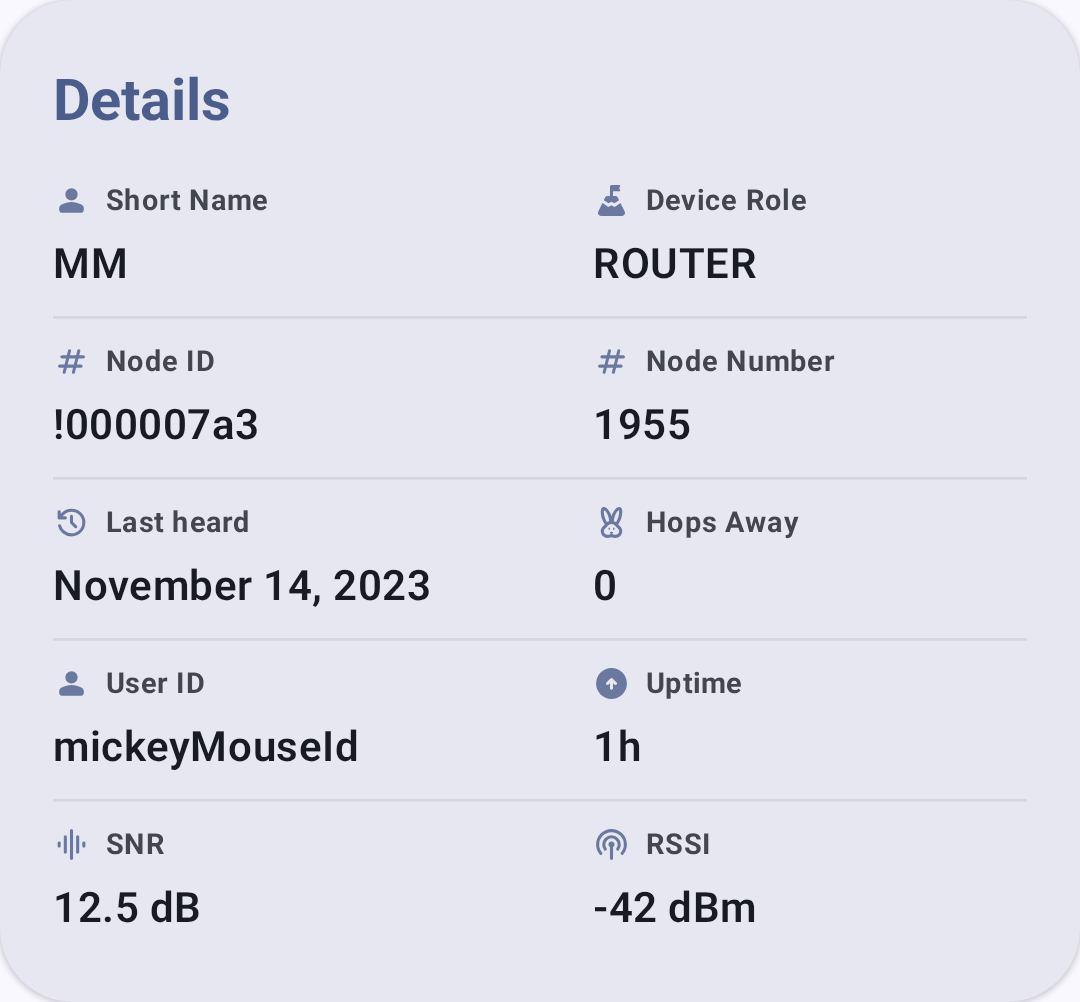
The Details card carries the node’s short name, role, IDs, last heard time, hops away, uptime, and its SNR and RSSI:
Встроенные индикаторы статуса показывают ключевые показатели с первого взгляда:
| Индикатор | Снимок экрана |
|---|---|
| Качество сигнала |  |
| Уровень заряда батареи | 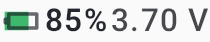 |
| Количество хопов | 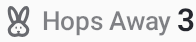 |
| Последний раз слышен |  |
| Расстояние |  |
Hardware support status
When a node’s hardware is recognized, the detail view names the device and marks its support status, taken from the Meshtastic device registry rather than the app:
| Mark | Значение |
|---|---|
| Rosette (green) | Supported — hardware the Meshtastic project actively supports |
| Wrench (sky blue) | Independent maker hardware — built and tested by an independent maker, shown as its own rung whether or not the project has promoted it yet |
| Unverified (red) | Supported by Meshtastic Community — hardware the project does not actively support, including legacy boards |
The label always accompanies the mark, so the status is never conveyed by colour alone.
Device links (“I want one”)
Когда оборудование ноды распознано, в детальном просмотре появляется сворачиваемый раздел “Хочу такой”, содержащий ссылки на места, где можно купить или узнать больше об этом устройстве: страницу продукта у производителя, варианты продукта и объявления на региональных торговых площадках (например, AliExpress, Amazon и у поддерживаемых продавцов), отфильтрованные по твоей стране. Каждая ссылка открывается через сервис перенаправления msh.to. Устройства без подходящих ссылок не показывают этот раздел.
A full, browsable directory of every link is also available at Settings → Device Links. The item is hidden while you have Settings open for a remote node.
Some of these are affiliate links. Both places say so above the links: product links may be affiliate links, and purchases may earn Meshtastic a commission.
Remote shell
Open terminal, in the node’s Administration card, opens a shell on a Linux node running meshtasticd 2.8.2 or later, carried over the mesh. The node accepts it only from a radio whose public key is in its Security → Admin key list, the same list remote administration uses; the app starts that admin session first if there isn’t one, and the card’s title shows whether it is active. The terminal takes the whole window. If the node never answers, the screen says so after a minute.
The mesh carries a few hundred bytes a second, and the terminal is built around that:
- Once the node has echoed the first character of a line, what you type appears underlined at the cursor until the node echoes it back. At a prompt that doesn’t echo, such as a password, nothing you type is shown; in line mode the command box masks its text and keeps it out of history.
- The subtitle shows the measured round trip. When the node stops answering, a line at the top of the terminal says how long ago it was last heard.
- The two rows of extra keys give ESC, TAB, arrows, HOME, END, PGUP and PGDN. CTRL and ALT are sticky: tap once to apply to the next key, twice to lock, a third time to release. CTRL then c interrupts a running command. A hardware keyboard’s Ctrl and Alt work as usual.
- Line mode, in the ⋮ menu, gives you a command box: each command goes out in one transmission, ↑ and ↓ recall earlier commands without asking the node, and chips offer common commands for a
meshtasticdhost. It is the cheapest way to use the shell on a busy mesh. - The ⋮ menu also pastes from the clipboard and changes the text size.
Colour, progress lines and clear display as they would in a desktop terminal. Full-screen programs such as vi or top redraw the whole screen for each key, which the mesh cannot carry; the terminal shows a notice instead.
When no nodes appear
The list stays empty until your node hears another node.
- No device connected — the app isn’t connected to a node. See Connections.
- Searching for nodes — the node is connected and listening, but nothing has arrived yet. Check that its region and modem preset match the mesh around you, and leave Include unknown on so a node that hasn’t yet sent its name still appears. See Settings — Radio & User.
- A node you expect is missing — check the filter toggles. Only show direct nodes, Exclude MQTT, and Exclude infrastructure each hide a whole category of node.
Связанные темы
- Метрики ноды — подробные телеметрические панели для каждой ноды
- Сообщения и каналы — отправь личное сообщение ноде
- Карта и путевые точки — просмот позиции нод на карте
- Local Mesh Discovery — traceroute and neighbor info for topology exploration
- Индикатор сигнала — пойми, что означают полоски сигнала