Актуализации на фърмуера
Поддържайте вашето Meshtastic радио актуално с най-новия фърмуер за нови функции, корекции на грешки и подобрения в сигурността.
Проверка за актуализации
- Open the connected radio’s configuration and, under Advanced, tap Firmware Update. The entry appears only for OTA-capable devices.
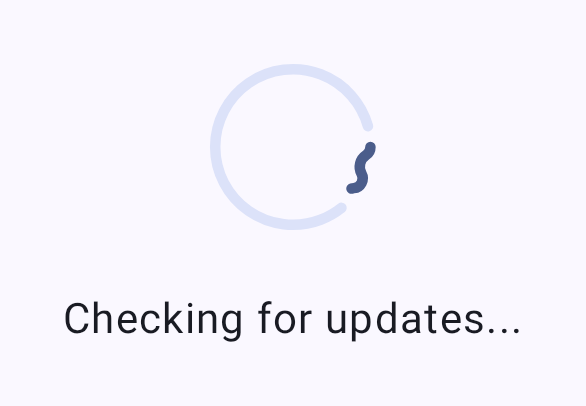
- Приложението проверява за налични версии на фърмуера.
- Available updates show the version number and changelog summary.
Методи за актуализиране
OTA (Over-The-Air) чрез Bluetooth
Най-често срещаният метод за актуализиране за потребителите на Android:
- Уверете се, че радиото ви е свързано чрез Bluetooth.
- Отидете до екрана за актуализация на фърмуера.
- Изберете желаната версия на фърмуера.
- Tap Update to begin the OTA process.
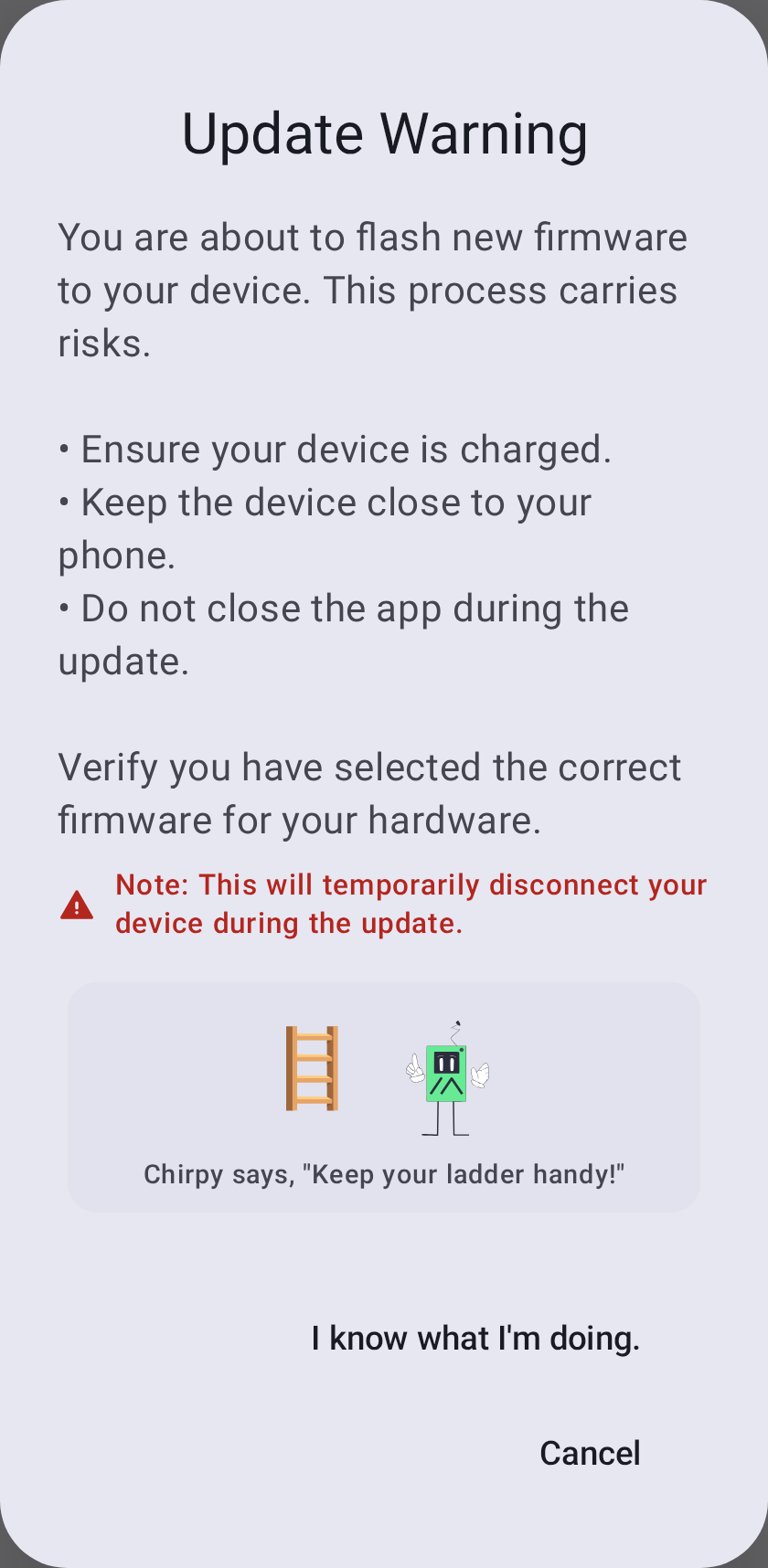
- Wait for the update to complete — do not disconnect during the update.
⚠️ Warning: Interrupting a firmware update can brick your device. Ensure your radio has sufficient battery (>50% recommended) and maintain Bluetooth proximity during the entire process.
In-App USB Update
When your radio is connected over USB/serial (rather than Bluetooth), the Firmware Update screen offers USB File Transfer. The app reboots the device into DFU mode, then prompts you to save the .uf2 file to the device’s DFU drive using the system file picker. This option appears only on a USB/serial connection — it is not available over Bluetooth.
ℹ️ nRF bootloader note: Some devices (e.g. RAK WisBlock RAK4631) need their bootloader flashed with the vendor’s serial DFU tool (such as
adafruit-nrfutil) — copying the.uf2alone won’t update the bootloader. The app surfaces a hint when this applies.
Other Flashing Options
For recovery or when neither OTA nor in-app USB is available:
- Use the Meshtastic Web Flasher
- Or the Meshtastic CLI tool on desktop
Канали на версиите
| Канал | Описание |
|---|---|
| Стабилен | Препоръчва се за повечето потребители; тествани версии |
| Алфа | Предварителни издания; може да съдържат грешки |
| Локален файл | Flash a firmware file you select yourself, instead of a downloaded release |
Контролен списък преди актуализация
Преди актуализиране:
- Батерия > 50%
- Стабилна Bluetooth връзка
- Запишете текущите си настройки (те могат да се нулират при големи промени във версията)
- Проверете бележките към изданието за важни промени
След актуализация
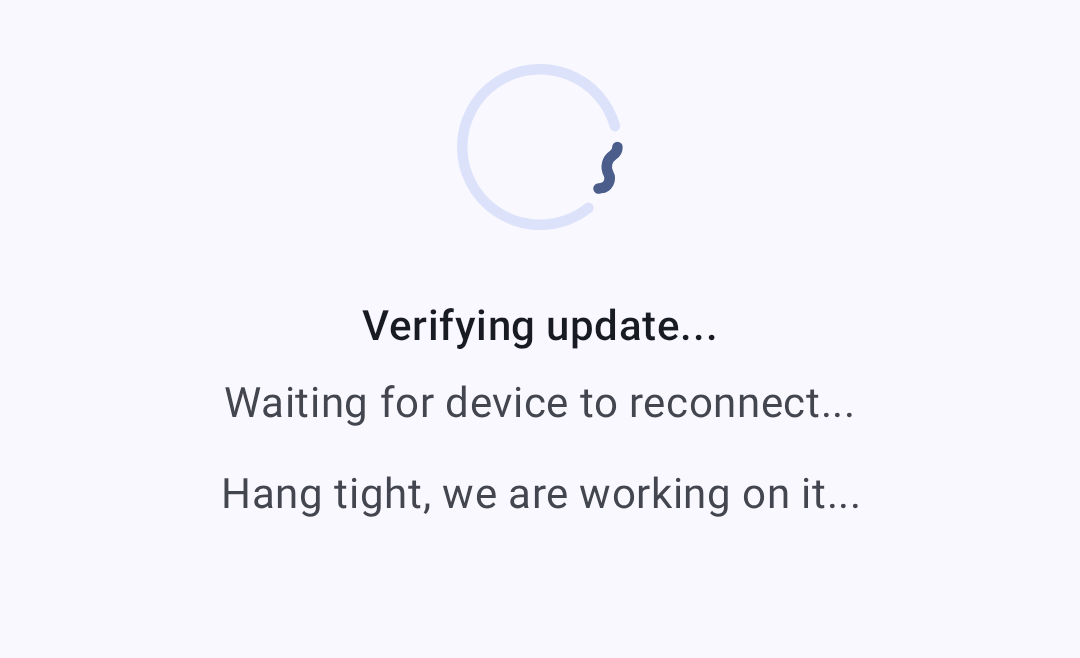
After the firmware is written, the app verifies the update and waits for the device to come back online:
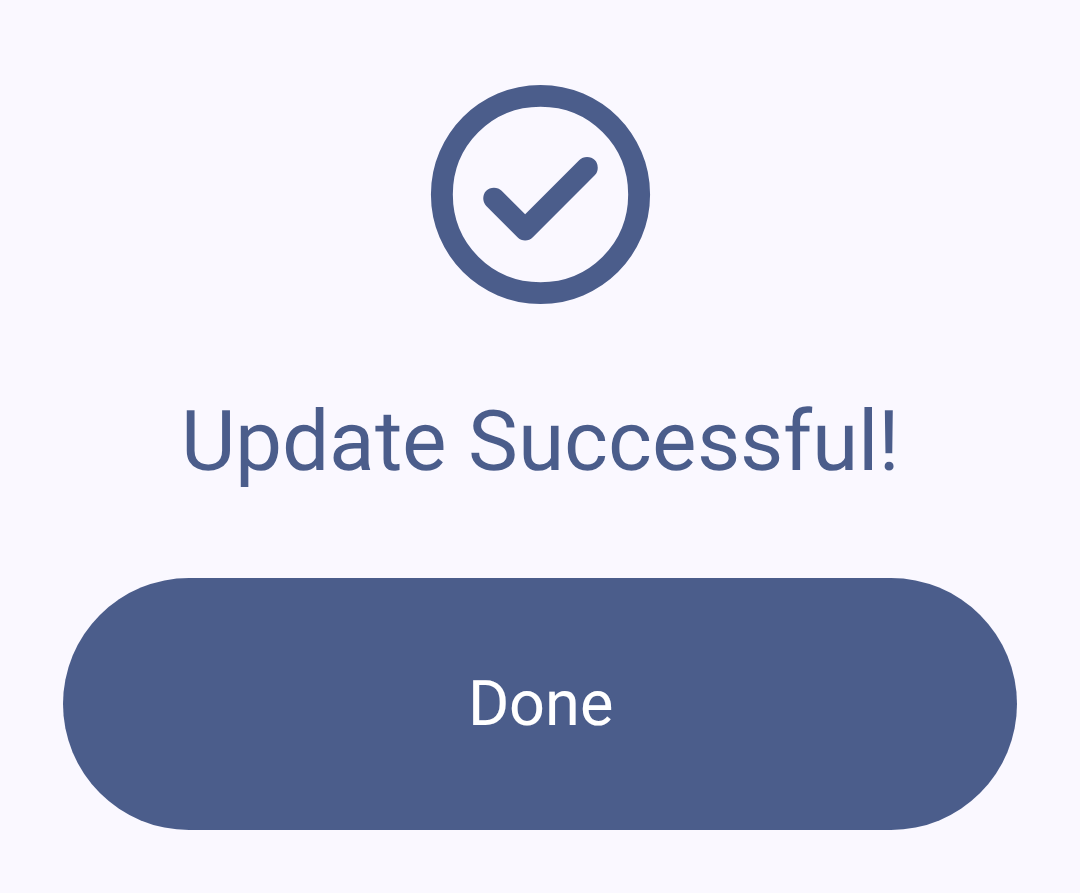
Once the update succeeds:
- Радиото ще се рестартира автоматично
- Bluetooth връзката ще се възстанови
- Проверете дали настройките ви са непокътнати
- Confirm the new version under Currently Installed on the Firmware Update screen — it’s also shown on the node’s detail page and the Connections screen
Отстраняване на неизправности
Update Stuck
If the update appears frozen:
- Изчакайте поне 5 минути, преди да се намесите
- If truly stuck, power-cycle the radio
- Опитайте актуализацията отново
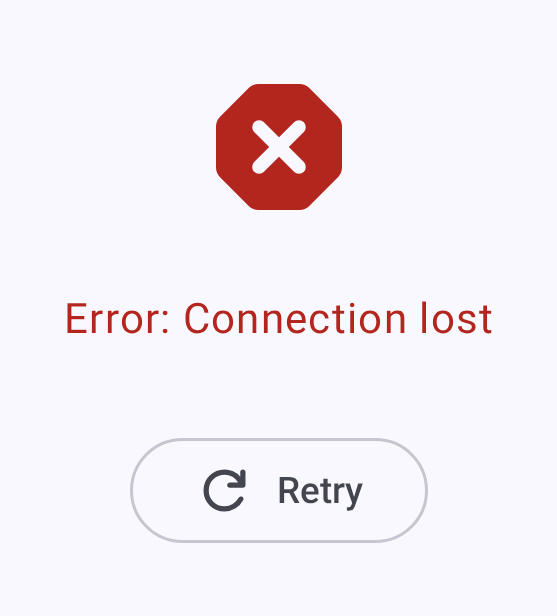
Device Won’t Boot After Update
If your device fails to boot:
- Try connecting via USB to a computer
- Use the web flasher in recovery/DFU mode
- Flash a known-good firmware version
- Check the Meshtastic Discord for device-specific recovery steps
Compatibility Warnings
The app may show warnings when:
- Connected radio firmware is below minimum supported version
- Major version mismatch between app and firmware
- Deprecated features need migration
⚠️ Important: Always update the Meshtastic app before or alongside firmware updates to ensure compatibility.
Related Topics
- Connections — reconnecting after a firmware update
- Flashing firmware guide — full firmware flashing walkthrough on meshtastic.org
- Supported devices — check firmware compatibility by device
- FAQ — common questions on meshtastic.org